Resources
 Feature overview

 browser
 2026-05-26 10:55
Today, platforms no longer rely only on Cookies to identify users. Behind the scenes, increasingly advanced browser fingerprinting technology is being widely used.
Especially in recent years, Canvas Fingerprinting has been mentioned more and more often. It does not require your permission, nor does it trigger any popup notifications, making it a commonly used tracking method.
In this article, we’ll walk you through the principles, detection methods, and privacy risks of Canvas Fingerprinting step by step. Even if you’re not a technical expert, you’ll still be able to understand it and quickly learn how to test it yourself.

1. What Is Canvas Fingerprinting? Why Is It Important?
Canvas Fingerprinting uses the HTML5 Canvas drawing feature to make your browser “draw an image,” then generates a unique identifier based on subtle rendering differences.
For example, the same image may render slightly differently across devices. Fonts, graphics cards, operating systems, and drivers can all affect the final result.
These tiny differences eventually form a nearly unique browser identifier. That’s why many platforms use Canvas Fingerprinting for tracking and anti-fraud detection.
2. How Does Canvas Fingerprinting Expose You?
Many users believe that “clearing Cookies = privacy protection,” but Canvas Fingerprinting does not rely on Cookies at all. Its exposure process usually works like this:
• The website calls the Canvas API to draw graphics
• The browser returns rendering data
• JavaScript hashes the rendering result
• The fingerprint is matched against an existing fingerprint database
Once matched successfully, your device can be identified. That’s why it’s important to regularly perform Canvas Fingerprint detection to see whether your browser has already been marked or tracked.
3. How to Perform Canvas Fingerprint Detection (Practical Guide)
Method 1: Use Professional Detection Tools (Recommended)
One of the commonly used tools today is ToDetect. It allows you to run a complete browser fingerprint analysis directly:
Canvas fingerprint detection, WebGL fingerprinting, font fingerprinting, AudioContext fingerprinting, and User-Agent analysis.
Its advantage is that it presents your browser characteristics visually, breaking them down into scores and risk levels.
👉 The process is simple:
1. Open the ToDetect fingerprint detection page
2. Click “Canvas Fingerprint Detection”
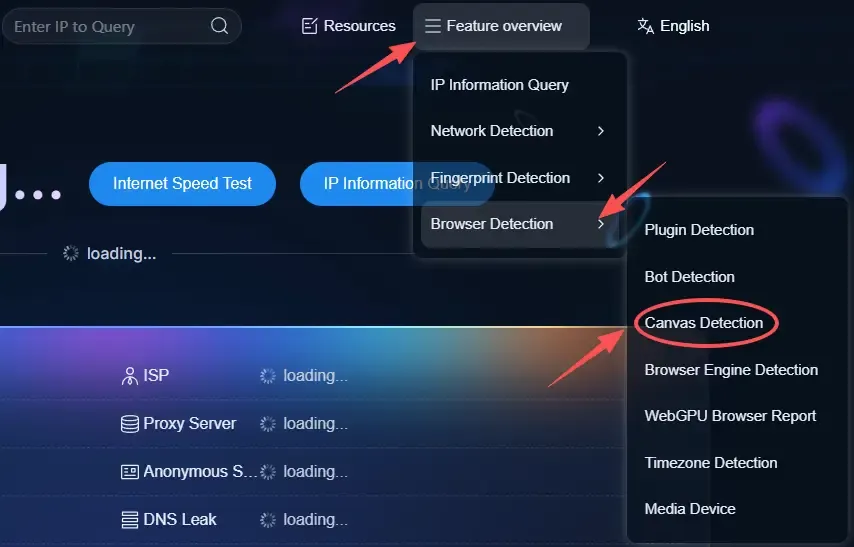
3. Wait for the system to generate your browser fingerprint report
4. Check whether your Canvas fingerprint is unique or highly identifiable
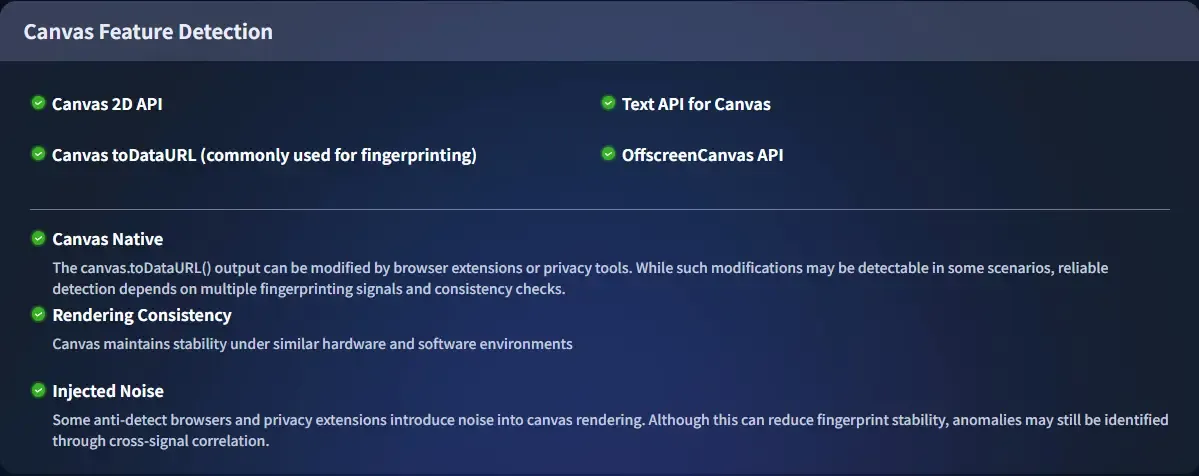
If the result shows “Highly Unique” or “Unique,” it means your Canvas fingerprint already has strong identifying characteristics.
Method 2: Browser Developer Tools Detection (Advanced)
If you have some technical knowledge, you can also:
Open Chrome DevTools → Run a Canvas rendering test script → Compare changes in the hash value.
However, this method is more complex for ordinary users and is better suited for developers and debugging purposes.
4. How to Read Canvas Fingerprint Detection Results?
After running a Canvas fingerprint test, many people don’t understand the report. Here’s a breakdown of the key indicators:
1. Uniqueness (Unique)
If the result shows “Unique,” it means your Canvas fingerprint can almost be individually identified among all sampled devices.
2. Stability (Stable)
“Stable” means your Canvas fingerprint remains consistent every time you visit a website, making long-term tracking possible.
3. Fingerprint Entropy
The higher the entropy value, the more complex the information, which also means your Canvas fingerprint is more likely to become unique.
4. Repeatability
If the results remain consistent over time, it means the Canvas fingerprint is reproducible rather than random.
5. Device Information Binding
If the Canvas fingerprint closely matches system, GPU, and font information, it indicates a strong device-level binding relationship.
6. Spoofing or Noise Detection
If noise interference appears in the report, your browser may have anti-fingerprinting or obfuscation mechanisms enabled.
7. Consistency with Other Browser Fingerprints
If the Canvas fingerprint matches WebGL, fonts, and other fingerprint results, it means a complete browser fingerprint profile has already been formed.
5. Canvas Fingerprinting Is Only the Tip of the Iceberg
Many people think that handling Canvas alone is enough, but a complete fingerprinting system also includes:
WebGL rendering fingerprints, screen resolution and display parameters, system font lists, plugin information, timezone settings, and language environments.
That’s why the current trend is “multi-dimensional browser fingerprint detection,” with Canvas being only one component.
6. How to Reduce Canvas Fingerprint Exposure Risks?
1. Use privacy-focused browsers. Some browsers add random noise or standardized outputs during Canvas rendering to reduce fingerprint uniqueness.
2. Disable or restrict the Canvas API. Browser settings or privacy extensions can limit Canvas read permissions, reducing the chance of websites obtaining real rendering data.
3. Use fingerprint protection extensions. Certain browser plugins can spoof or obfuscate Canvas outputs, making fingerprints inconsistent across websites.
4. Enable anti-fingerprinting mode. Some enhanced privacy modes standardize fonts, resolutions, and other parameters to reduce Canvas rendering differences at the source.
5. Use virtual machines or isolated browsing environments. Running browsers inside virtual machines or containers can help prevent real hardware characteristics from being collected.
6. Perform regular Canvas fingerprint detection . Tools like ToDetect can help you regularly check your Canvas fingerprint status and determine whether it has become highly unique.
7. Canvas Fingerprint Exposure Risk Level Reference Table
To help you better understand your Canvas fingerprint detection results, here is a practical risk-level comparison table:
| Risk Level | Characteristics | Identification Capability | Recommended Action |
|---|---|---|---|
| Low Risk | Canvas output changes occasionally and device characteristics are unstable | Difficult to identify consistently over time | No special action required for normal browsing |
| Medium Risk | Canvas rendering is stable but similar to some other devices | Can be probabilistically identified | Use privacy mode or isolated environments |
| High Risk | Canvas fingerprint is highly stable and strongly unique | Very easy to track long-term | Use anti-fingerprint browsers or restrict the Canvas API |
| Very High Risk | Canvas + WebGL + fonts and other dimensions are fully consistent | Almost equivalent to a “Device ID” | A complete browser fingerprint protection solution is recommended |
Conclusion
Many people believe that as long as they don’t log in or grant permissions, they won’t be tracked. But in today’s browser fingerprinting ecosystem, Canvas is only one of the most basic yet critical dimensions.
It’s recommended to regularly perform fingerprint detection using tools like ToDetect to understand how identifiable your device is, then decide whether privacy optimization is necessary based on your risk level.
Privacy is not about being “completely invisible,” but about “controllable exposure.” Start by understanding your own browser fingerprint from your next detection test.