Resources
 Feature overview
How to completely remove leftover extensions in Chrome/Edge/Firefox browsers
 bonnie
 2026-01-12 05:56


Browser extensions bring great convenience to our daily use, such as ad blocking, privacy protection, and video downloading. However, with continuous installation and removal of extensions, residual plugin issues gradually emerge—affecting browser performance and even posing privacy and security risks.
This article provides a detailed guide on how to completely remove extension leftovers in the three major mainstream browsers—Chrome, Edge, and Firefox—to ensure a clean and secure browser environment. It also introduces extension detection tools to help you understand your browser’s extension status.

I. Why Should You Clean Up Extension Residues?
After an extension is uninstalled, configuration files, cache, registry entries, or script injection traces may still remain.
These leftovers may lead to:
• Slow browser performance and lag
• Abnormal page display or broken functionality
• Increased risk of privacy leakage and sensitive data tracking
• Being flagged as an abnormal environment by risk-control systems, affecting account security
In cross-border e-commerce, multi-account operations, and cybersecurity fields, cleaning extension residues is a critical step to protect accounts and mitigate risks.
II. Chrome Browser Extensions Residue Cleanup Methods
1. Manually Uninstall Extensions
Open Chrome, click the three-dot menu in the top-right corner → “Extensions” → “Manage Extensions”. Find the extension you no longer need and click “Remove”.
2. Clear Browser Cache and Data
Go to “Three-dot Menu” → “Settings” → “Privacy and Security” → “Clear Browsing Data”.
Check “Cached images and files” and “Cookies and other site data”, then click Clear.
3. Delete Residual Files and Configurations
After uninstalling an extension, its configuration files may still exist locally:
Close Chrome and navigate to the following paths:
• Windows:%LOCALAPPDATA%\Google\Chrome\User Data\Default\Extensions
• macOS:~/Library/Application Support/Google/Chrome/Default/Extensions
Delete the folders of extensions you no longer use.
4. Reset Chrome Settings (Optional)
Go to “Settings” → “Reset settings” → “Restore settings to their original defaults”, and confirm.
III. Edge Browser Extension Residue Cleanup
Edge is based on the Chromium engine, so the cleanup process is similar to Chrome:
1. Uninstall Extensions
Click the three-dot menu → “Extensions” → “Manage Extensions” → remove the target extension.
2. Clear Cache and Data
Go to “Three-dot Menu” → “Settings” → “Privacy, search, and services” → “Clear browsing data”, and select the items to clean.
3. Delete Extension Files
Close Edge and navigate to:
• Windows:%LOCALAPPDATA%\Microsoft\Edge\User Data\Default\Extensions
Manually delete unnecessary extension folders.
4. Reset Edge Settings
Go to “Settings” → “Reset settings” → “Restore settings to their default values”, and confirm.
IV. Firefox Browser Extensions Residue Cleanup Methods
1. Uninstall Add-ons
Click the three-line menu → “Add-ons and Themes” → “Extensions”, find the extension and click “Remove”.
2. Clear Cache and Data
Menu → “Settings” → “Privacy & Security” → “Clear browsing data”, then select the relevant items.
3. Delete Configuration Residues
Close Firefox and locate the profile directory:
• Windows:%APPDATA%\Mozilla\Firefox\Profiles\
• macOS:~/Library/Application Support/Firefox/Profiles/
Open the corresponding profile and delete extensions.json, extensions.sqlite, or related residual files (backup recommended before operation).
4. Refresh Firefox
Menu → “Help” → “More Troubleshooting Information” → click “Refresh Firefox” to restore default settings and remove all extension residues.
V. Detect Extension Residue Risks with ToDetect
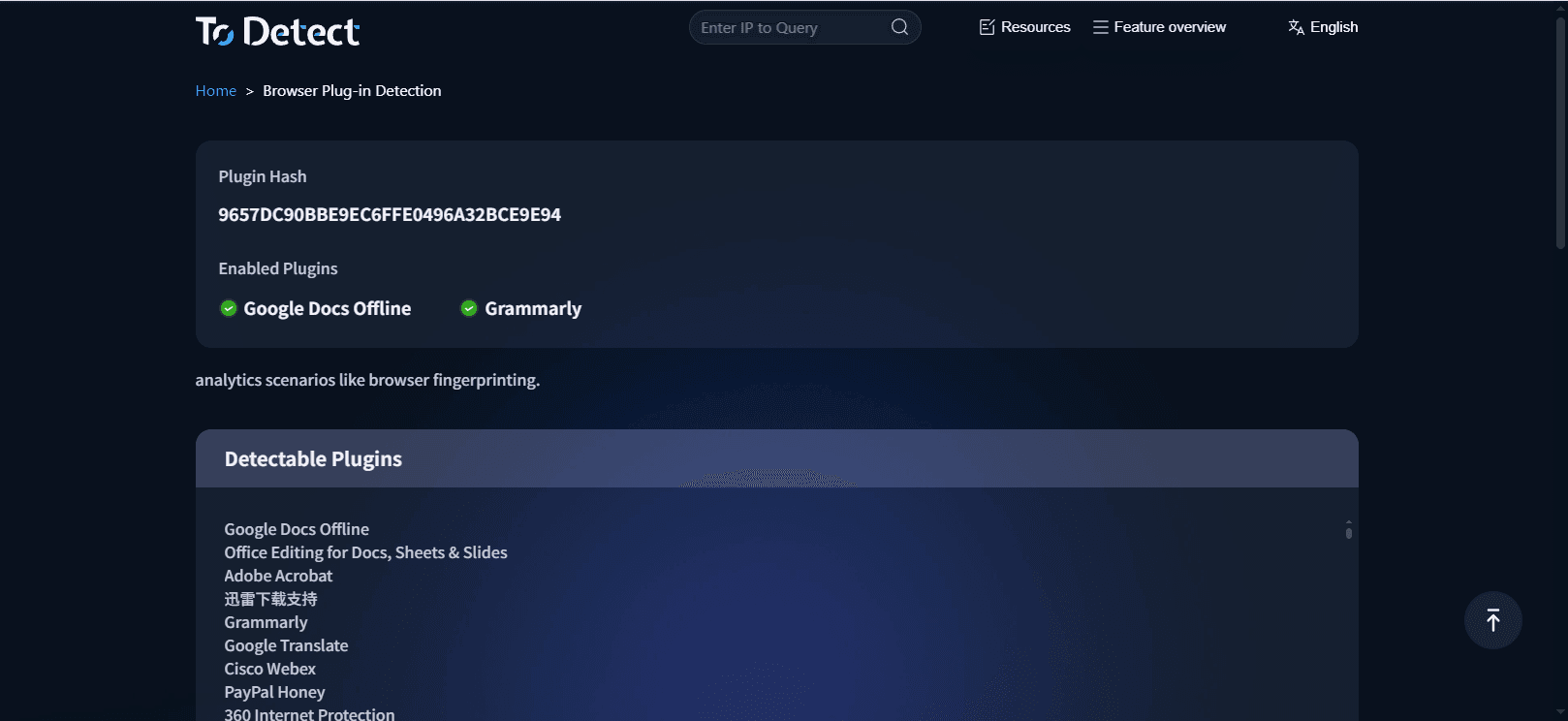
The ToDetect online extension detection feature can scan your browser environment in real time and list all currently enabled extensions. Combined with the cleanup steps, you can:
• Confirm whether extensions are completely uninstalled and avoid risks from leftovers
• Detect unauthorized or malicious extensions in time to protect privacy
• Assist with risk-control environment management and reduce account anomalies
Visit the ToDetect browser extension detection page to quickly understand your current extension status and support your cleanup efforts.
VI. Tips for Cleaning Extension Residues
• Regularly review your browser extensions to avoid long-term accumulation
• Install extensions only from official sources to avoid unknown add-ons
• Back up important data before clearing browser cache or local files
• After uninstalling extensions, verify their status using tools like ToDetect
Conclusion
While browser extensions provide great convenience, residue issues should not be overlooked. Chrome, Edge, and Firefox often leave residual files and configurations after extensions are uninstalled, affecting performance and security.
Through manual cleanup, resetting browser settings, and using the ToDetect extension detection tool, you can systematically understand extension residues, ensure a clean browser environment, and enhance privacy protection and account stability.
 AD
AD