Resources
 Feature overview
Browser Can't Show Surveillance – Which Plugin Should I Install?
 Ganesh
 2025-11-27 06:06


After purchasing a network camera or surveillance camera, many people want to access the device page directly through a computer browser, allowing real-time video preview or remote management.
However, some devices display messages like "Please install plugin" or "Unable to load video stream" when accessed via a web page, which can be confusing.
In fact, different browser environments, plugin compatibility, and system security policies can all affect the proper display of the preview.
This article will introduce common types of surveillance access plugins, browser compatibility methods, and how to check whether plugins are functioning correctly.

1. Why Browser Access to Surveillance Requires Plugins
Early surveillance devices mostly relied on browser plugins to load video streams and the operation interface. These plugins were usually based on ActiveX or NPAPI technologies, primarily compatible with Internet Explorer (IE).
Plugins provide the browser with:
Video stream decoding
Remote camera control
Playback and operation of recorded footage
If the plugin is missing or blocked by the system, the browser cannot display the surveillance video correctly, resulting in a black screen or connection failure.
With browser architecture upgrades, modern browsers like Chrome, Edge, and Firefox have gradually removed old plugin interfaces, which is why many older devices can only be accessed properly in IE mode.
2. Common Types of Surveillance Access Plugins
ActiveX Controls (OCX)
Commonly used in early Hikvision, Dahua, and other devices
Primarily runs in IE browser
Functions: real-time preview, recording control, snapshot, and other core operations
NPAPI Plugins
Used by some older camera or DVR models
Compatible with early versions of Firefox or Chrome
Note: Modern mainstream browsers no longer support this
WebComponents Plugins
Newer devices use HTML5 and WebComponents technology
Supports plugin-free access mode
Some advanced features may still require browser extensions
3. Recommended Browsers and Access Methods
1. IE Browser (or Edge IE Mode)
If the device requires installing an OCX control, it can only run in this environment
In Windows:
Open Control Panel → "Turn Windows features on or off" → Enable Internet Explorer components
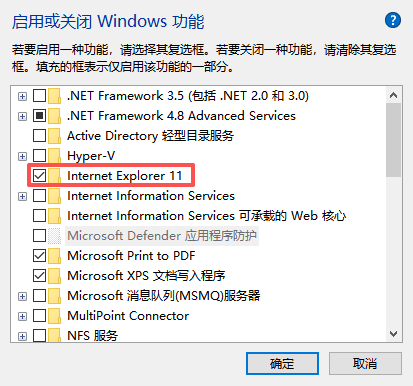
In the new Edge: Settings → Enable IE Mode for compatibility access

2. Modern Browsers (Chrome, Firefox, Safari)
If the device is newer and supports plugin-free preview, you can access the device IP directly
Recommended browser versions:
Chrome 57+
Firefox 52+
Safari 11+
4. How to Check if Browser Plugins Are Working
If users are unsure whether a plugin is installed or loaded correctly, they can use online detection tools, such as ToDetect Browser Plugin Detection Tool.
Users can see a list of recognized plugins after visiting the page
If the surveillance plugin is not detected, adjustments can be made according to the results

5. Plugin Installation and Troubleshooting
If the surveillance page still shows "Plugin not detected" or "Installation failed," try the following:
Reinstall the plugin
Download the plugin package for the specific device model
Right-click and choose "Run as administrator" to avoid permission restrictions
Temporarily disable security software
Antivirus or system protection may block plugin registration
Temporarily disable and retry
Adjust browser security settings
In IE → enable ActiveX controls in "Internet Options"
Add the device IP to "Trusted Sites"
Lower security level as appropriate
Clear browser cache
Old cache may cause plugin files to load incorrectly
Re-access the device page after clearing
Try compatibility view mode
In IE, add the device address to the compatibility view list
Log in to the device again
6. Plugin-Free Preview Alternatives
For cameras with newer firmware (V5.6.0 and above), preview can be done directly in modern browsers without plugins.
If a black screen or load failure occurs, check the following settings:
Whether the browser is blocking video stream loading
Whether device network ports are configured correctly
Whether browser privacy or HTTPS policies are preventing access
Conclusion
Common issues when web access to surveillance devices relies on browser plugins include:
Plugin installation failure
Insufficient permissions
Compatibility conflicts
By using the ToDetect Browser Plugin Detection Tool, users can quickly check plugin loading status and locate issues.
Combined with proper browser settings and version compatibility, normal preview of the surveillance page can be restored. For new devices, plugin-free access mode is preferred for a more stable and secure experience.
 AD
AD