Resources
 Feature overview
How to quickly check if a browser extension is safe
 Charles
 2025-11-24 07:28


After installing a browser extension, we often worry whether it will collect data or affect system security. The features of extensions can indeed enhance browsing experience, but some may pose privacy risks or have hidden behaviors. To determine if an extension is safe, it’s important to understand its source, permissions, and how it operates. The following content will introduce several feasible inspection methods and explain how to use the ToDetect browser extension detection tool to automatically analyze the security status of extensions.

1. Potential Risks of Browser Extensions
Plugins run within the browser, allowing access to web data, network requests, or local files. If designed or maintained improperly, they can pose security risks. Common risks include:
Unknown source
Some plugins come from unofficial stores or third-party websites and may contain malicious scripts.Excessive permissions
The plugin requests access to all website data, browsing history, or clipboard permissions during installation, which may be abused.The update has been tampered with.
If a plugin is automatically updated from an unsafe source, it may be replaced with a version containing malicious code.Background data collection
Some plugins may periodically upload usage data or access records.Long time without maintenance
The plugin has not been updated for a long time, making it prone to compatibility issues or unpatched vulnerabilities.
Understanding these risks helps to assess the credibility of a plugin.
2.Browser Extension Security CheckCommon methods
1. Check the source of the plugin.
Installing extensions through the Chrome Web Store can reduce risks.
Plugins from compressed packages or third-party download sites should be used with caution.
Go to the extension management page (
chrome://extensions/),click “Details” to view the “Source” information.If it displays "From the Chrome Web Store," it indicates that the release channel is normal.
2. Check plugin permissions
The permission scope reflects the types of data that the plugin can access.
On the "Details" page, check the "Permissions" item. If you see "Read and change all site data" or "Read local files," it indicates that the plugin can access a lot of content.
General tool plugins (such as screenshot and translation) only need limited permissions.
If the permissions are clearly excessive for the intended use, consider disabling or uninstalling.
3. Focus on developer and user feedback
Click "View details in the Chrome Web Store" to see the developer's name, official website, and user reviews.
By checking the number of reviews, the time, and the content, one can determine whether the plugin is still being maintained.
If the review mentions frequent pop-ups, redirect ads, or abnormal requests, there may be risks.
4. Check the network behavior of the plugin.
Some plugins continuously access external servers in the background for synchronization or advertising requests.
You can check its network activity in the Task Manager:
Chrome menu → More tools → Task manager
Check the CPU and network usage of each plugin.
Plugins that consume resources for an extended period are worth further analysis.


3. Usage ToDetect detection pluginSafety status
Manual checks can eliminate obvious risks, but it is difficult to identify permission conflicts or hidden behaviors.
The ToDetect browser plugin detection tool offers an automatic detection feature that can quickly scan browser plugins.
Operating steps:
Open the ToDetect website and navigate to the "Plugin Detection" page.
Wait for the test to complete and check the results.
The page will list the detectable plugins and their status.
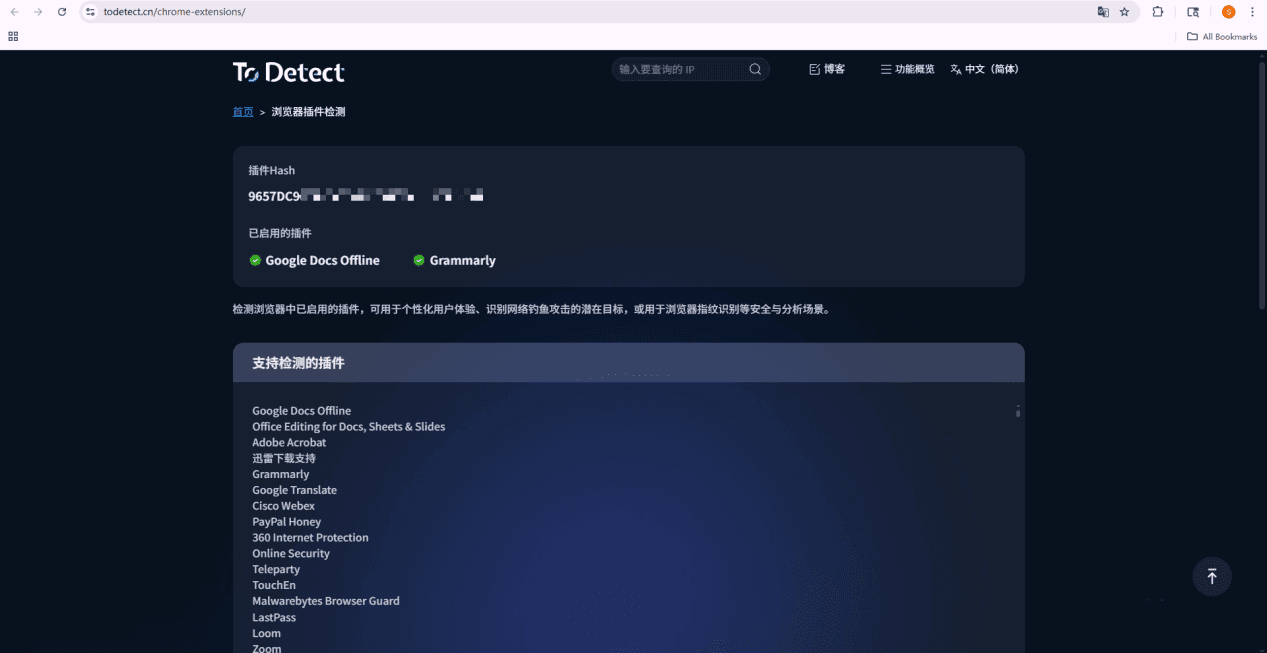
Process the detection results
If marked "✅️", it indicates that the plugin source and permissions are within normal range.
IV. Daily Practices for Keeping Plugins Secure
Only install necessary plugins.
Installing too many plugins can increase the risk of conflicts and privacy leakage.Regularly check permissions
Regularly check the plugin permissions on the extension page for any changes, and manually disable any excess permissions.Regular updates
Keep the browser and plugins updated to fix known vulnerabilities.Delete unused plugins.
Disable or uninstall unused plugins to reduce the potential attack surface.Recheck using detection tools.
Regular use of the ToDetect browser plugin detection tool can promptly detect changes.
Summary
To determine whether a browser extension is safe, mainly look at the source, permissions, and behavior.
Users can make a preliminary assessment of security by viewing the extension details, permissions list, and update history.
To assess more intuitively, you can use the ToDetect browser extension detection tool to automatically scan browser extensions.
Keeping the number of plugins minimal, regularly updating them, and checking permissions can effectively reduce security risks in the browser.
 AD
AD