Resources
 Feature overview

 Charles
 2026-05-18 11:27
Many people working in cross-border e-commerce or social media operations don’t really know how to interpret DNS leak test results. Does seeing “red text” automatically mean it’s unsafe?
Some users get completely confused when they see a test page filled with DNS addresses in red and black. In reality, DNS leak test results are not about colors — the key is whether the “routing path is consistent.”
Next, we’ll explain how to read DNS leak test results, which situations are considered safe, which ones must be fixed, and some important details many people often overlook.

1. First, What Is a DNS Leak?
DNS works like a “translator” that converts website names into IP addresses. For example, when you type in Google, DNS tells your system which server to connect to.
• A DNS leak happens when you are using a proxy or VPN/IP tool, but your DNS requests are still being sent through your local ISP’s DNS servers.
• As a result, your real network provider can still see which websites you visit, meaning your privacy protection becomes only “partially effective.”
In some regions, this may also cause redirects or access restrictions, which is why many users run DNS Leak Tests to check whether their connection is secure.
2. DNS Leak Detection : How to Read the Results? Focus on These 3 Things
Many tools today (such as the ToDetect testing platform) can perform DNS leak detection. The result page usually lists DNS server information.
1. Check Whether the DNS Provider Looks “Clean”
Safe situation: The DNS servers belong to your VPN/IP service provider or a trusted public DNS provider such as Cloudflare or Google DNS.
Risky situation: You see DNS servers belonging to your local ISP or DNS nodes located in your real country/region.
👉 If your test result shows your local ISP DNS, there is a high chance that a DNS leak exists.
2. Check Whether the Number of DNS Servers Is Abnormal
Normal situation: 1–3 DNS servers is usually considered reasonable.
Abnormal situation: Multiple DNS servers from different regions appear, or the DNS list constantly changes.
👉 This often means the system is falling back to local DNS automatically, and your VPN/IP tool is not fully handling DNS requests.
3. Check Whether the DNS Location Matches the IP Location
Another key point in DNS leak testing: if your IP appears to be in the United States but your DNS servers are located in China, that is a classic DNS leak.
👉 Ideally, the IP location and DNS server location should roughly match (or both align with the VPN exit node).
3. Common DNS Leak Causes and Symptoms (Troubleshooting Table)
| Common Cause | Typical Symptom | DNS Leak Test Indicator | Real Impact | Suggested Fix |
|---|---|---|---|---|
| VPN/IP tool DNS protection disabled | DNS shows local ISP | Telecom/mobile carrier DNS appears | Privacy exposure and browsing traceability | Enable “Use VPN DNS” |
| System automatically falls back to local DNS | DNS list unstable or mixed | Local + public DNS appear together | Inconsistent traffic routing | Manually lock DNS servers |
| IPv6 not disabled | Separate IPv6 DNS leak | IPv6 address differs from VPN/IP location | Hidden leak risk | Disable IPv6 or force tunneling |
| Browser DoH settings inconsistent | Browser DNS differs from system DNS | Split DNS sources | Bypasses VPN configuration | Standardize secure DNS settings |
| Router DNS hijacking/cache issues | DNS replaced by router address | LAN or gateway IP appears | Local network-level leak | Modify router DNS configuration |
| VPN/IP node issues | DNS region differs from IP region | DNS in country A, IP in country B | Reduced anonymity | Switch VPN/IP nodes |
| Firewall/security software interference | DNS requests redirected | Abnormally complex DNS routing | Resolution failures or leaks | Temporarily disable security software for testing |
4. What Counts as a “Safe” DNS Leak Test Result?
Many people ask: what exactly is considered safe? Here’s a simple guideline:
✅ Safe situation: All DNS servers come from the VPN/IP provider or trusted public DNS providers, no local ISP DNS appears, IP and DNS regions match, and privacy tests show no abnormal fingerprint exposure.
❌ Unsafe situation: ISP DNS appears, DNS and IP regions do not match, or IPv6 traffic bypasses the VPN/local network protection.
One important reminder: DNS leaks are rarely isolated problems. They often appear together with abnormal browser fingerprint detection results.
5. How to Fix DNS Leaks (Practical Methods)
If your DNS leak test shows issues, you can troubleshoot step by step using the methods below:
Method 1: Force the VPN/IP Tool to Use Its Own DNS
Most professional VPN/IP tools provide a “Use DNS” option:
Open your VPN/IP tool settings → find DNS / Advanced settings → enable “Use VPN DNS” or “Prevent DNS Leak.”
Method 2: Manually Switch to Public DNS
If your VPN/IP tool is unreliable, you can manually configure DNS:
• Cloudflare: 1.1.1.1 / 1.0.0.1
• Google DNS: 8.8.8.8 / 8.8.4.4
Setup methods:
• Windows: Network Adapter → IPv4 Settings
• Mac: Network → DNS Configuration
• Mobile: WiFi Advanced Settings
Method 3: Disable IPv6 (Often Overlooked)
Many “hidden DNS leaks” actually come from IPv6.
Solution: Disable IPv6 in your router or operating system network settings. This often significantly improves DNS leak test results.
Method 4: Browser-Level Protection (Very Important)
Many users only focus on the system, but browsers can leak information too. It’s recommended to enable Secure DNS / DoH, browse in private mode, and regularly run browser fingerprint tests.
Some websites don’t just check DNS — they also identify your real environment through browser fingerprinting.
Method 5: Retest with Another Reliable Tool
After fixing the issue, always retest. Run another DNS leak test and compare results across multiple tools instead of relying on just one.
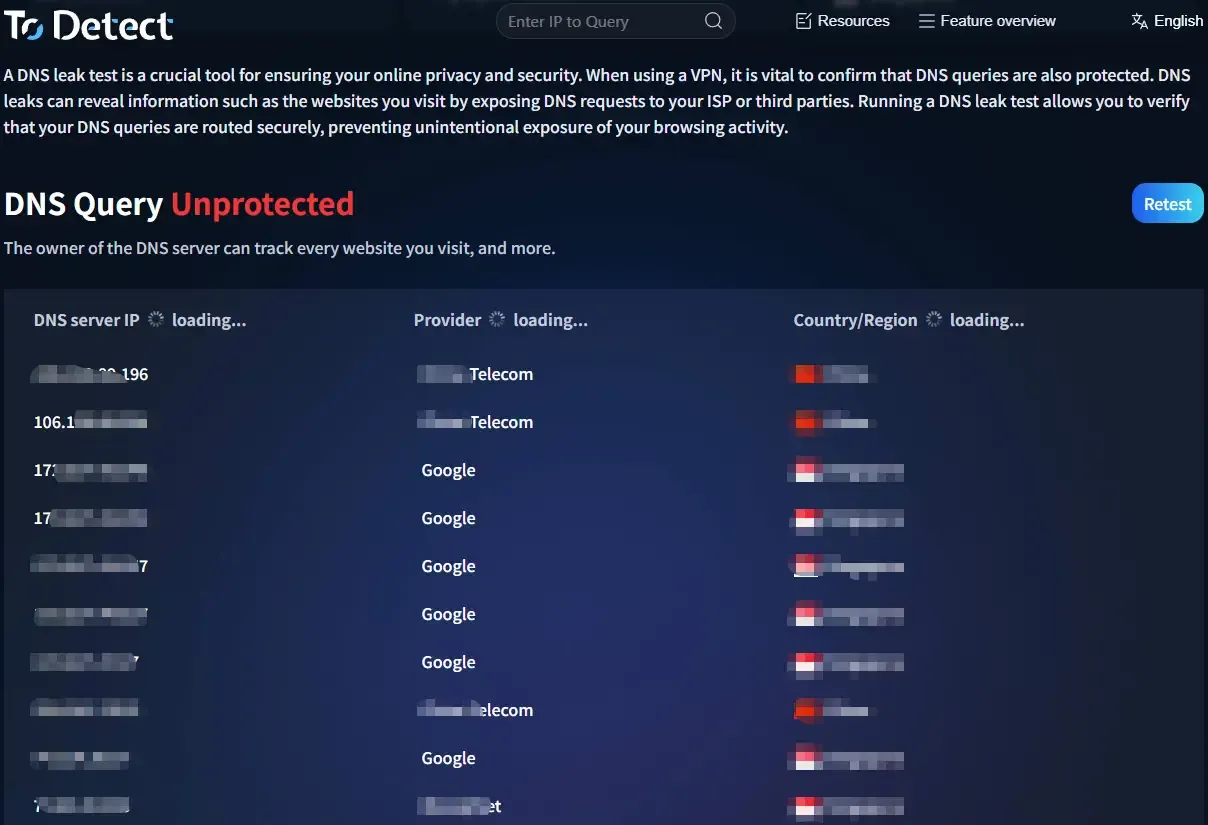
Tools like ToDetect are suitable for quick retesting because they can display DNS sources, IP matching details, and related information clearly.
6. DNS Leaks + Browser Fingerprints Are Part of the Same Problem
Many people think they are safe as long as DNS is clean, but modern platform tracking works as a combination system:
• DNS leak → reveals “who you asked”
• IP address → reveals “where you came from”
• Browser fingerprint detection → reveals “who you are”
That’s why it’s recommended to check DNS leak results, browser fingerprint results, and IP consistency together. Only when all three align can your network environment be considered relatively clean.
7. DNS Leak Test FAQ
1. If a DNS leak test shows local DNS, does that always mean it’s unsafe?
Not necessarily, but it usually indicates some level of risk. If your DNS leak test result shows ISP DNS servers, it means your VPN/IP tool is not fully handling DNS requests.
However, if it’s only a temporary backup DNS entry, the impact may be minimal. The real warning sign is when local DNS consistently appears over time.
2. Why does my DNS leak test still show my real region even with a VPN enabled?
The main reasons are: DNS protection is disabled, IPv6 is enabled, or the browser/system is forcing local DNS resolution.
If the DNS location differs from the IP location, it generally confirms a DNS leak.
3. Are DNS leaks serious for privacy and security?
Yes. DNS leaks allow ISPs to see the domains you visit, log parts of your browsing activity, and may even cause redirects or access issues in some regions.
However, this is not the same as fully exposing your IP address. It is more of a “privacy weakening” issue.
4. How do I know whether my DNS leak test result is safe?
Check whether the DNS servers belong to trusted public DNS providers (such as 1.1.1.1), whether no local ISP DNS appears, and whether the DNS location matches your VPN/proxy exit location.
If all three conditions are met, the DNS leak risk is generally considered low, and your network configuration is relatively secure.
Conclusion:
Many people eventually realize that DNS leaks are not highly technical problems. Most of the time, they are caused by default settings, system fallback mechanisms, or small configuration mistakes.
It’s a good habit to run a DNS leak test and browser fingerprint test every time you switch networks or change VPN nodes. Doing so can save you from many issues later on.