Resources
 Feature overview
What to do when DNS leak detection fails? This troubleshooting guide is really useful
 Charles
 2026-04-02 03:42


Many people, when working on privacy protection or cross-border internet access, will casually run a DNS leak test. But even with a proxy enabled, the DNS leak test still “fails.”
That’s because DNS leaks are not as simple as whether a proxy is turned on or off—they are often related to system settings, browser behavior, and even browser fingerprint detection.
Next, we’ll walk you through a practical troubleshooting approach that can truly solve DNS leak issues and help you fully understand why your DNS leak test is failing.

1. First, what is a DNS leak?
A DNS leak occurs when your domain name resolution requests do not go through your intended channel, but instead go directly through your local network or your ISP’s DNS servers.
Many people only focus on whether their IP is hidden, but overlook DNS. In reality, as long as a DNS leak exists, your privacy is not fully protected.
2. Why does a DNS leak test fail?
When your DNS leak test shows “abnormal,” it is usually caused by one of the following common reasons:
1. System DNS priority issues
Some operating systems prioritize local DNS instead of the DNS assigned by your VPN. This is especially common on Windows and some Android devices.
2. Browser behavior
Modern browsers (such as Chrome) enable “Secure DNS” or DoH (DNS over HTTPS), which may bypass your proxy and directly send requests to third-party DNS servers.
3. Incomplete proxy configuration
Some tools only proxy traffic but do not handle DNS requests, causing DNS queries to go out directly.
4. IPv6 leaks
If your network has IPv6 enabled but your VPN does not handle IPv6 traffic, DNS leak tests may fail.
5. Browser fingerprint exposure
Sometimes the issue goes beyond DNS. Through browser fingerprinting, websites can combine DNS, IP, and system environment data to identify you. This is why simply changing DNS is not enough.
3. Practical troubleshooting steps (step by step)
If your DNS leak test fails, you can troubleshoot in this order:
Step 1: Cross-check with multiple tools
• Don’t rely on just one DNS leak test site—use at least 2–3 tools for comparison.
• You can also use the ToDetect fingerprint checking tool for a more comprehensive analysis, including DNS, browser fingerprint, and IP consistency.
Step 2: Check whether your IP tool handles DNS
Focus on these two points:
• Whether your tool has options like “Use custom DNS” or “Prevent DNS leaks”
• Whether your system DNS changes after connecting (can be checked via command line)
If your VPN does not provide DNS protection, consider manually setting DNS servers such as 1.1.1.1 (Cloudflare) or 8.8.8.8 (Google DNS).
Step 3: Disable browser Secure DNS
• This is often overlooked. In Chrome: Settings → Privacy and Security → Security → Turn off “Use secure DNS”
• Otherwise, the browser may bypass your proxy even if everything else is configured correctly.
Step 4: Disable IPv6 (if necessary)
If your network setup is complex, consider temporarily disabling IPv6:
• Windows: Network Adapter → Uncheck IPv6
• Router: Disable IPv6 support
Many DNS leak issues are actually caused by IPv6 “bypass paths.”
Step 5: Check system proxy and routing rules
• Some proxy tools (e.g., split tunneling) only proxy part of the traffic, allowing DNS requests to bypass.
• It is recommended to switch to “global mode” for testing or ensure DNS traffic is included in the rules.
Step 6: Combine with browser fingerprint testing
DNS testing alone is not enough. It is recommended to use the ToDetect fingerprint tool for a more complete analysis.
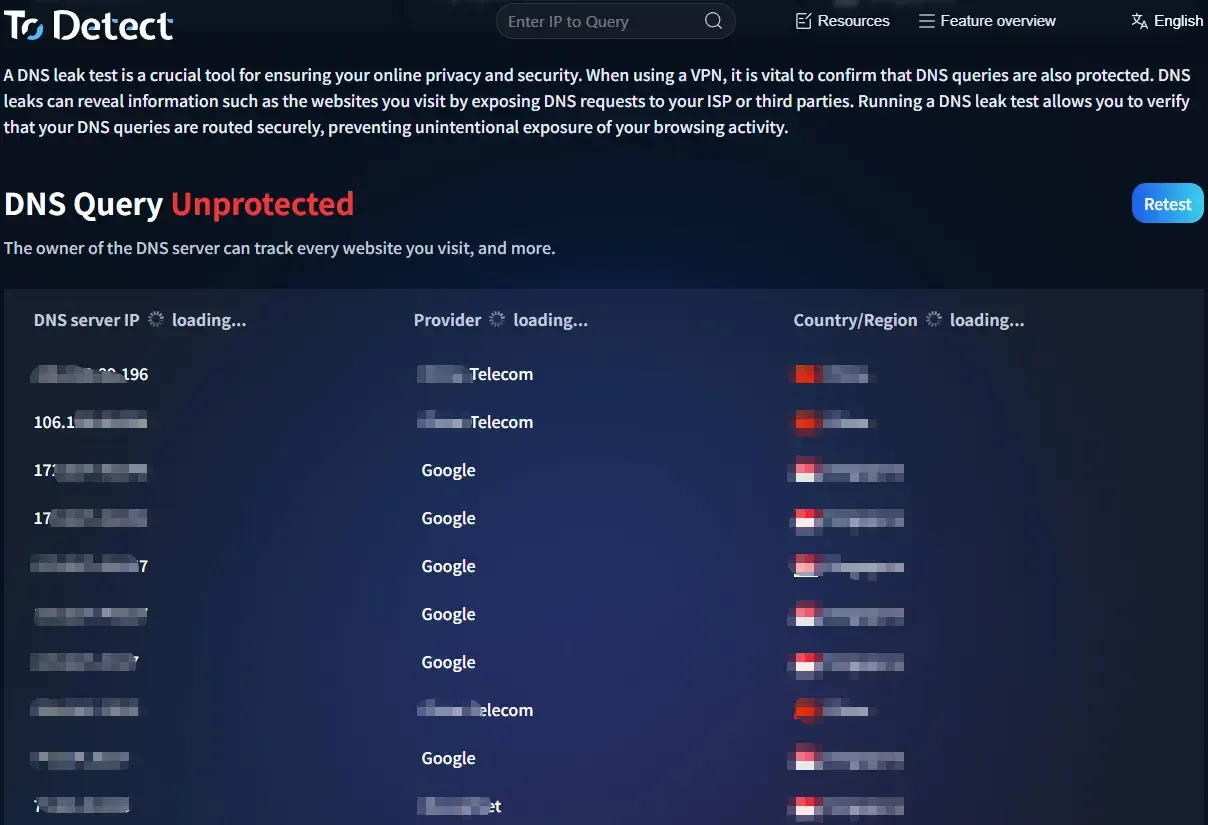
In reality, websites don’t rely on DNS alone—they evaluate multiple factors:
• IP address
• DNS source
• Browser fingerprint
• WebRTC information
If these factors are inconsistent, you may still be identified.
4. A simple and practical setup
If you want to avoid repeated issues, you can use this reliable combination:
• A VPN that supports DNS leak protection
• Disable browser Secure DNS
• Disable IPv6 if necessary
• Use the ToDetect fingerprint tool for comprehensive checks
• Run DNS leak tests regularly
This setup covers most DNS leak scenarios.
5. DNS leak test: Common questions explained
1. If the DNS shown is foreign, is it still a failure?
• This is quite common. Some DNS leak tools not only check whether the DNS is foreign, but also whether it matches the region or provider of your IP.
• If your IP is in the U.S. but your DNS appears in another region (e.g., Europe), it may be flagged as abnormal.
2. Why are DNS test results inconsistent?
• Different DNS leak test sites use different detection methods—some focus on IPv4, others also check IPv6.
• Some also combine browser fingerprint analysis. In such cases, use multiple tools for cross-verification.
3. If DNS is normal, do I still need fingerprint testing?
• Yes. Normal DNS only means the resolution path is correct. Websites often combine fingerprinting data (device info, timezone, fonts, etc.) to identify users.
• If DNS, IP, and fingerprint data are inconsistent, you may still be identified. A safer approach is to perform both DNS leak testing and browser fingerprint testing.
Final thoughts
DNS leaks are not particularly complex, but they are one of the most commonly overlooked issues. Many people think they are protected, while their data is already exposed.
The key is to complete your checks—DNS testing, troubleshooting, and browser fingerprint analysis—and use tools like ToDetect for comprehensive verification instead of focusing on a single metric.
If you’ve recently encountered DNS leak test failures, try following the steps above—you’ll likely find the root cause.
 AD
AD