Resources
 Feature overview

 Alani
Alani 2026-06-15 10:33
Many cross-border sellers encounter a situation where their fingerprint browser is already configured, but when tested on tools like ToDetect, it fails to pass, showing environment anomalies, fingerprint conflicts, or even being flagged as a high-risk device.
This is not because the “tool is bad”. In most failure cases, the root cause is misaligned details, such as subtle inconsistencies between timezone, language, WebGL, and IP.
Today, we will walk you step by step through the reasons why fingerprint browser detection fails, and how to fix it from a configuration level to make the environment more stable.

1. What is Fingerprint Browser Detection checking?
Fingerprint browser detection essentially means platforms identify your device identity by analyzing whether you are a “real consistent machine” or an “abnormal environment”.
Common dimensions include: User-Agent (browser identifier), Canvas fingerprint, WebGL rendering data, font list, timezone and language, screen resolution, and IP/proxy consistency.
If these parameters are not aligned—for example, timezone is in the US but IP is in Asia, or Canvas/WebGL fingerprints are inconsistent—ToDetect may flag the environment as untrusted.
2. Common reasons fingerprint browser detection fails
• Inconsistent environment parameters. For example: IP country = US; browser language = Chinese; timezone = China. This inconsistency will directly trigger risk detection.
• Incomplete browser environment setup. Many users only change IP but ignore Canvas, WebGL, AudioContext and other fingerprint parameters, resulting in a “semi-spoofed state”.
• Poor proxy quality. Shared IPs, data center IPs, or blacklisted IPs can cause detection failure even if fingerprint settings are correct.
• Repeated multi-account environments. Too many identical browser profiles can easily be identified as automated or bulk operations.
• Overly obvious default fingerprint settings. Some default templates are too “standardized” and therefore easier to detect as virtual environments.
3. Fingerprint Environment Anomaly Checklist (Practical Table)
| Check Module | Normal State | Abnormal Behavior | Fix Method |
|---|---|---|---|
| IP Environment | Residential IP, stable country consistency | Data center IP, frequent IP switching | Use high-quality residential proxy |
| Browser Fingerprint Consistency | Canvas/WebGL/Audio logic aligned | Fingerprint mismatch or fluctuation | Regenerate environment profile |
| Timezone | Matches IP country | US IP but Asian timezone | Auto-sync or match IP timezone |
| Language | Browser language matches region | Chinese environment + US/EU IP | Set correct country language |
| Hardware Simulation | Realistic GPU/CPU profile | Virtual machine characteristics | Switch to mainstream device models |
| Cookies / Cache | Clean or isolated state | Shared or leftover multi-account data | Clear or isolate browser container |
| Detection Score (ToDetect) | Stable high score | Fluctuating or low score | Fix conflicting parameters |
4. Practical guide: building a stable browser environment
Below is a practical workflow for building a stable fingerprint browser environment applicable to most tools.
Step 1: Choose the right fingerprint browser
Choose tools that support isolated browser fingerprints, customizable Canvas/WebGL, proxy binding, environment import/export, and randomized but logically consistent fingerprint generation.
Step 2: Configure base environment (critical step)
Follow the “logical consistency principle”: IP country → timezone → language must match.
Example: US IP + English + UTC-5 timezone; resolution like 1920×1080; system version simulating mainstream setups (Windows 10 / macOS 13). The goal is not “masking”, but “consistency”.
Step 3: Fingerprint optimization (core difficulty)
• Canvas fingerprint: use randomized but stable noise patterns.
• WebGL: simulate realistic GPU info such as NVIDIA (Windows) or Apple M-series (Mac).
• Fonts: avoid extreme minimal sets; simulate normal system fonts.
• AudioContext: allow slight randomness but avoid distortion.
Step 4: Proxy configuration (critical factor)
Residential IPs are preferred. Avoid frequent IP switching and shared IPs across accounts. Poor proxies cannot be compensated by fingerprint settings.
5. Use ToDetect for validation (required step)
After configuration, do not go live immediately. Always validate using tools like ToDetect.
1. Open ToDetect
2. Enter fingerprint detection page
3. Check key indicators: Canvas uniqueness, WebGL anomalies, timezone/IP match, browser authenticity, final score
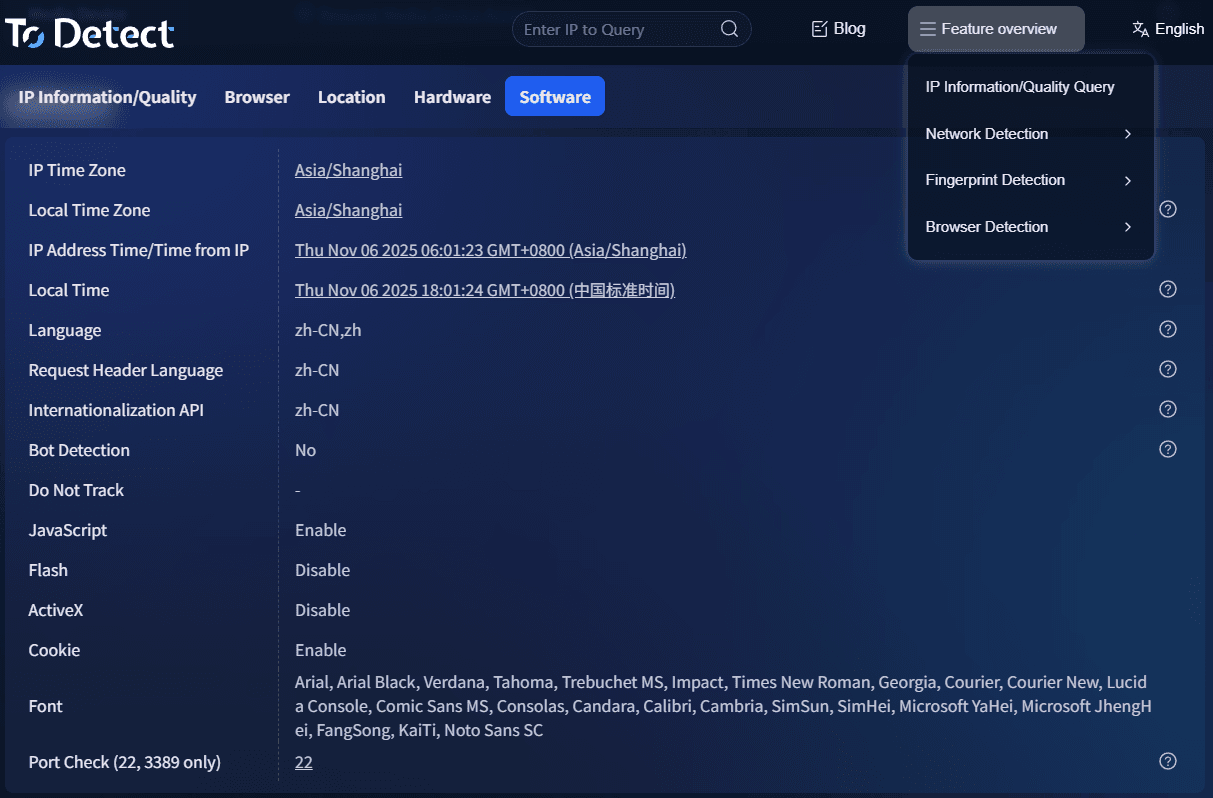
Low scores are usually caused by parameter conflicts or poor proxy quality.
6. Quick fixes when detection fails
If fingerprint browser detection fails in ToDetect, don’t panic. Most issues can be fixed using the following steps:
• Check IP quality: ensure residential or clean proxy IP.
• Verify timezone and language consistency.
• Rebuild browser environment if configuration is corrupted.
• Check Canvas/WebGL anomalies.
• Reduce extensions/plugins.
• Avoid duplicate templates across accounts.
• Switch proxy route instead of repeatedly changing browser settings.
Focus on “natural consistency” rather than perfect uniformity—slight randomness is safer.
Conclusion: It’s about “consistency”, not “spoofing”
The key point is not how many parameters you change, but whether the overall environment is logically consistent.
Treat browser fingerprinting as a complete system rather than isolated tweaks.
If you are still facing detection issues, re-evaluating the entire setup usually resolves most problems.