Resources
 Feature overview
How to Keep Browser Fingerprints Consistent with Multiple Proxy IPs
 Ganesh
 2026-02-11 04:07


Nowadays, whether for data scraping or multi-account operations, multi-node proxy IPs have become a standard setup — allowing you to switch network exits at any time, hide your real IP, and even simulate access from different regions.
But new problems follow: many people find that after switching IPs, their browser fingerprint also changes. As a result, websites quickly recognize them or even trigger risk-control systems.
If you want stable access in a multi-node proxy environment, you must understand both IP management and browser fingerprint consistency. Next, we’ll explain how to maintain browser fingerprint consistency when using multi-node proxy IPs.

1. Why Is Browser Fingerprint Consistency Important?
A browser fingerprint is a kind of “ID card” generated from various browser parameters, such as the User-Agent, screen resolution, plugins, fonts, time zone, and more.
For users operating with multi-node proxy IPs, if the browser fingerprint changes every time the node switches, it may cause:
• Frequent CAPTCHAs or risk-control triggers
• Multi-account activity being flagged as abnormal
• Reduced data-scraping efficiency
Therefore, maintaining browser fingerprint consistency is key to safe and stable operations.
2. Reasons for Browser Fingerprint Inconsistency in a multi-node proxy IP environment
1. Differences in network characteristics between IP nodes
Each proxy node has a different geographic location and ISP, which may cause variations in IP data, time zone, and even network latency. These differences can make websites treat them as different devices.
2. Browser configuration differences
Different browsers, versions, or plugins can change fingerprint data, such as fonts, plugin lists, and WebGL information.
3. Operating system and hardware differences
Hardware parameters like screen resolution, GPU model, and CPU information are all recorded by fingerprinting systems.
4. Unsynchronized cookies and cache
If cookies are not synchronized after switching IP nodes, the site may treat you as a new visitor.
3. How to Maintain Browser Fingerprint Consistency
1. Choosing and managing high-quality proxy IPs
In a multi-node proxy IP environment, the IP itself is part of the browser fingerprint. To maintain consistency, pay attention to the following:
• High-anonymity or dedicated IPs
High-anonymity IPs do not leak the original IP, while dedicated IPs prevent other users’ activity from affecting your fingerprint. Low-quality shared IPs are more likely to be flagged or blocked.
• Keep geographic location and ISP consistent
Even with proxy IPs, websites can identify your origin through IP location and ISP data. Try switching nodes within the same city and ISP to maintain consistency.
• Check IP quality
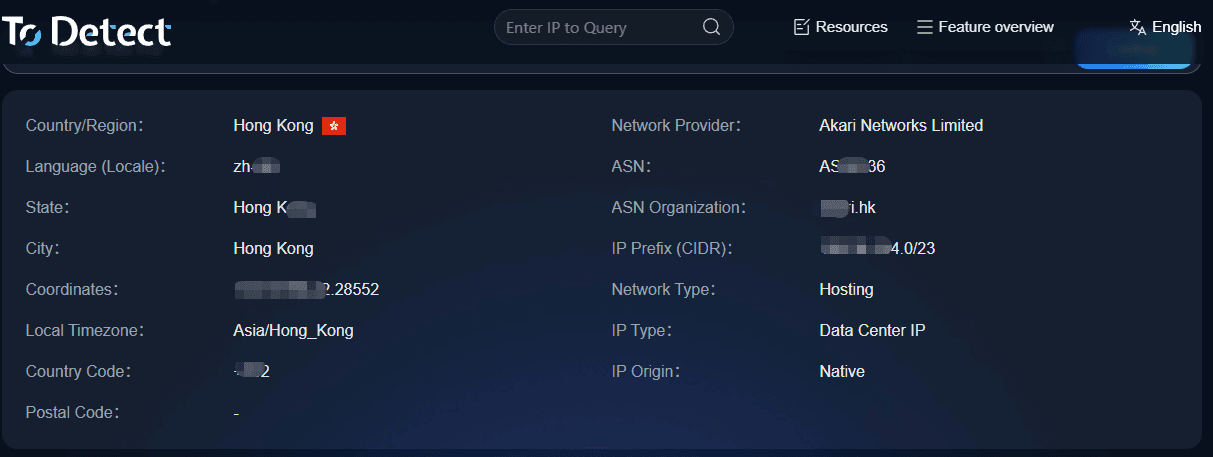
Before using a node, check its IP location, anonymity, and data-center indicators with an online IP inspection tool. Avoid IPs that are frequently flagged or identified as VPN nodes.
• Build an IP pool and keep nodes fixed
Avoid frequently changing nodes in the IP pool. Instead, maintain a stable set of nodes and assign each one a fixed browser fingerprint template.
2. Standardize the browser environment
The browser environment is a major part of the fingerprint, including browser version, plugins, fonts, and screen resolution. No matter how the IP changes, this part should stay consistent:
• Keep browser versions consistent
Whether using Chrome, Edge, or Firefox, keep the version consistent to avoid fingerprint changes after updates.
• Keep plugins and fonts consistent
Avoid installing different plugins on each node, as this can change WebGL and Canvas fingerprints.
• Match resolution and User-Agent
Even when switching nodes, the User-Agent and screen resolution should remain unchanged.
• Synchronize cookies and local storage
After switching IP nodes, make sure cookies, LocalStorage, and Session Storage are synchronized, or the site may treat you as a new visitor.
3. Coordinating online IP detection with fingerprint strategy
In a multi-node proxy IP environment, IP and fingerprint are closely related. Even if the browser environment stays the same, large IP fluctuations can still cause fingerprint differences. Here are some practical strategies:
• Build an IP-fingerprint mapping table
Assign each stable IP node a fixed browser fingerprint template. When switching IPs, automatically load the corresponding template.
• Choose the same proxy type
For example, HTTP, HTTPS, or SOCKS5. Try to switch between nodes of the same type to avoid protocol-related fingerprint changes.
• Control switching frequency
Frequent IP changes may trigger abnormal-behavior detection. Set switching intervals to maintain session continuity.
• Regularly verify IP and fingerprint
Use the ToDetect fingerprint checking tool to ensure the fingerprint remains consistent after switching IPs.
4. Fingerprint detection and optimization
• Use the ToDetect fingerprint checking tool
It can detect key fingerprint data such as Canvas, WebGL, language, time zone, screen resolution, and plugin lists.
• Adjust immediately when anomalies appear
If a node’s fingerprint differs significantly from the template, reconfigure the browser environment or replace the node.
• Long-term maintenance
Regularly check IP quality and update fingerprint templates to avoid inconsistencies caused by system or browser updates.
With these methods, both IP stability and browser environment consistency can be maintained. Even in a multi-node proxy setup, websites will see a “fixed” visitor, greatly reducing risk-control triggers.
In Summary
Maintaining browser fingerprint consistency cannot be achieved by a single tool. It is the result of coordination between IP quality, browser environment, and fingerprint detection.
With high-quality proxy IPs, a standardized browser configuration, and detection tools like the ToDetect fingerprint checker, you can appear as the “same user” even in a multi-node environment.
Remember: don’t focus only on the IP — pay attention to fingerprint details. Coordinate both IP and browser fingerprints, and you’ll handle multi-node proxy environments with ease.
 AD
AD