Resources
 Feature overview

 Ganesh
 2026-04-14 15:24
Have you ever encountered this: even though you've switched to an overseas IP, when you check it online, the IP location still shows as domestic, or even mismatched countries and regions?
You should be more sensitive to this kind of "inaccurate IP geolocation" issue, because it not only affects account credibility, but may also trigger platform risk controls, significantly reducing operational efficiency.
In fact, the key to solving this type of problem is learning how to properly detect + troubleshoot causes + apply targeted fixes. Below is a practical approach to help you identify the issue in just 3 minutes.

1. First confirm: Is your IP actually showing incorrectly?
Don’t rush to switch tools. Start with basic checks. You can directly use the ToDetect online IP checker to verify:
• Current IP address
• IP geolocation (country/city)
• Network provider information
If you find that you're connected to an overseas node but the IP location still shows domestic or an incorrect country, then there is indeed an "IP location anomaly."
It’s recommended to cross-check with at least two platforms—for example, one for IP lookup and another for overseas IP detection—to avoid errors from a single database.
2. Why is IP geolocation inaccurate?
1. Outdated IP databases
Most websites rely on third-party IP databases, which are not updated in real time, causing delays or incorrect matches.
2. Using shared IPs or data center IPs
Some proxy nodes are data center IPs, which are more likely to be flagged as abnormal regions or even misidentified as other countries.
3. Browser fingerprint revealing real location
Many people only change the IP but ignore browser fingerprint detection. Factors like language, timezone, fonts, and WebRTC leaks can allow systems to infer your real location.
4. DNS or WebRTC leaks
Even if your IP is overseas, if DNS is not properly configured, your real network path may still be exposed.
3. Quickly check your IP in 3 minutes to see if it's "clean"
If your overseas IP location is inaccurate, don’t rush to switch tools. Follow these steps to pinpoint the issue more effectively:
Step 1: Basic IP verification
• Check if the IP address has changed
• Check if the location matches the target country (e.g., US, Japan, Singapore)
• Check if the network provider is normal (e.g., AWS, residential ISP)
If errors appear here, the issue is likely with the proxy node itself.
Step 2: Cross-platform verification
• One tool for IP lookup
• One for geolocation detection
• One professional tool (e.g., ToDetect)
Step 3: Browser environment consistency (critical)
• Time zone
• System language
• Location API permissions
• WebRTC leak status
• Screen resolution and device info
If your IP is overseas but your timezone and language still reflect your real location, the system may flag inconsistency and misidentify your IP location.
Step 4: Simulate real user behavior
1. Open Google / YouTube / TikTok
2. Check if recommendations match the target country
3. Use localized search terms
If results still show domestic content, your environment hasn’t fully switched.
4. Fix inaccurate IP detection
1. Use higher-quality IP nodes
• Residential IP
• ISP-native IP
• Dedicated stable lines
2. Fix DNS & WebRTC leaks
• Disable WebRTC
• Use secure DNS (e.g., Cloudflare 1.1.1.1)
3. Align browser fingerprint
• Timezone matches IP
• Language matches target region
4. Clear old environment data
Use incognito mode or create a new browser profile.
5. Use ToDetect for final verification
After adjustments, recheck IP, location, and browser fingerprint consistency.
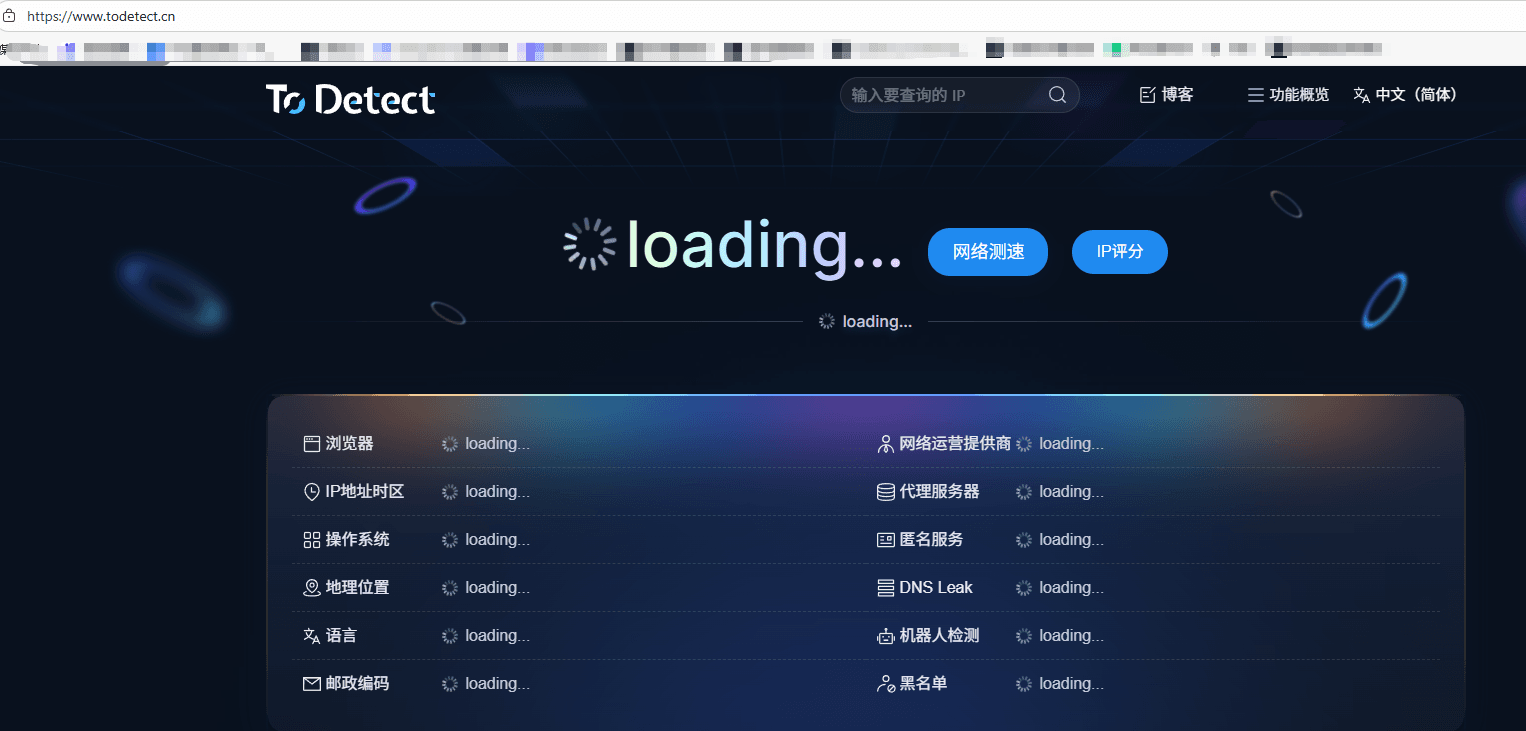
Only when all three match can it be considered a "clean" overseas IP environment.
5. How to maintain stable IP geolocation long-term?
• Regularly check IP
• Use stable residential proxies
• Test before each login
• Align browser fingerprint using tools like ToDetect
Summary
Inaccurate IP geolocation doesn’t always mean your IP is “bad”—it’s often caused by multiple factors like outdated databases, fingerprint leaks, and inconsistent environments.
The solution is simple: verify IP → detect fingerprint issues → optimize accordingly.
For long-term overseas IP usage, stability matters far more than just connectivity.