Resources
 Feature overview
What is my IP address? How can I check it?
 Alani
Alani 2025-12-24 06:45


In today's internet era, an IP address is almost like the "ID card" for every online activity. It not only identifies your device's location on the network but also affects your online experience and privacy. Your settings determine whether you can access certain websites or services. So, what exactly is an IP address, and how can you check it?
1. What is an IP address?
An IP address (Internet Protocol Address) is a unique network identifier assigned to each device, used to locate and communicate within the internet or a local network. Just like sending mail requires a recipient's address, data transmission on the network relies on IP addresses to reach the target device.
Types of IP addresses:
IPv4: The most common type, composed of four numbers, e.g., 192.168.1.1
IPv6: The next-generation IP, longer in length, solving the IPv4 shortage problem, e.g., 2001:0db8:85a3:0000:0000:8a2e:0370:7334. IPv6 provides a much larger address space to accommodate the growing number of internet devices.
IP address categories:
Public IP: Assigned by ISPs (Internet Service Providers), used to access the internet and can be recognized by websites.
Private IP: Used within local networks, e.g., home or company networks, cannot directly access the internet.
2. What can my IP address tell me?
Your IP address can provide the following information:
Network type and connection status
Whether your IP uses a proxy or mobile network, and whether your network is restricted or has anomalies.
Geographical location
Which country, city, or even ISP your IP belongs to;
Security risk assessment
Some websites impose restrictions based on IPs. Understanding your IP helps determine if it has been blacklisted or flagged for unusual activity.
3. How to check my IP address?
1. Using built-in system methods
Windows
Open Command Prompt (CMD): Press Win+R, type "cmd" and press Enter. In the prompt, type "ipconfig" and press Enter to view your device's IP information. The IPv4 address is the commonly used IP address.
Mac
Open the "Terminal" app, type "ifconfig" and press Enter to view network configuration. The number following "inet" is your IP address.
Mobile
iOS: Settings → Wi-Fi → Tap the current network → View IP address
Android: Settings → Network → Current connection → IP information
2. Using online tools
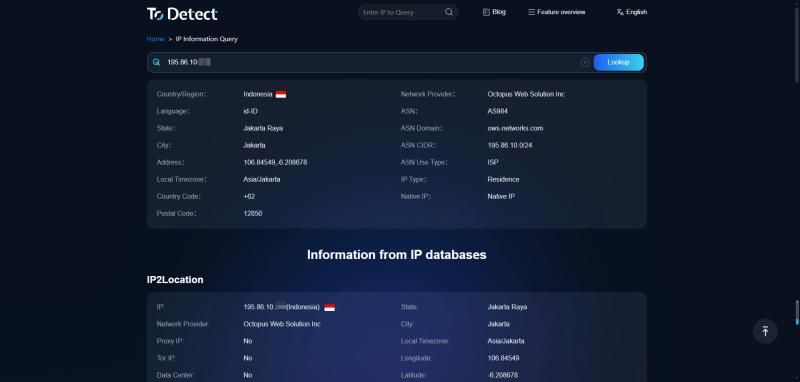
The easiest way is to use a professional website to check your IP address. ToDetect is a powerful IP detection tool that quickly and accurately shows your IP and provides detailed IP-related information, such as geographic location and ISP.
Using ToDetect is simple. Just open the official website, no complex operations needed, and you can get your IP details immediately.
4. Why use ToDetect for IP detection?
While built-in methods can show IP, they have limitations:
Does not show public IP: Systems show local network IP, not your real external address.
Cannot detect proxy information: Cannot determine if the network passes through intermediate nodes.
Lacks security assessment: Cannot tell if your IP is on a risk list or safe to access certain websites.
Using ToDetect IP detection tool, you can:
Get your real public IP with one click
Detect if a proxy is being used
Quickly assess access safety
Obtain your location and ISP information
5. Summary
An IP address is your network identity, helping you quickly understand your device's location and network type. There are many ways to check your IP, but the recommended method is using ToDetect's one-stop solution to easily get your public IP, proxy status, and network security, making it an essential tool for all internet users and cross-border business operators.
6. FAQ
1. Can an IP address be tracked?
Yes, a public IP can be tracked to an approximate geographical location and ISP.
2. Can my IP show my exact location?
IP addresses typically show only an approximate city or region, not precise streets or home addresses.
3. Why does my device show a different IP than ToDetect?
The IP shown on your device is usually a local network IP. ToDetect shows the public IP, which is your actual address when accessing the internet.
 AD
AD