Resources
 Feature overview

 bonnie
 2026-05-09 11:34
Many people have probably heard of User-Agent, but not many truly understand what it is or how to check it.
As mobile traffic continues to dominate the internet, analyzing mobile User-Agent strings has become increasingly important. However, many people are still confused about how to actually view them.
Today, this guide will help you fully understand how to check a mobile User-Agent from scratch, and show you how to view User-Agent information on both Android and iPhone devices.

1. What Is User-Agent Parsing ? A Simple Explanation
A User-Agent (UA) is essentially an “identity description” that a browser or app actively sends to a server when visiting a website.
Typical mobile User-Agent: Mozilla/5.0 (iPhone; CPU iPhone OS 17_0 like Mac OS X) AppleWebKit/605.1.15 ...
Or Android: Mozilla/5.0 (Linux; Android 14; Pixel 7) AppleWebKit/537.36 ...
These strings contain a lot of information. User-Agent parsing simply means breaking down this “messy string” into meaningful device and browser information.
2. Comparison Table of Different Mobile Browser User-Agent Characteristics
| Browser Type | Common OS | User-Agent Keywords | Detection Difficulty | Typical Use Cases |
|---|---|---|---|---|
| Chrome Android | Android | Android, Chrome/version | Low | Website testing, SEO crawling, mobile debugging |
| Safari iPhone | iOS | iPhone, Safari, AppleWebKit | Low | Apple ecosystem web access |
| WeChat Built-in Browser | Android / iOS | MicroMessenger | Very High | WeChat H5 page recognition |
| QQ Mobile Browser | Android | MQQBrowser | Medium | Chinese mobile traffic analysis |
| UC Browser | Android | UCBrowser | Medium | Lower-tier market traffic statistics |
| Edge Mobile | Android / iOS | EdgA or EdgiOS | Low | Microsoft ecosystem compatibility testing |
| Firefox Mobile | Android | Firefox | Low | Development testing and privacy browsing |
| TikTok Built-in Browser | Android / iOS | aweme or Toutiao | High | Short-video ad landing page recognition |
3. How to Check User-Agent on Android (Most Practical Methods)
Method 1: Check Through Chrome Browser (Recommended)
◇ Open the Chrome browser
◇ Enter the URL: chrome://version
◇ Find the “User Agent” field on the page
◇ Copy it to view the full UA string
Method 2: Developer Tool Debugging (Advanced)
If you use Android with remote debugging:
◇ Enable Developer Mode on your phone → Connect to a computer via USB
◇ In Chrome, enter: chrome://inspect
◇ View the current page request UA
This method is suitable for frontend developers or SEO analysts.
Method 3: Use an Online Tool (Easiest)
Simply open a UA detection website, such as the ToDetect browser fingerprint detection tool, where you can directly see:
• Mobile User-Agent
• IP information
• Browser fingerprint data
This method is suitable for everyone — one-click viewing and very convenient.
4. How to Check User-Agent on iPhone
Method 1: Safari + Developer Mode
◇ Open iPhone Settings: Safari → Advanced → Enable “Web Inspector”
◇ Connect the iPhone to a Mac using a cable
◇ View the UA in Safari’s developer menu — this is the standard iOS debugging method
Method 2: Use a Web Script Page (Recommended)
Open a test webpage directly in your browser or use the ToDetect browser fingerprint detection tool to display:
◇ Mobile User-Agent
◇ iOS version
◇ Safari engine information
No complicated setup required — simply open the page and check.
5. How Does User-Agent Parsing Actually Work?
Many people get confused after seeing a UA string, but its structure actually follows patterns.
Example Android UA: Android 14; Pixel 7; Chrome/120.0
Simple breakdown:
◇ Android 14 → Operating system version
◇ Pixel 7 → Device model
◇ Chrome/120 → Browser version
That is the basic logic behind User-Agent parsing.
If you work in data analysis or SEO, this step is extremely important. It helps determine whether traffic comes from real users or bots, understand device distribution, and evaluate traffic quality.
6. Relationship Between Browser Fingerprinting and UA
Many people confuse one concept: UA ≠ Browser Fingerprint
Browser fingerprinting is far more complex than just UA data. It also includes:
• Font information
• Screen resolution
• WebGL parameters
• Canvas fingerprint
Today, many anti-bot systems such as ad platforms and risk-control systems combine UA + browser fingerprints for device verification.
User-Agent is only one dimension of the detection process. Simply changing your UA can still be easily detected.
7. Why Are Tools Like ToDetect Becoming So Popular?
The ToDetect browser fingerprint detection tool essentially visualizes all this complex information for you. It can directly display:
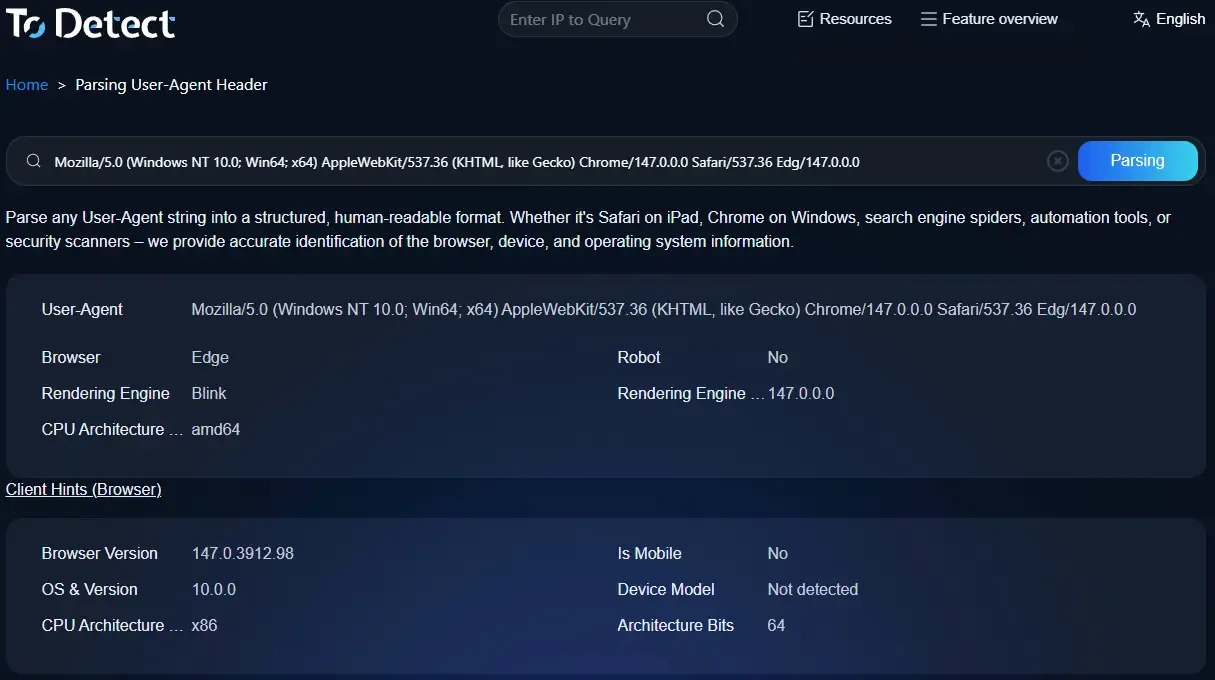
• Mobile User-Agent
• Browser fingerprint score
• IP risk level
• Device environment information
These tools are extremely useful for cross-border eCommerce, ad campaigns, social media operations, and even crawler development.
In simple terms: instead of manually parsing complex strings, the tool “translates” everything for you automatically.
8. Mobile User-Agent Parsing FAQ
1. Can Mobile User-Agent Be Modified Freely? Will It Be Detected?
Yes. Many browser extensions and developer tools now support custom mobile User-Agent settings.
However, changing only the UA does not mean “complete disguise.”
Many websites now combine browser fingerprint detection, IP environment checks, and Canvas/WebGL parameters to determine device authenticity.
2. Why Can Some Websites Identify Whether I’m Using Android or iPhone?
Because websites read your mobile User-Agent information.
By parsing the UA string, servers can identify: device model, OS version, browser type, and whether the visitor is using a mobile device.
3. What’s the Difference Between Browser Fingerprinting and User-Agent?
User-Agent is simply a piece of device information voluntarily submitted by the browser, while browser fingerprinting is much more sophisticated.
Simply put: UA is like an “ID card,” while browser fingerprints are more like “biometric characteristics.”
4. What Are Tools Like ToDetect Mainly Used For?
ToDetect is mainly used for: detecting mobile User-Agent strings, analyzing browser fingerprints, checking device authenticity, and evaluating proxy/IP risks.
For regular users, it’s also a convenient way to quickly see what browser information their current device is exposing.
Conclusion
Mobile User-Agent may look like just a simple string, but from website adaptation and ad recommendations to account security checks, it is one of the core identification factors.
That’s why many cross-border eCommerce operators and social media marketers now use tools like ToDetect for User-Agent parsing to verify whether their current environment appears normal.
Understanding User-Agent parsing, mobile User-Agent structure, and browser fingerprinting logic can be extremely valuable for everyone.