Resources
 Feature overview

 browser
 2026-05-23 11:29
For developers, mastering WebGPU detection can help better understand device performance, while also playing an important supporting role in browser fingerprint detection.
Many people think WebGPU detection sounds complicated, and they often do not understand what the WebGPU information in browser fingerprint detection actually represents.
Today, we’ll guide you step by step from scratch to master WebGPU detection, so you can not only test WebGPU yourself, but also gain more insight in both security and performance evaluation.

1. What Is WebGPU Detection?
WebGPU detection refers to using tools or code to determine whether your browser supports WebGPU and how well your current hardware supports it.
Compared with WebGL, WebGPU provides lower-level and more efficient graphics computing capabilities. This means WebGPU performs much better in 3D rendering, game development, and AI graphics acceleration.
If this is your first time hearing about WebGPU, don’t worry. You only need to understand these key points:
• Whether the browser supports WebGPU
• Whether the current device’s GPU and drivers are compatible
• A basic evaluation of WebGPU rendering performance
All this information can be quickly obtained through WebGPU detection tools.
2. Why Use a WebGPU Detection Tool?
Browser Fingerprint Detection
In security testing or anti-fraud scenarios, websites may use WebGPU information to generate a unique browser fingerprint that helps identify devices. Understanding WebGPU data can help you better understand how browser fingerprinting works.
Performance Optimization for Developers
For game and graphics application developers, knowing whether a user’s device supports WebGPU and how it performs can help optimize rendering effects and improve user experience.
Compatibility Testing
WebGPU is still a relatively new standard, and not all browsers or devices support it. Detection tools can help you identify potential compatibility issues in advance.
3. WebGPU Support Comparison Across Browsers
| Browser | WebGPU Support | Default Status | Rendering Performance | Notes |
|---|---|---|---|---|
| Chrome (Latest Stable Version) | ✅ Supported | Enabled by Default | High | Hardware acceleration is recommended for best performance |
| Edge (Chromium-based) | ✅ Supported | Enabled by Default | High | Performance is close to Chrome with good compatibility |
| Firefox (Latest Stable Version) | ⚠ Experimental Support | Requires Manual Enabling | Medium | Must enable dom.webgpu.enabled in about:config |
| Safari (macOS/iOS) | ⚠ Experimental Support | Requires Manual Enabling | Medium-Low | Better support on macOS Ventura and above; iOS devices may have limitations |
| Opera | ✅ Supported | Enabled by Default | Medium-High | Chromium-based browser with good compatibility |
| Brave | ✅ Supported | Enabled by Default | High | Chromium-based browser; ensure hardware acceleration is not disabled |
| Internet Explorer | ❌ Not Supported | N/A | N/A | Deprecated browser with no WebGPU support |
4. How to Start WebGPU Detection? Beginner-Friendly Guide
Don’t worry—even if you’ve never worked with graphics development before, you can still get started step by step here. The easiest way is by using an online detection platform like ToDetect.
🔶 Using ToDetect for WebGPU Detection
ToDetect is a website focused on Web technology detection, including WebGPU, WebGL, and browser fingerprint detection. The process is very simple:
1. Open your browser and visit the ToDetect official website
2. Find the “WebGPU Detection” section on the homepage and click to enter
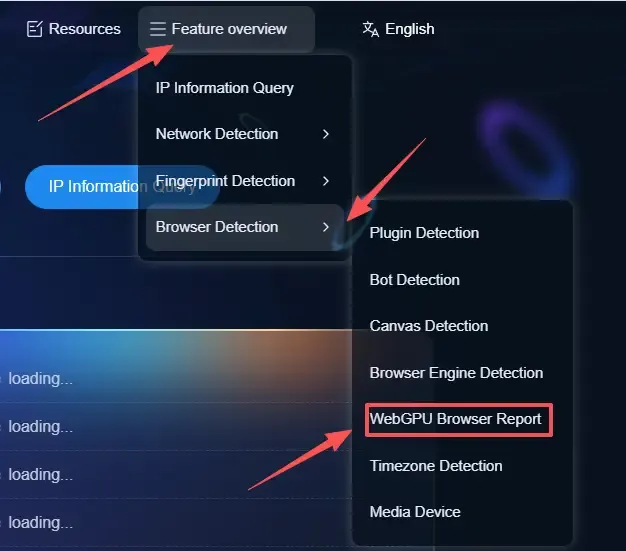
3. The page will automatically run the detection script, and within a few seconds you will see the results report
In the results, you can check whether your browser supports WebGPU, view GPU model and driver information, and see your device’s rendering performance score.
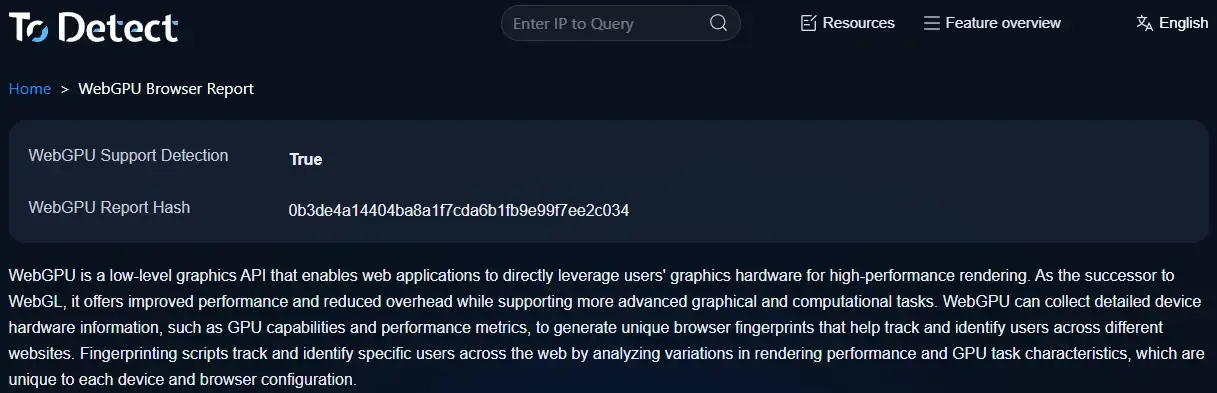
This information is intuitive and helps you quickly understand device performance.
🔶 The Relationship Between Browser Fingerprinting and WebGPU
By the way, browser fingerprint detection and WebGPU detection are closely related. Browser fingerprints usually collect:
• Browser type and version
• Screen resolution
• GPU information (WebGPU/WebGL)
• System language and plugin information
GPU information obtained through WebGPU detection can enrich the uniqueness of browser fingerprints and improve identification accuracy. This is very useful for security research and anti-cheat systems.
5. Manual WebGPU Detection: Just a Few Lines of Code
If you want to go deeper, you can manually write a few lines of JavaScript code to check WebGPU support. Simply open the browser console (F12) and enter the following code:
if (navigator.gpu) {
    console.log("Your browser supports WebGPU");
} else {
    console.log("Your browser does not support WebGPU");
}
After running the code, you can quickly determine whether the browser supports WebGPU. This method is ideal for developers or anyone curious about the technology because it is simple and intuitive.
If you want more detailed information, you can try retrieving GPU adapter information:
navigator.gpu.requestAdapter().then(adapter => {
    if(adapter) {
        console.log("GPU Information:", adapter);
    } else {
        console.log("Unable to retrieve GPU information");
    }
});
6. Common Questions About WebGPU Detection
1. Does my browser support WebGPU? How can I quickly check?
Simply open ToDetect or enter navigator.gpu in the browser console. If an object is returned, WebGPU is supported; otherwise, it is not. Fast, intuitive, and no plugins required.
2. What is the relationship between WebGPU detection and browser fingerprinting?
WebGPU information can be used as part of a browser fingerprint to identify device uniqueness. Understanding WebGPU detection results can help you better understand how websites use GPU information for security or anti-cheat detection.
3. Why do some devices have poor WebGPU support?
WebGPU is a new standard, so older GPUs or browser versions may not be compatible. Outdated drivers or operating system limitations can also reduce performance. Updating your browser and GPU drivers is the easiest optimization method.
4. What can WebGPU detection tools help me with?
They can not only tell you whether your browser supports WebGPU, but also evaluate GPU performance, rendering capabilities, and provide useful data references for developers optimizing web graphics or conducting security research.
Summary and Recommendations
Whether you want to optimize web application performance or explore the details of browser fingerprint detection, mastering WebGPU detection tools and methods is an essential step.
It is recommended to use ToDetect online tools regularly to test WebGPU support across different browsers and devices, monitor performance differences, and better understand user-side environments.
As WebGPU becomes more widely adopted across major browsers, learning detection techniques early will give you a valuable advantage.