Resources
 Feature overview

 Charles
 2026-05-27 10:08
Have you ever wondered why people can still find your real IP address even though you're using a proxy? The problem may not be your proxy at all — it's WebRTC leaking your real IP.
What many people still don't realize is that when combined with browser fingerprinting, this thing can expose your browser and device characteristics completely.
Today we're going to talk about what WebRTC leaks actually are, how to detect WebRTC leaks, and share a simple yet practical WebRTC online detection tool.

1. What Is a WebRTC Leak?
WebRTC itself is actually a great technology. It allows browsers to make voice and video calls directly without installing plugins. Services like Google Meet, Zoom Web, and Discord voice chat all rely on WebRTC behind the scenes.
But here's the problem — when WebRTC establishes a connection, it uses the STUN protocol to obtain your network information, including your real IP address. That's what we call a WebRTC leak.
And this issue affects almost every browser: Chrome, Firefox, Edge, Safari — basically all of them. If you use a proxy or VPN, WebRTC IP leaks are one of the most common privacy traps you need to watch out for.
2. If You Never Test It, You May Never Know You're Leaking
Many people think, "I'm not doing anything illegal, so who cares if my IP leaks?" But once your real IP is exposed, websites can roughly identify your city, ISP, and combine that with browser fingerprinting to track you surprisingly accurately.
So what is browser fingerprinting? Simply put, your browser exposes a lot of identifying information: screen resolution, operating system version, installed fonts, time zone, even browser extensions. Combined together, these details form a unique fingerprint across the internet.
That's why many websites today don't just look at your IP address — they also use browser fingerprint tracking. When both are combined, you're practically transparent online. That's also why it's recommended to run a WebRTC leak test regularly so you know your current privacy status.
3. Comparison of Common WebRTC Protection Methods
| Protection Method | Setup Difficulty | Protection Effectiveness | Does It Affect Normal Usage? | Best For |
|---|---|---|---|---|
| Disable WebRTC in browser (flags / config) | Medium | High | May affect some web voice/video features | Users with some technical knowledge |
| Install browser extensions (such as uBlock Origin) | Easy | Medium to High | Minimal impact | Recommended for regular users |
| Use browser private/incognito mode | Easy | Low | No impact | Temporary usage scenarios |
| Rely on proxy protection only | Easy | Unstable | No impact | Beginners |
| Use privacy-focused browsers (such as Tor Browser) | Medium | Very High | Browsing speed may be slower | Users with high privacy requirements |
4. A Popular WebRTC Online Detection Tool
There are many websites that offer WebRTC online detection tools, but some are overloaded with ads while others simply aren't accurate. After testing several options repeatedly, the one that currently feels the most reliable is ToDetect.
ToDetect works instantly without registration or login. It not only checks whether WebRTC is leaking your real IP, but also performs a browser fingerprint test, showing your device information, Canvas fingerprint, WebGL fingerprint, and more in one place.
It's also incredibly simple to use — just 3 steps:
1. Open the ToDetect website (https://www.todetect.net/)
2. Click "Start Detection"
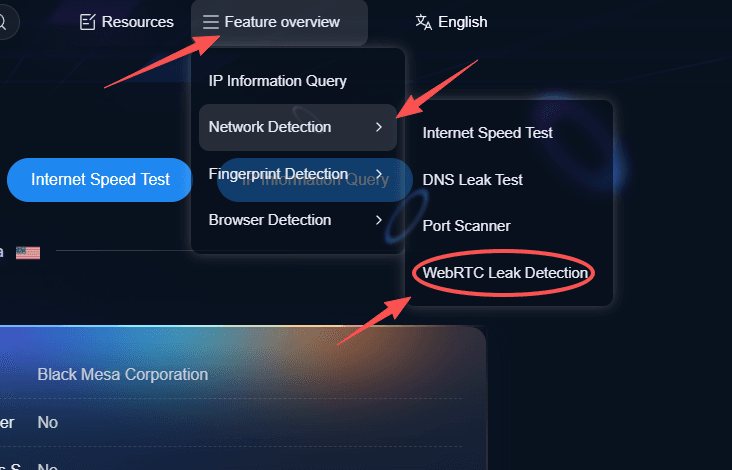
3. Wait 20–30 seconds for the results
The entire process takes less than 30 seconds — faster than making a cup of coffee. If the results show that your real IP differs from your proxy IP, then congratulations — you definitely have a WebRTC leak problem and should fix it immediately.
5. What Should You Do If a Leak Is Detected?
Don't panic. WebRTC leaks can absolutely be fixed, and in most cases, the solution is fairly simple. The key is to handle it step by step in the right order.
1. Disable or Restrict WebRTC Directly in Your Browser
This is the most direct and effective solution.
Chrome / Edge: Enter chrome://flags in the address bar, search for WebRTC-related options (such as WebRTC IP Handling Policy), change it to disable_non_proxied_udp, then restart your browser.
Firefox: Enter about:config in the address bar, search for media.peerconnection.enabled, and set it to false to completely disable WebRTC.
2. Use Browser Extensions for Protection (Recommended for Daily Use)
If you don't want to completely disable WebRTC because it may affect normal functionality, you can use extensions to enable a "leak prevention mode."
Use uBlock Origin (which often includes WebRTC leak protection by default) or dedicated extensions like WebRTC Leak Prevent. In the extension settings, enable options such as "Block non-proxied UDP connections."
This method won't interfere with normal video calls, but it can prevent your real IP from being accidentally exposed. It's ideal for people who use proxies regularly.
3. Combine Proxy Tools with System-Level Protection (More Advanced Solution)
If you have higher privacy requirements, you can also strengthen protection at the system level:
Use proxy clients that support built-in WebRTC leak prevention, block direct UDP connections at the system network layer (since WebRTC commonly exposes IPs through UDP), or combine private browsing mode, anti-fingerprinting tools, and WebRTC restrictions together.
This approach goes beyond simply "disabling the browser." Even if WebRTC is running, it still won't be able to access your real network route. It's suitable for users with strong privacy needs or long-term proxy usage.
Final Thoughts
WebRTC leaks are not rare incidents — the vast majority of people are affected without realizing it. You pay for a proxy, only to have your real IP exposed because of a browser protocol. That's basically money wasted.
Go ahead and open ToDetect and test it yourself. A WebRTC online detection tool really doesn't take much effort to use. In just 30 seconds, you'll know whether you're leaking or not.
And after testing, don't forget to run a browser fingerprint check as well. See whether your Canvas fingerprint, WebGL fingerprint, and other device identifiers are being tracked. When it comes to privacy, fixing problems after the damage is already done is often too late.