Resources
 Feature overview

 bonnie
 2026-05-25 10:09
Many people think the User-Agent string looks like a long piece of gibberish the first time they see it, but it’s actually not that complicated. You could even say it’s the “ID card of the browser.”
Simply put, it’s like a self-introduction card sent out by the browser. What device you’re using, what operating system, and what browser version — all of that is basically written in this single line.
Today, we’ll explain in a straightforward way what a User-Agent string actually is, and what each part of a browser User-Agent means.

1. What Exactly Is a User-Agent String?
A User-Agent (commonly abbreviated as UA) is a piece of identification information that a browser or client automatically sends when visiting a website. It tells the server: “Who I am, where I come from, and what device I’m using.”
• For example, when you visit a website using Chrome, the browser automatically sends information similar to this:
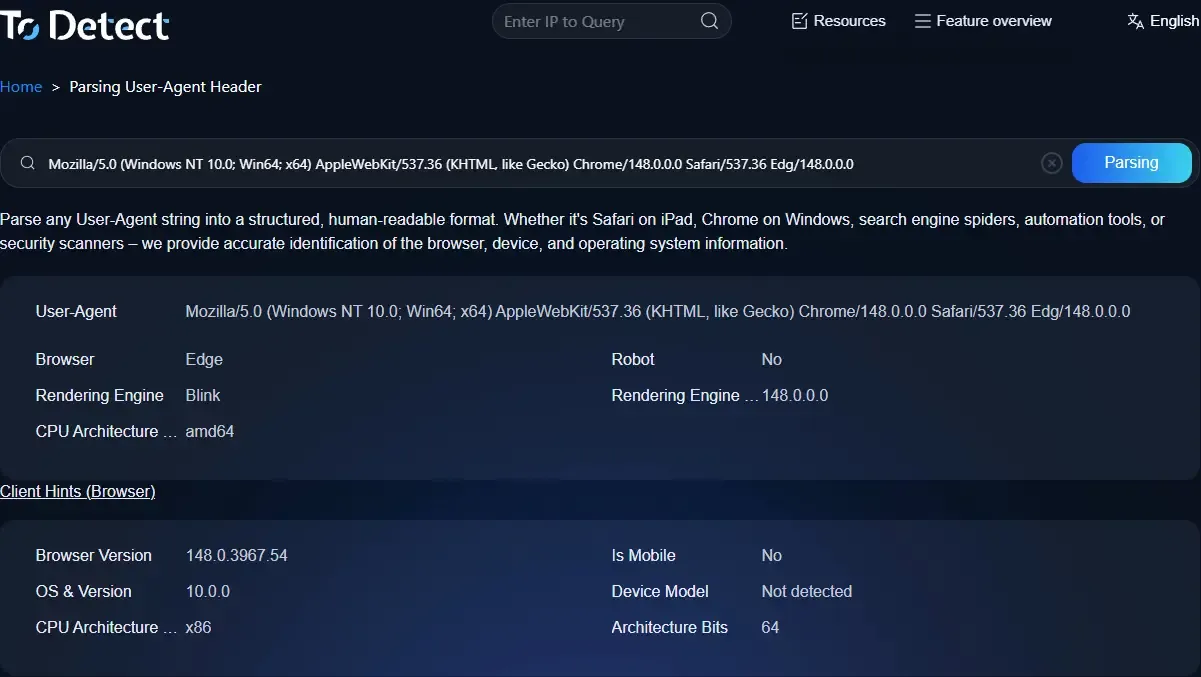
• Mozilla/5.0 (Windows NT 10.0; Win64; x64) AppleWebKit/537.36 ... Chrome/120.0.0.0 Safari/537.36
• Although this string may look complicated, it is actually a standard browser User-Agent.
Through User-Agent parsing (UA parsing), websites can determine whether the user is on a phone or desktop, whether they are using iOS or Android, and whether the browser is Chrome or Firefox, allowing sites to return different pages or handle compatibility accordingly.
2. What Does Each Part of a Browser User-Agent Mean?
1. Mozilla/5.0 (Compatibility Identifier)
This part may look related to Firefox, but in reality, most browsers include it. Due to historical compatibility reasons, it is now more of a traditional marker, so there’s no need to overthink it.
2. Operating System Information (Core Identification Point)
For example:
• Windows NT 10.0 → Windows 10 system
• Android 13 → Android system version
• Intel Mac OS X → Mac computer
This section is very important in UA parsing because it directly identifies the user’s device type.
3. CPU Architecture Information
For example: Win64; x64 → 64-bit Windows system; ARM64 → mobile devices or ARM-based hardware. This part is useful for performance adaptation and device classification.
4. Rendering Engine Information
Examples include AppleWebKit/537.36 and Gecko (commonly seen in Firefox). This indicates the underlying rendering engine used by the browser. Many people who analyze browser User-Agents pay special attention to this section.
5. Browser Core Information (Most Important)
For example: Chrome/120.0.0.0; Safari/537.36; Firefox/118.0. This section directly indicates the browser version the user is using and is the key basis for compatibility checks.
3. Why Is UA Parsing So Important?
Nowadays, websites are not just checking “who the user is.” They also make deeper judgments about whether the visitor is a real user, a bot, a multi-account operator, or an automated script.
At this point, relying solely on IP addresses is no longer enough. Browser fingerprinting becomes extremely important, and UA is only one part of it.
In a complete fingerprinting system, Canvas fingerprints, WebGL information, font lists, screen resolution, time zones, and languages are combined together to form a “device profile.”
That’s why many risk-control systems use: User-Agent parsing + browser fingerprint detection = user authenticity analysis.
4. Practical Uses of Browser User-Agent
1. Mobile/Desktop Adaptation
The most common use is determining the device based on the UA and redirecting users to different pages. For example: mobile → m.xxx.com; desktop → www.xxx.com。
2. Data Analytics
Many analytics tools use UA data to determine device distribution, such as Android market share, iPhone usage percentage, or whether Chrome is the dominant browser.
3. Risk Control & Anti-Bot Detection
Many bots spoof User-Agent strings, but simply changing the UA is not enough because websites also analyze browser fingerprints, behavior patterns, and request frequency. Therefore, modifying only the UA makes it difficult to truly “pretend to be a real human.”
5. Browser UA Parsing Common Misconceptions
Misconception 1: UA Can Fully Identify a User
Many people think User-Agent strings can uniquely identify users, but in reality, they only provide device and browser information and cannot serve as identity verification.
Misconception 2: Changing UA Provides Perfect Disguise
Even if you modify the browser’s User-Agent string, modern websites still combine browser fingerprint detection and other multidimensional data to identify the real environment.
Misconception 3: More Complex UA Means More Accurate Information
The length or complexity of a UA string does not indicate reliability. In fact, excessive appended information may cause parsing errors.
Misconception 4: All Browser UA Structures Are Unified
Different browser engines (such as Chrome, Firefox, and Safari) have different UA formats, so they cannot be parsed using a single rule.
Misconception 5: UA Information Is Completely Trustworthy
UA is essentially a client-controlled field that can be spoofed, so it cannot be used alone as a basis for risk control or anti-bot detection.
Misconception 6: Mobile and Desktop UA Are Easy to Distinguish and Never Change
In practice, many browsers support “desktop mode” or “responsive UA switching,” meaning UA does not always correspond directly to device type.
Misconception 7: UA Parsing Can Replace Browser Fingerprinting
UA parsing is only basic information identification, while browser fingerprinting is the real core method for determining device authenticity.
6. The Role of ToDetect-Like Tools in UA Analysis
In actual development or risk-control testing, many people use tools like ToDetect to inspect browser fingerprints and UA information.
• Check whether the current UA is authentic
• Detect abnormal browser fingerprints
• Simulate different device environments
• Analyze whether spoofing behavior exists
For people working in anti-bot systems, advertising optimization, or cross-border e-commerce operations, these tools can quickly verify whether an environment is “clean.”
Conclusion: UA Is Only the Starting Point, Not the End
By now, you should no longer feel unfamiliar with User-Agent strings. Although they may seem like just a line of browser text, in real internet environments, their role is far more complex than most people imagine.
Today, whether for platform risk control or data analytics, websites no longer rely solely on User-Agent parsing. They also combine device fingerprints, behavioral characteristics, and environment consistency to make judgments.
In essence, browser detection tools like ToDetect help structure all this information, allowing you to more quickly determine whether “this visitor really looks like a real human.”