



 Resources

 Feature overview

 Charles
 2026-11-27 09:54
Your computer is connected to the network, but the browser keeps spinning and finally gives up with "DNS server not responding." Phones hit the same wall: the Wi-Fi signal looks perfectly fine, chat apps still send and receive messages, yet no web page will open.
This doesn't necessarily mean the connection has dropped. More often it's a failure somewhere in domain name resolution. Rather than rebooting devices over and over, it's worth working out where the problem actually sits, then picking the fix that matches it.
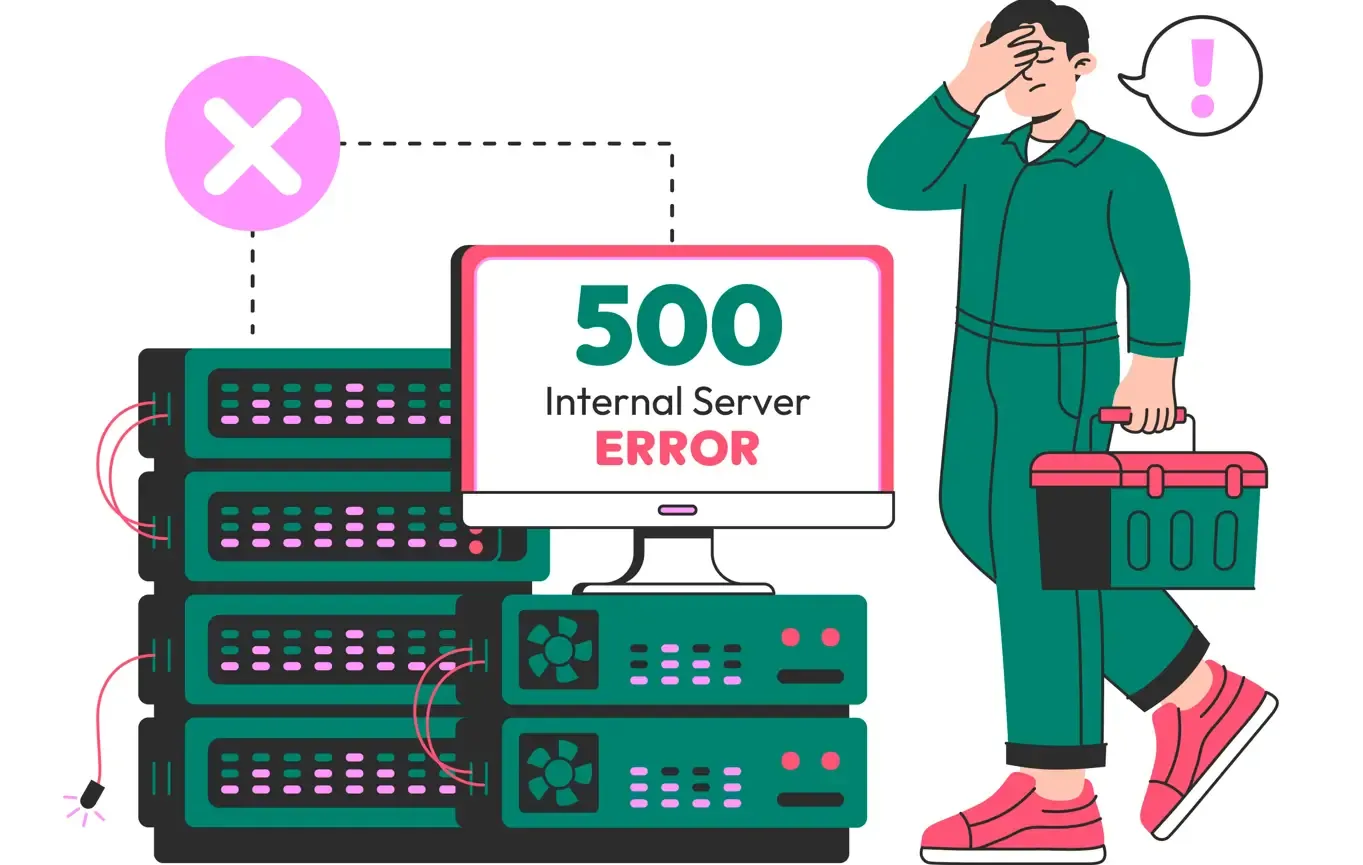
1. What Does "DNS Server Not Responding" Mean?
DNS (Domain Name System) is what turns a domain name into an IP address a device can actually use. When you type a URL into the browser, the device usually has to finish DNS resolution before it can open a connection to the target server.
"DNS server not responding" means the lookup request the device sent never got a valid answer within the allowed time. Typical causes: the DNS server is temporarily unavailable, network communication is failing, the system configuration is wrong, or the router isn't forwarding queries the way it should.
One distinction worth keeping straight: a timeout is not the same as a domain that doesn't exist. If the server comes back with NXDOMAIN, the request did receive a response — there simply was no record for that name.
2. How Do You Tell Whether the DNS Server Is the Problem?
If chat apps keep working while several websites refuse to load, check DNS resolution first. Connections that are already established may carry on as normal, while any new request that needs a fresh lookup can fail.
On Windows, press Win+R, type cmd to open Command Prompt, then run:
nslookup example.comIf you get "DNS request timed out", that query did time out. Next, point the query at a different DNS server so you have something to compare against:
nslookup example.com 223.5.5.5If the second command returns an IP address while the first keeps timing out, the default DNS server and the path to it are where to look.
If both queries come back clean but the browser still won't load pages, the problem is elsewhere — check the browser settings, the firewall, and the HTTPS connection next.
3. How Do You Fix "DNS Server Not Responding" on a Computer?
1. Clear the Local DNS Cache
Windows stores copies of some DNS records. When a cached entry has gone stale, it can interfere with loading a site.
Open Command Prompt and type: ipconfig /flushdns
Then reload the page. Clearing the cache fixes some stale-record cases, but it won't repair a DNS server that can't be reached in the first place.
2. Check and Change the DNS Server Addresses
Run ipconfig /all in Command Prompt to see which DNS servers the current network adapter is using.
If the configuration looks off, you can set DNS back to automatic in Windows network settings, or enter public DNS addresses manually to test.
| DNS Service | Primary DNS | Secondary DNS |
|---|---|---|
| Alibaba DNS | 223.5.5.5 | 223.6.6.6 |
| 114DNS | 114.114.114.114 | 114.114.115.115 |
| Google DNS | 8.8.8.8 | 8.8.4.4 |
| Cloudflare DNS | 1.1.1.1 | 1.0.0.1 |
A public resolver isn't automatically the better choice just because it looks faster on paper. What you actually get depends on your region, your ISP, and whether that server is reachable from your network.
3. Restart the Router and Try Another Network
After long uptime, a router can end up with a stuck connection state or trouble forwarding DNS queries. Unplug it, wait ten or fifteen seconds, then power it back on.
If nothing changes, connect the computer to your phone's hotspot instead. When pages load fine on the hotspot but keep failing on the home network, the fault is more likely in the router, the home network setup, or the ISP side.
4. Phone Is on Wi-Fi but Says DNS Server Not Responding — What Now?
On a phone, start small: toggle airplane mode once, or forget the current Wi-Fi network and rejoin it. If other devices on the same Wi-Fi can't load pages either, look at the router and the broadband connection first rather than fiddling with the phone again and again.
If only one phone is affected, check that network's DNS settings. Some Android phones also offer Private DNS — try switching it back to automatic. On iPhone, you can adjust DNS in the network details for the current Wi-Fi network.
Resetting network settings should be the last step, since it can wipe the Wi-Fi networks and passwords already saved on the phone.
5. After Changing DNS, How Do You Confirm the New Settings Are Working?
Sometimes the DNS addresses are changed in the system, yet the resolver the browser actually uses hasn't switched the way you expected. That can come down to the browser's secure DNS feature, the router's forwarding behaviour, or the network configuration itself.
Once pages load normally, you can run ToDetect's DNS leak test to see which DNS resolvers handled the test requests, along with related network details — a useful way to check whether the actual resolution path matches what you intended.
That said, a resolver IP in the results that differs from the DNS address you set doesn't automatically mean a DNS leak. Public resolvers may handle queries across several nodes, and an IP's registered location doesn't always reflect where the server physically sits.
A DNS leak test is mainly for understanding the real resolution path; it can't replace a DNS connectivity test. Using the two together helps narrow down where the fault lies.
6. Will "DNS Server Not Responding" Clear Up on Its Own?
If an upstream DNS service had a brief outage or the network was unstable, it may recover by itself after a while. But if the failure keeps coming back, it's time to check the system configuration, the router's running state, and the ISP's network.
It helps to note down when the failure happened, which devices were affected, and what the nslookup tests returned. That record shows whether the problem is confined to one network environment, and gives you something concrete to hand over when you contact the ISP.
"DNS server not responding" doesn't mean the device is broken, and there's no reason to rush into reinstalling the system. Confirm connectivity first, then check domain resolution and the actual DNS configuration — that usually gets you further than rebooting again and again.
Browser Fingerprint Detection Tool
Efficiently solve multi-account management, environment isolation, and account security