Resources
 Feature overview

 Alani
Alani 2026-07-10 11:22
More and more people are starting to use fingerprint browsers combined with proxy IPs to manage multiple accounts, allowing each account to have a relatively independent operating environment and reducing the impact caused by environment confusion.
For beginners, questions such as how to choose a proxy IP, what parameters should be filled in during proxy IP configuration, and what details need attention when building a browser environment often seem confusing.
Today, we will introduce the complete process from proxy setup, environment creation, to using ToDetect to detect browser fingerprints, helping beginners quickly understand the entire setup process and avoid unnecessary mistakes.

1. Before using fingerprint browsers, you need to understand their purpose
When ordinary browsers open websites, they leave behind various device information, such as browser version, operating system, screen resolution, font information, Canvas fingerprint, WebGL parameters, and more.
If multiple accounts are logged into using the same computer and the same browser environment for a long time, environment association can easily occur. The purpose of fingerprint browsers is to create different browser environments and manage these parameters independently.
Fingerprint browsers can create multiple "virtual browsers", each with independent device parameters, cookies, local cache, and network configurations. For beginners who need to operate multiple accounts, properly building browser environments can reduce problems caused by account interactions.
2. Prepare a proxy IP and configure proxy settings
The purpose of a proxy IP is to change the IP address displayed when a browser accesses the internet, allowing different browser environments to have independent network connections. For example, one account can use a US IP while another uses a UK IP, helping maintain separation between different environments.
Common proxy types include residential proxies, data center proxies, and dynamic proxies. When choosing a proxy IP, beginners should not only focus on price but also consider IP stability, speed, and cleanliness.
After preparing the proxy IP, you can proceed with proxy IP configuration. A common proxy format includes:
• Proxy protocol: HTTP / HTTPS / SOCKS5
• Proxy address: Proxy server IP
• Proxy port: Corresponding port number
• Username and password: Information provided by the proxy service provider
After completing the settings, you can check whether the proxy connection is successful. If the displayed IP address has changed, the proxy configuration is basically complete.
3. Build the browser environment
Open the fingerprint browser, enter the environment management page, and click "Create New Environment" or a similar option. Usually, the following settings need to be configured:
First, configure the operating system environment.
You can select Windows, Mac, or other system types according to your needs. Different environments should maintain reasonable differences instead of using exactly the same parameters everywhere.
Second, configure browser parameters.
In most cases, beginners are advised to use the default fingerprint configuration provided by the software. Frequently modifying too many parameters may cause environment issues.
Third, bind the proxy IP.
Each browser environment should preferably be bound to an independent proxy IP, keeping the browser environment and network environment consistent.
Fourth, save the environment and test it.
After creation, open the browser environment and visit an IP detection website to check whether the current IP, location, and browser information match expectations.
During this process, you can also use detection tools such as ToDetect to check the browser environment and verify whether there are any abnormalities in the current browser fingerprint information.
4. Use ToDetect to check whether the browser environment is normal
Many beginners are unsure whether their environment has been successfully built after configuring a fingerprint browser. At this point, detection tools such as ToDetect can be used for testing.
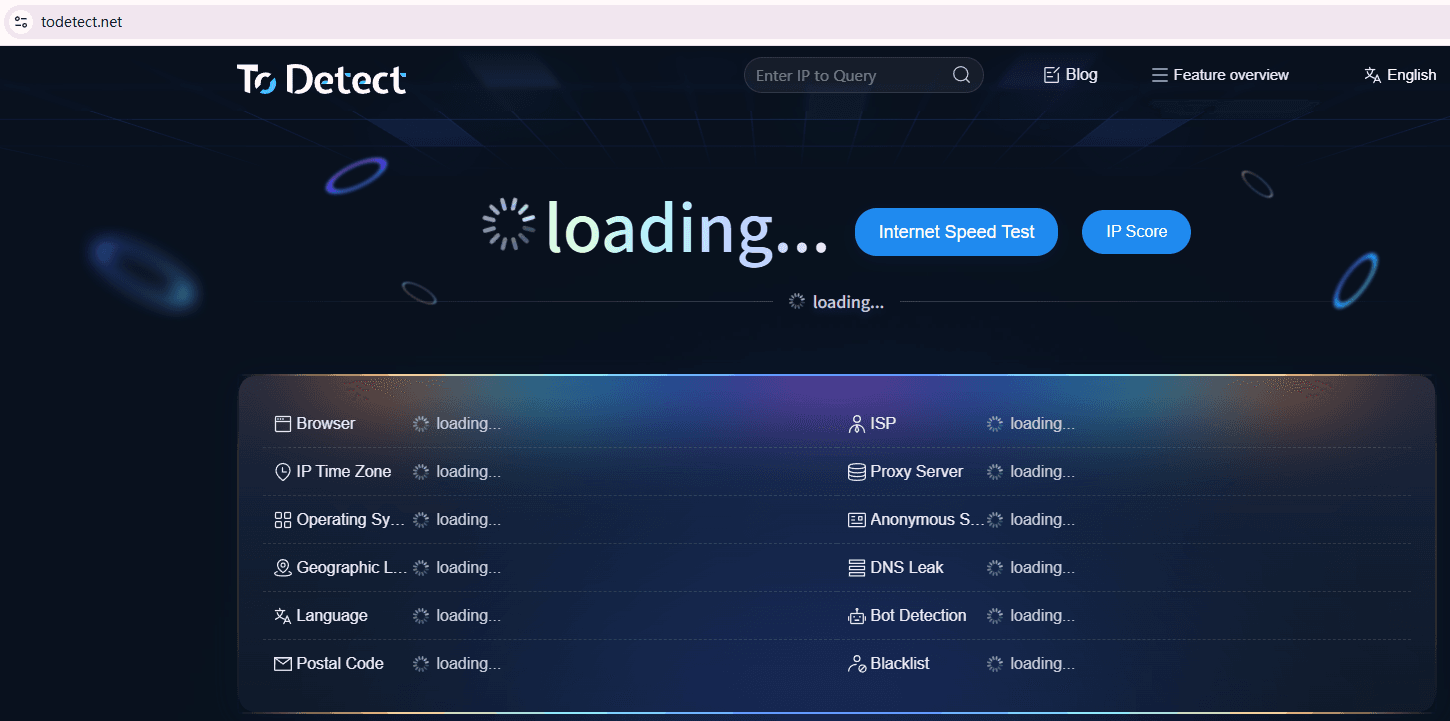
First, check whether the IP address has changed.
If the proxy IP configuration is successful, the IP displayed on the detection page should be different from the real network IP, and the location information should match the proxy settings.
Second, check browser fingerprint information.
This includes parameters such as User-Agent, Canvas, WebGL, fonts, and timezone. If multiple browser environments display exactly the same information, the level of environment differentiation may be insufficient.
Third, check DNS and WebRTC information.
Even after changing the proxy IP, some browser environments may still leak real network information through DNS or WebRTC. Therefore, checking these details is very important.
Through ToDetect detection, beginners can quickly identify issues in proxy IP configuration or browser environment setup, avoiding problems during future usage.
5. What should you pay attention to during daily use of fingerprint browsers?
First, it is not recommended to frequently modify a browser environment that is already running stably. For example, if an account has been using an IP from a specific region for a long time, avoid suddenly switching to a completely different country or region.
Second, each account should preferably correspond to a fixed browser environment. Do not use Environment A today and Environment B tomorrow, as this can easily create confusion.
In addition, proxy IP quality is also very important. If proxy IPs frequently disconnect or change, browser environment stability may also be affected. Therefore, when choosing a proxy service, consider IP quality, connection speed, and customer support.
6. Common mistakes beginners make when using fingerprint browsers with proxy IPs
Mistake 1: Thinking that changing the IP alone is enough for security.
In reality, an IP address is only one part of the network environment. Browser fingerprints, cookies, device parameters, and other information are equally important, so simply using a proxy IP has limited effectiveness.
Mistake 2: Creating too many browser environments.
Many beginners create dozens or even hundreds of environments when they first start using fingerprint browsers. However, without proper management, this not only makes operations difficult but can also lead to confusion.
Mistake 3: Completely relying on default software settings.
Although fingerprint browsers can automatically generate environment parameters, users still need to make reasonable adjustments according to actual requirements, such as matching region, language, and timezone settings.
Conclusion
Mastering the use of fingerprint browsers with proxy IPs is very important. The entire process can be summarized as: Prepare proxy IP → Complete proxy IP configuration → Create an independent browser environment → Use ToDetect for detection → Maintain the environment steadily.
Whether configuring proxy IPs or building browser environments, maintaining reasonableness and stability is essential. Using detection tools such as ToDetect to regularly check environment status can help identify potential issues and make the entire process smoother.
Of course, tools are only auxiliary. What truly determines effectiveness is following proper operating habits. By using fingerprint browsers correctly and configuring proxy IPs appropriately, even beginners can quickly master this workflow.