



 Resources

 Feature overview

 Ganesh
 2026-11-24 09:59
Registering a new account went off without a hitch — the verification code came through, the profile photo and display name were set. Then the next day, logging in returns "unusual network environment." Other times the account opens fine, but posting content, sending direct messages or editing profile details triggers extra verification.
When that happens, most people assume they have been clicking around too fast. It is worth checking the network side as well.
The type of IP address, its reputation history and the browser's network connection can all feed into how a platform assesses account safety. That said, a network warning does not automatically mean the IP is at fault — you need to work through the detection results item by item.
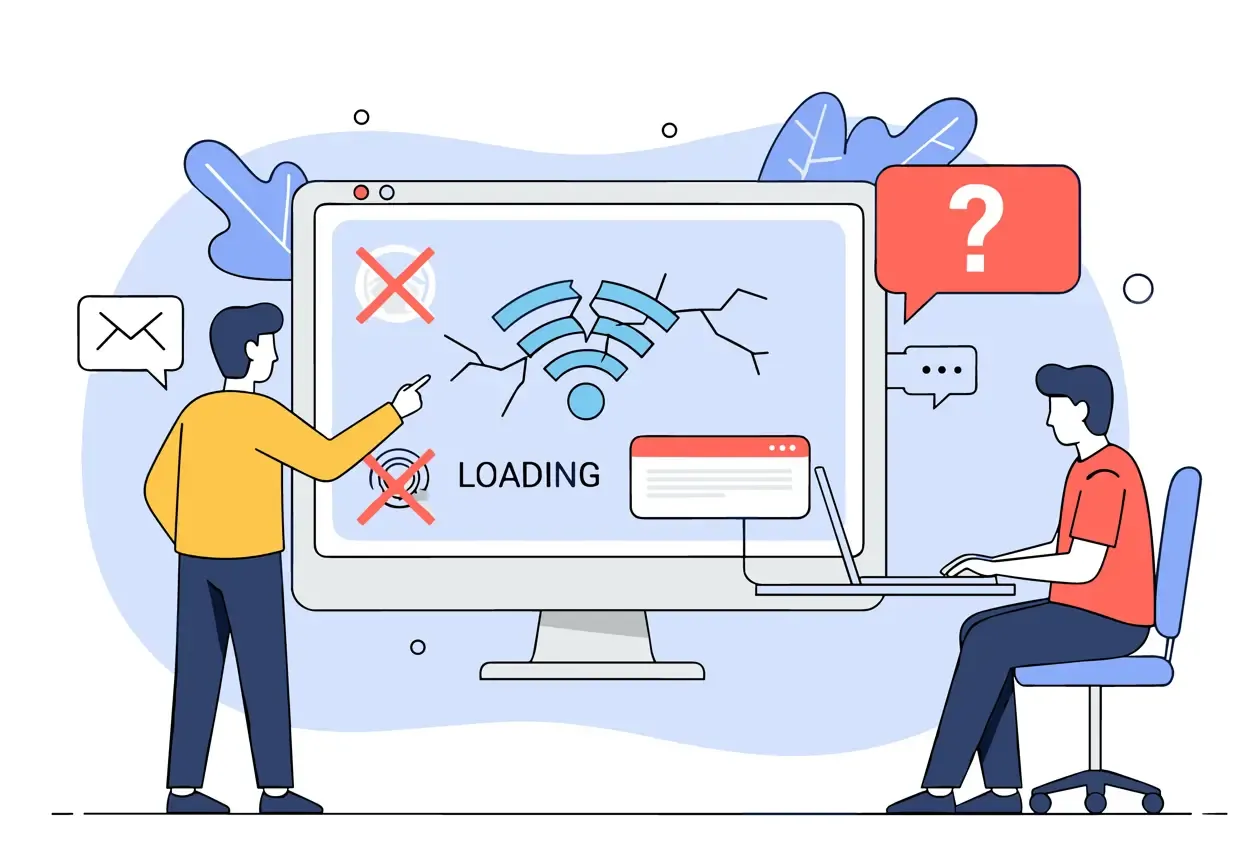
1. A network warning on a new account: what to check first
Both at sign-up and during everyday logins, platforms may weigh your login location, device details, network connection and account behavior together.
Say you register on home broadband one day and log in the next from a network in another region. A sudden shift in login location can be enough to trigger extra verification. The exact rules are rarely made public, though, so a single warning message is not proof of the cause.
When troubleshooting, first confirm that the current connection is stable, whether you recently changed devices or networks, and whether the account has received any official security notice. If other websites load normally but the account is still restricted, take a closer look at IP quality and the browser environment.
2. Use ToDetect to check IP purity
An IP purity check is not about stamping a single address as good or bad. It is about understanding the basic properties and potential risks of your current network exit.
Open the ToDetect online check page and start with the items below:
1. IP location and ASN
Look at the region the IP belongs to, its autonomous system number and the carrier behind it. Some addresses belong to cloud providers or data centers, but that alone does not mean they carry a security problem.
2. IP reputation details
Check whether the results carry any abnormal tags or public risk records. Different databases apply different criteria, so a single score should not be treated as the final verdict.
3. Network type
Home broadband, mobile networks and data center connections each behave differently. Mobile networks often share public IPs across many users, but sharing on its own does not mean the IP has a poor reputation.
If the results do flag something, verify the specific metrics rather than fixating on the total score. Cross-check against other public lookup tools when necessary.
3. The IP check looks clean — do I still need DNS and WebRTC?
Yes. IP reputation is only one part of a network check, and DNS resolution plus WebRTC connections deserve just as much attention.
1. DNS check
DNS is what turns domain names into IP addresses. If the DNS servers detected do not match the network configuration you expect, look into your system DNS settings, the browser's secure DNS feature, and IPv4 and IPv6 connectivity.
Keep in mind that a DNS server sitting in a different country from your exit IP does not necessarily add up to a DNS leak. Some networks route through resolution nodes elsewhere, so judge against your actual configuration.
2. WebRTC check
A WebRTC check is mainly about whether the browser exposes network addresses you did not intend to reveal. A local private address showing up in the results does not mean your real public IP has leaked either. The thing to focus on is whether any public address conflicts with your current network setup.
ToDetect puts IP details, DNS checks and browser fingerprint information in a single view, so you can compare results across items without bouncing between check pages.
4. What should I do if the IP check comes back abnormal?
A risk flag in the report does not mean you should switch networks right away. Understand what the flagged item actually means first, then decide whether anything needs changing.
Detection scenario and suggested action
| Detection scenario | Suggested action |
|---|---|
| Low IP reputation score | Review the specific risk tags and weigh them against other results |
| IP location differs from expectations | Verify your carrier and the current connection type |
| DNS information does not match | Check system and browser DNS settings |
| WebRTC exposes an unexpected public address | Review the browser's network connection and related settings |
| IPv4 and IPv6 details are inconsistent | Check the exit information for both protocols separately |
Once you have adjusted your network settings, reopen ToDetect and run the check again, then keep the before and after results side by side.
If you changed your DNS configuration, for example, confirming the resolver now matches expectations is more meaningful than chasing a higher score.
If every check comes back clean and the account is still restricted, look at the platform's security notices first and complete the verification or appeal as instructed. Cycling through networks purely on the strength of an IP score is not advisable.
5. How often should you run an IP purity check?
If you use the same network day in and day out, there is no need to test often. Run a check the first time you connect to a new network, whenever your network configuration changes, or when a login throws an environment warning.
If you want to keep an eye on network status over time, record the check date, IP type, DNS results and any major warnings so later comparisons are easy.
One caveat worth stating plainly: online IP check tools can only report current network properties and some public reputation data. They cannot read a platform's internal account security records, and they cannot guarantee an account will never run into verification or feature limits.
When a new account hits a network warning, a sensible order is: confirm the connection and any official notices first, then look at IP properties and reputation, then move on to DNS, WebRTC and the browser environment.
The real value of an IP purity check lies in helping you locate potential problems in your network configuration, not in chasing a particular score. A combined check with ToDetect gives you a clearer picture of your current network state and a solid reference point for further troubleshooting.
Browser Fingerprint Detection Tool
Efficiently solve multi-account management, environment isolation, and account security