Resources
 Feature overview

 Ganesh
 2026-05-11 11:16
Users involved in cross-border e-commerce and overseas social media are paying more and more attention to IP address lookup. Many people use mobile phones to access the internet every day, yet still have no idea what their actual IP address is.
As network security, account risk control, and browser fingerprint detection become increasingly common, more users are actively using mobile IP lookup and online IP checking tools.
Today, we’ll share 3 universal mobile IP lookup methods that work for both Android and iPhone users, making it easy for anyone to get started quickly.
1. What Is a Mobile IP Address?
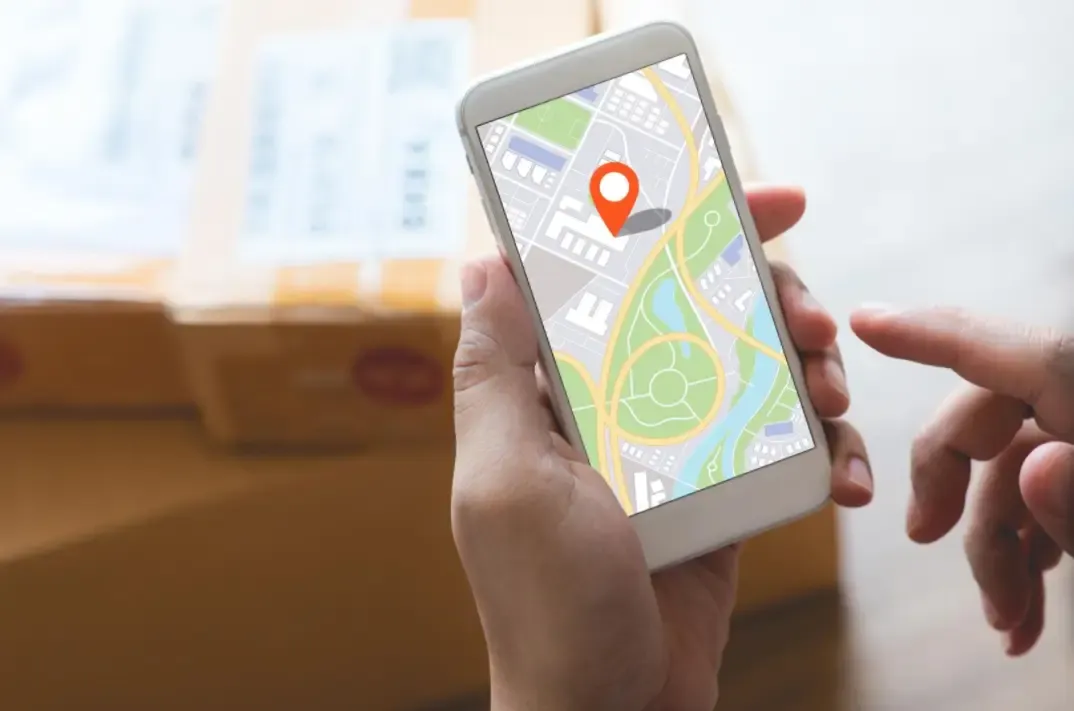
An IP address is like your phone’s “home address” on the internet. Whenever you browse websites, open apps, or send messages, systems use your IP address to identify where the connection comes from.
Mobile phones usually have both a local IP address (LAN IP) and a public IP address (external IP). For example, 192.168.xx.xx belongs to a local IP range, while the IP assigned by your internet provider is your public IP.
Most users actually need to check their public IP address — the one websites and platforms can see. That’s why “online IP lookup” has become a commonly used feature.
Method 1: Check Through an Online IP Lookup Website (Fastest)
These steps work for both Android and iPhone users:
🔶 Open your mobile browser
🔶 Search for “online IP lookup”
🔶 Open an IP lookup website
🔶 The page will automatically display your public IP address within seconds.
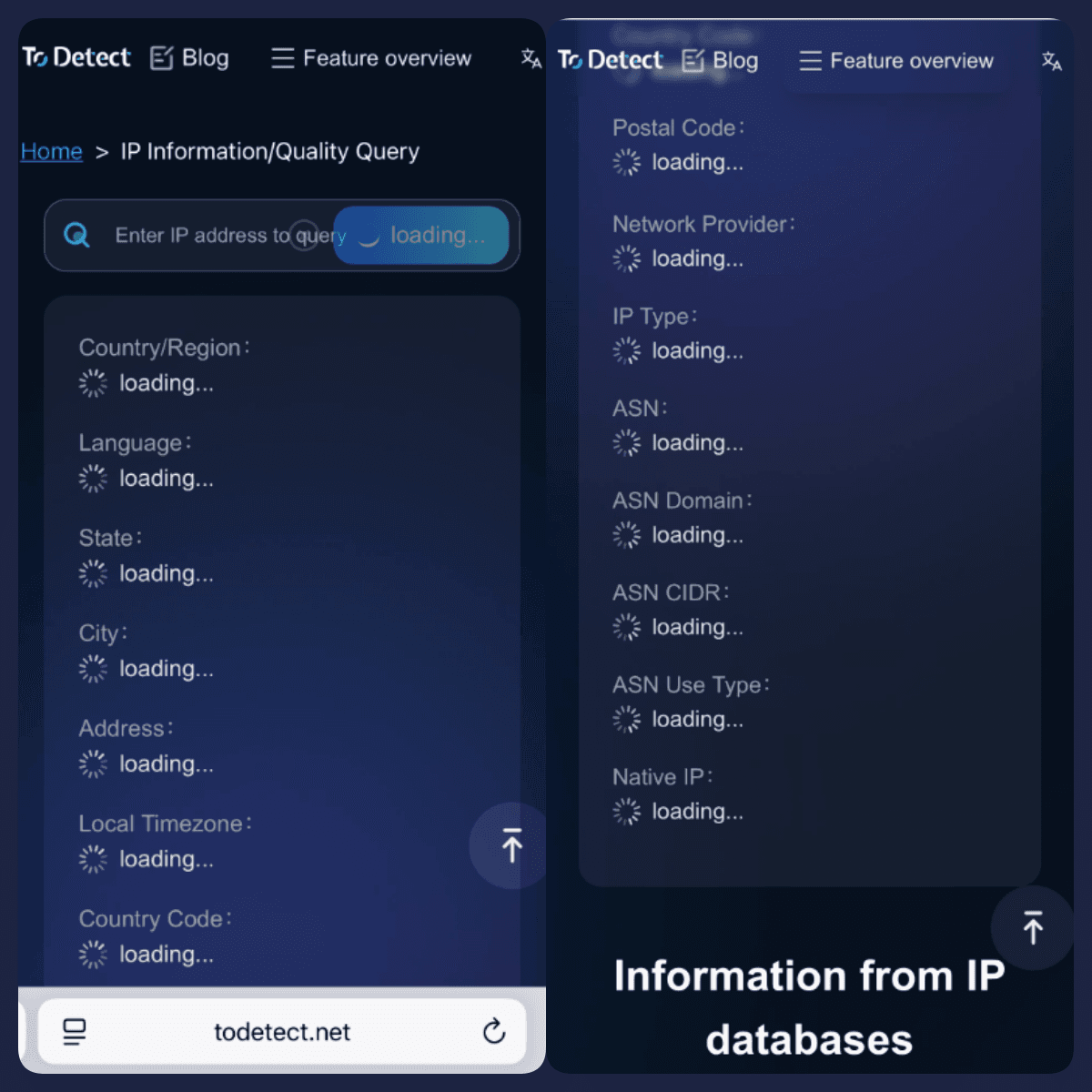
Many websites also display additional information such as IP location, ISP, IPv4/IPv6 status, network type, browser details, and DNS information.
Recommended: Use ToDetect for Mobile IP Lookup
• If you want more than just IP information — such as device environment detection, browser details, and proxy status — then ToDetect offers a more comprehensive solution.
• It supports IP address lookup, online IP checking, and IPv6 detection.
• It also supports browser fingerprint detection, WebRTC testing, DNS leak detection, proxy identification, timezone checking, and User-Agent analysis.
• Today, many platforms combine browser fingerprint detection with IP analysis to determine whether a device environment is suspicious, so checking only the IP address is no longer enough.
Method 2: Check Your Device IP Directly in Phone Settings
If you want to view the local IP address assigned after connecting to WiFi, you can check it directly in your phone settings. However, this is usually a LAN IP rather than a public IP.
How to Check IP Address on Android:
🔶 Open [Settings]
🔶 Tap [WLAN] or [Wi-Fi]
🔶 Enter the currently connected network
🔶 View the “IP Address”
Some phones (Huawei, Xiaomi, OPPO, vivo, Samsung, etc.) may also display gateway information, DNS, MAC address, and network band details.
How to Check IP Address on iPhone:
🔶 Open [Settings]
🔶 Tap [Wi-Fi]
🔶 Tap the “i” icon beside the connected WiFi
🔶 Your IP address will appear
You can also view subnet mask, router address, DNS, and private WiFi address information here.
If “Private WiFi Address” is enabled, some websites may detect different device information.
Method 3: Use a Search Engine to Check Your Public IP
Many search engines now include built-in IP address lookup features. For example, Google, Bing, and Baidu can directly display your current IP address.
Simply search the following keywords in your browser:
🔶 My IP
🔶 IP Address Lookup
🔶 Current IP
🔶 Mobile IP Lookup
Your public IP usually appears directly at the top of the search results.
• This method is suitable for quick temporary checks when you don’t want to open third-party websites.
• However, compared to professional online IP lookup platforms, search engines provide limited information.
• Usually, they only show your current IP and approximate location, without detecting browser fingerprints, proxy status, WebRTC leaks, or DNS environments. That’s why professional tools are still recommended.
4. Why Are More People Paying Attention to IP Addresses?
Internet platforms are applying stricter risk control systems, making IP addresses more important than ever.
1. Account Security Detection
Many platforms judge whether an account login is suspicious based on IP changes.
Frequent IP switching, cross-region logins, or abnormal proxy environments may all trigger security checks.
2. Browser Fingerprint Detection Is Becoming More Common
Modern platforms not only check IP addresses, but also collect browser versions, operating system details, screen resolution, timezone, Canvas information, and more.
That’s why sometimes an IP appears normal, but the account is still flagged — the issue may actually come from browser fingerprint detection.
3. Growing Cross-Border Business Demand
More people are now working with TikTok, Facebook, Amazon, independent stores, and Google Ads.
These platforms place strong emphasis on IP authenticity, increasing the demand for online IP lookup and environment detection tools.
5. Things to Keep in Mind When Checking Mobile IP Addresses
IP Addresses Change Across Different Networks
For example, switching between WiFi, mobile data, or company networks will usually change your IP address. This is completely normal.
Public IPs Are Not Always Fixed
Most ISPs use dynamic IP allocation. Restarting the network may change your IP and even your location information, so don’t assume your IP will stay the same forever.
Proxy IPs May Cause Environment Risks
If you use proxy nodes or cloud server networks, some websites may identify them as high-risk IPs.
Therefore, it’s recommended to regularly perform IP lookup, browser fingerprint detection, and DNS checks to avoid abnormal network environments affecting your accounts.
6. Mobile IP Address Lookup FAQ
1. Why Is My Mobile IP Address Different Every Time?
This is actually normal because most ISPs use dynamic IP allocation mechanisms, automatically changing your public IP based on the network environment.
When performing online IP lookup, it’s recommended to also check browser fingerprints and network environments to avoid account restrictions caused by frequent IP changes.
2. Why Can Websites Identify My Device? Is It Only Because of My IP?
Today, many platforms no longer rely only on IP detection. They also use browser fingerprint detection technology to identify devices.
That’s also why many users still get flagged even after changing their IP addresses.
3. Are the IP Lookup Methods the Same for iPhone and Android?
Whether you use Android or iPhone, you can directly check your public IP through online IP lookup websites. If you want to see your local LAN IP, you’ll need to open WiFi details in your phone settings.
Conclusion
Checking your mobile IP address is no longer a complicated task. Even complete beginners with no networking knowledge can do it within minutes.
Besides supporting online IP lookup, ToDetect can also detect browser fingerprints, proxy status, and network environment consistency at the same time.
Mobile IP addresses are not permanently fixed. Understanding your network environment from time to time can actually help you avoid many unnecessary problems.