Resources
 Feature overview

 Ganesh
 2026-10-16 10:59
When you run an IP check on Whoer and the page shows 90%, plenty of people start worrying that their IP might be risky, or that they need to switch to a different proxy IP. In reality, 90% doesn't automatically mean the IP is "dirty", and that number alone can't tell you whether your network environment is safe.
First, it's worth clearing up one concept: the score on an IP check page is mainly there to assess how anonymous your connection is and how well your browser and network details agree with each other. It isn't the same thing as the general-purpose IP cleanliness rating you'll see talked about in the industry.
If your IP cleanliness check comes back at just 90%, start by looking at which specific items are flagged, then cross-check with other IP detection tools. Below we'll cover the common causes, a practical troubleshooting sequence, and how to judge IP quality.

1. Whoer's IP cleanliness check shows 90% — is that normal?
The score on Whoer is mainly there to show how anonymous your connection is and how consistent your information is. That makes 90% a signal worth looking into further, not a final verdict on whether the IP is usable.
Start by separating these cases out:
• IP ownership details don't quite match: the country or city shown in the IP database doesn't fully line up with where the network actually is, which can come down to how accurate the database is and how often it's updated.
• Network or browser details disagree: your DNS, system time zone and browser language point to a different region than your public IP does, which can trigger a flag.
• Proxy or data center characteristics: some checks look for signs of a proxy or a data center network. That doesn't mean the IP has a record of abuse.
• IP reputation issues: if the report explicitly flags a blacklist or risk record, you need to dig into exactly where that record comes from and what it says.
2. Why does my IP cleanliness check only come back at 90%? Common causes
1. The IP's registered location doesn't match where you actually are
IP geolocation usually comes from third-party databases, and different databases can place the same address in different spots. Here's how to check:
Look at the country, region, ISP and ASN details in the report.
Cross-check with a different IP lookup tool. If several sources disagree on the ownership details, confirm the IP's registration records and the network operator's information.
If only the city differs while the public IP, network connection and other indicators all look right, you usually don't need to swap IPs just to fix how the location is displayed.
2. The IP shows proxy or data center characteristics
Some IP detection tools try to work out whether the connection looks like a proxy or a data center network.
That kind of judgement is about the type of network and the characteristics of the connection — it's a different question from whether the IP is blacklisted. Here's how to check:
Look at the ISP, ASN and network type in the report. Confirm whether you're on a home broadband line, a mobile network or a data center network.
If the result clearly doesn't match the type of network you bought or applied for, ask your network provider to confirm it. Don't assume an address is a security risk just because a tool has labelled it as a proxy or data center IP.
3. The IP has a questionable reputation or a blacklist record
If the report says the IP appears on a blacklist, find out which database the record comes from and what kind of risk it refers to. Here's how to check:
Note down the IP address that triggered the flag and the time of the check. Look at the blacklist source or supporting evidence the report provides.
Look up the address's current status and the reason it was listed in that database. If several trustworthy sources all point to a recent problem, contact your IP provider to confirm.
4. DNS information doesn't match the public IP
DNS is what turns a domain name into the matching IP address. When you're using a proxy, the path your DNS requests actually take may differ from the exit path of your public IP.
If a detection tool finds that the DNS server sits in a different region from your public IP, it may flag it. That said, a DNS server being in a different region doesn't automatically mean a DNS leak.
Public DNS services, the way your ISP's network is built, and how your proxy software is configured can all create differences in region information.
What actually matters is whether, in your situation, DNS requests follow the network path you expect — and whether they expose information you'd rather keep private.
Use the [DNS leak test tool page link] to check how DNS resolution is currently handled, then judge the whole picture alongside your public IP and network configuration.
5. Browser environment doesn't match the network information
Some detection tools check your browser language, system time zone, User-Agent and WebRTC details.
For example, if your public IP points to one country while your system time zone is still set to another, a tool may flag the mismatch.
That doesn't mean your browser settings are wrong. Travelling across regions, remote work and multi-language devices can all produce the same pattern.
If you're checking whether a proxy is working properly, focus on whether your real IP actually leaks and whether the network requests behave as expected — rather than blindly changing your language and time zone just to chase a 100% score.
3. IP cleanliness check stuck at 90%? Work through these five steps
| Step | What to check | What to do |
|---|---|---|
| Step 1: Confirm your public IP | See whether the IP address has changed | Run the online IP check again and compare the address and the results before and after, to see whether the score is stable. |
| Step 2: Cross-check IP quality | Compare the IP's location, ISP and DNS details | Cross-verify with tools such as ToDetect, and focus on the items that are flagged rather than just comparing overall scores. |
| Step 3: Look up IP reputation | Check for any historical records | Verify the records against public IP reputation databases, and be careful to separate historical entries and false positives from recent problems. |
| Step 4: Check the network environment | Look into DNS, browser details and connection stability | See whether DNS resolution is working normally, and whether your browser's time zone and language match your actual environment. |
| Step 5: Decide whether anything needs changing | Use the results to decide what to do next | If it's just a database discrepancy, you can leave it and keep an eye on it; if the network problems persist, contact your network provider to confirm. |
4. How do you judge the real quality of an IP?
When you're checking IP quality, it's best not to fixate on a single percentage. Judge it across these five dimensions instead.
1. IP ownership details
Check that the country, region, ISP, ASN and network type match what you expect. IP geolocation is usually an estimate and won't necessarily pin down the actual street or building. Differences between databases don't automatically mean the IP is a problem.
2. IP reputation
Check trustworthy sources for blacklist or risk records. When judging them, look at where the record came from, when it was logged and exactly what it says — rather than drawing a conclusion from a risk label on one tool alone.
3. DNS and WebRTC
If you're using a proxy, confirm that network requests behave as expected and that no real IP or DNS information you'd rather hide is exposed. A DNS server in a different region isn't the same thing as a DNS leak; you need to look at the actual resolution results and your network configuration.
4. Network stability
Judge network performance by latency, packet loss and dropped connections. Good IP reputation doesn't guarantee a fast connection, and a fast connection doesn't prove the IP has no reputation problems.
5. Consistency of the results
Under similar test conditions, check the key metrics across several tools. If the results differ, first rule out differences in test time, network exit, database sources and the scope each tool covers.
Put simply, IP quality should be judged on the type of network, its reputation, how the connection performs and what you actually need it for — not squeezed into a single percentage.
5. What should you look at when using ToDetect for IP checks?
If you want to understand your current network environment better, you can use ToDetect's detection features to check your public IP, IP ownership details and your browser and network environment. Pick the checks that match your specific question, instead of only ever looking at the overall score. For example:
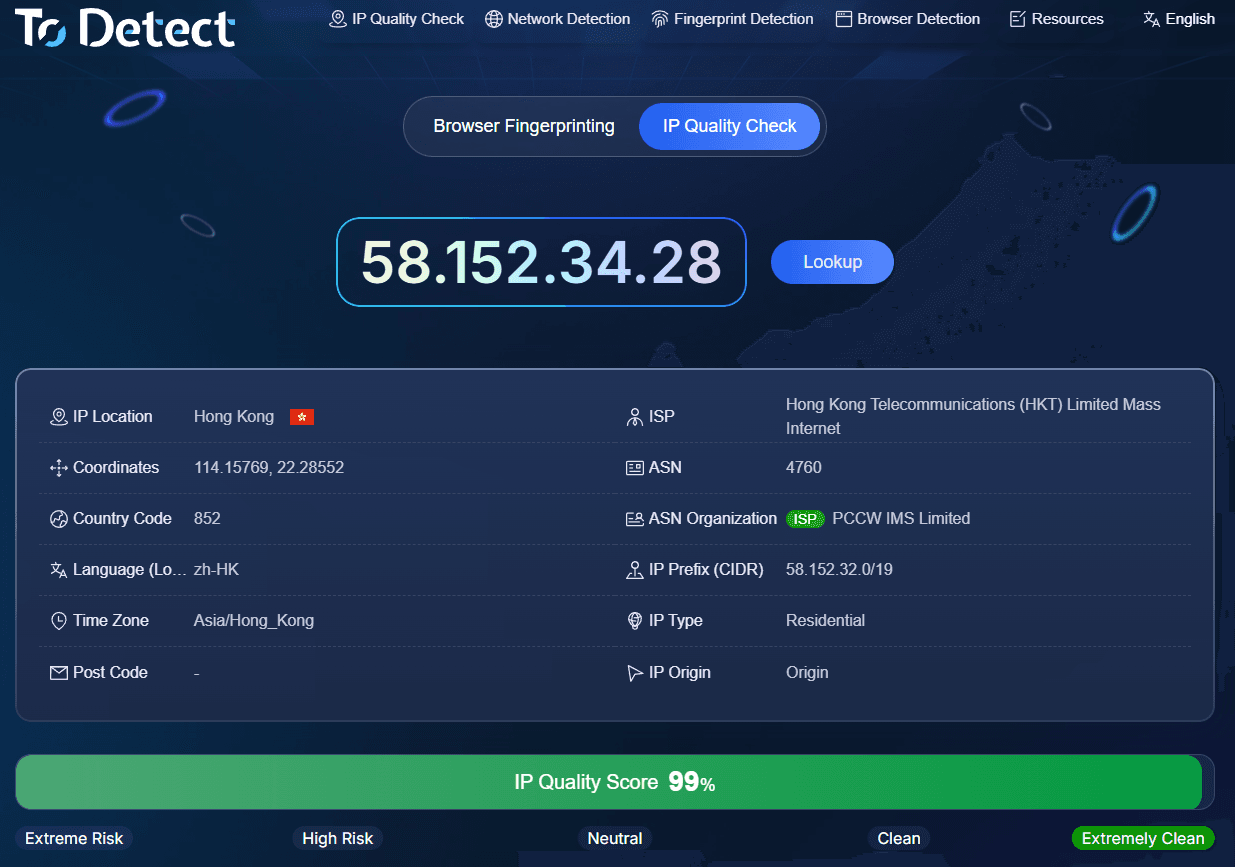
• To confirm whether your network exit is the one you expect, start with the IP check.
• To verify a DNS-related flag, use the DNS check to look at the resolution details.
• To find out whether your browser might be exposing other IP information, use the WebRTC check.
• To see what environment details your browser is handing to websites, take a closer look at the relevant browser parameters.
In practice, it helps to log the test time, your current network configuration and the key results. If you change your DNS or proxy settings, re-test under the same conditions and see whether the relevant items change.
Bear in mind that ToDetect and other online tools only cover a specific scope. They can help you locate a problem, but a single check can't prove that an IP is risk-free across every website and every scenario.
6. IP cleanliness check: FAQ
Q1: My IP cleanliness check shows 90% — do I need to change my IP right away?
Usually not. Start with the specific items flagged in the report, then verify your public IP, DNS, WebRTC and IP reputation records. If there's no actual leak, no ongoing network problem and no credible reputation issue, 90% on its own isn't enough to justify swapping IPs.
Q2: Why do different IP detection tools give different scores?
Different tools use different checks, data sources, update cycles and scoring methods. Some mainly report IP ownership data, while others also look at DNS, WebRTC, the browser environment or public reputation records.
Q3: Is there a big difference between 90% and 100% IP cleanliness?
It depends on what's actually flagged. If it's just some environment details disagreeing with your public IP's region, the real-world impact may be very limited — and 100% doesn't mean the IP is absolutely safe on every website and in every scenario.
Q4: If the DNS server region differs from the IP's region, is that a DNS leak?
No. A DNS server can be located in a different region from your public IP. Whether it counts as a DNS leak depends on the actual path your DNS requests take and whether information you'd rather keep private is exposed — you can't judge it on a geographical difference alone.
Q5: If the IP check looks fine, why am I still blocked on some websites?
Sites may run their own risk-control systems that weigh visit frequency, account behaviour, network type, device information and other signals together. So even if an IP detection tool finds nothing obviously wrong, there's no guarantee that every website will accept that address.
Q6: How often should I check IP quality?
There's no fixed schedule that suits every user. Re-test when you change networks, adjust your proxy configuration, run into access problems, or simply want to confirm your network environment. Everyday users don't need to keep re-testing just to hold on to a particular score.
Summary
An IP cleanliness result of 90% doesn't mean the IP is necessarily a problem. What matters more is understanding which metrics that score reflects, and separating out IP ownership data, network type, DNS, WebRTC, the browser environment and IP reputation as distinct factors.
Open up the full report first, then cross-verify with a combined IP check and the relevant specialist tools. Only once you've found a clear cause can you decide whether to adjust your network configuration, contact your provider or change your IP.
Rather than chasing a score that looks perfect, it's more useful to confirm that your current IP suits what you actually need — and that there are no verifiable problems in your network environment.