Resources
 Feature overview

 bonnie
 2026-10-12 11:00
Take the same User-Agent (UA) string and run it through different detection tools: why does one tool show nothing more than the browser and OS version, while another flags contradictions in the environment?
The short answer is that it comes down to what each tool is actually built to detect. A UA is essentially an identifier string sent by a browser or client, containing fields such as browser, operating system, and version — and none of those fields are guaranteed to be truthful.
So how do the common User-Agent parsing tools differ? And if you want to tell whether a UA looks off, which signals should you be looking at? Below we walk through a few widely used tools, what each one is best suited for, and the pitfalls people tend to overlook.
1. User-Agent Parsing Tools: What Can They Actually Tell You?
UA strings tend to look messy, and it's hard for an ordinary user to read the browser and OS details straight off them. That's exactly what a UA parsing tool is for: it breaks the string into its fields and turns them into something you can actually read.
The usual fields include browser name, browser version, operating system, rendering engine, and device type. Some tools can also detect mobile devices, crawlers, or specific clients.
That said, a successful parse doesn't mean the information is true, and a complete set of fields doesn't mean the UA hasn't been tampered with. Most basic parsing tools work by pattern-matching the string; they don't read the device's real operating system to verify the UA against it.
2. Five Common UA Parsing Tools Compared: What's the Difference?
ToDetect: best for checking a UA alongside the browser environment
ToDetect covers browser-related detection and also lets you inspect other browser environment parameters. For anyone who wants to understand UA information without relying on a single parsed result, this combined view is more convenient.
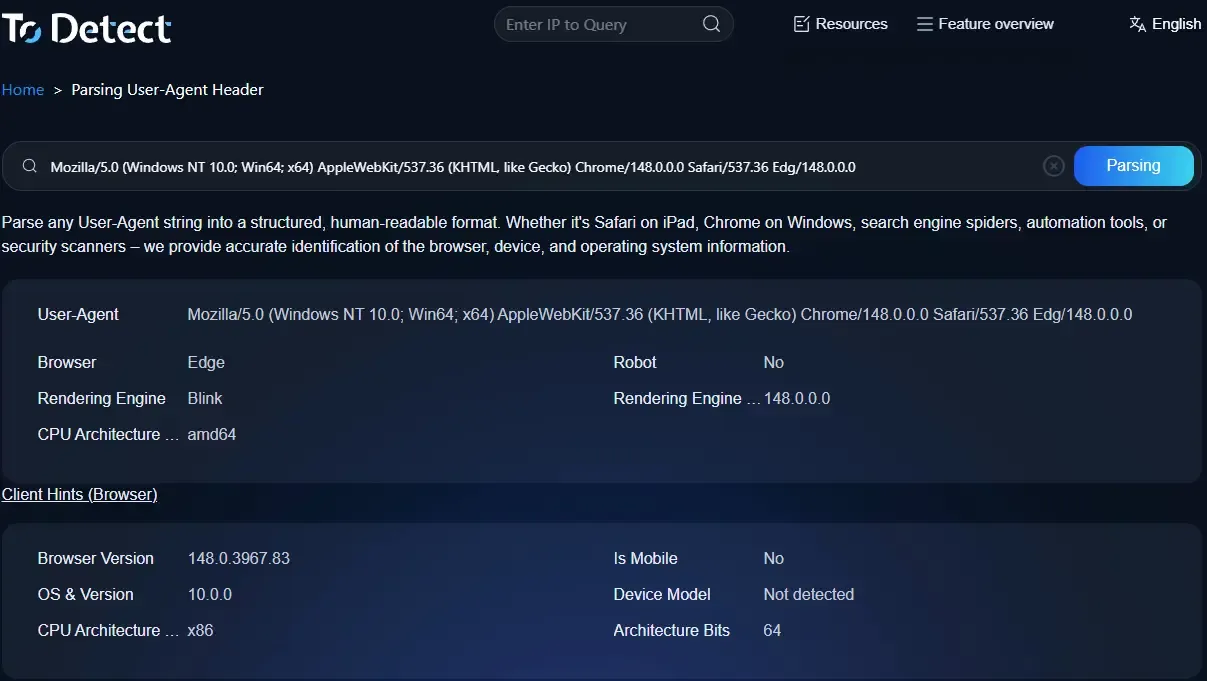
In practice, start with the basics — browser name, version, and operating system — then cross-check them against the language, time zone, screen resolution, and other details shown on the page. If the fields clearly contradict one another, that's a signal to dig deeper.
Keep in mind that UA parsing and browser environment detection are two different layers of capability. Whether a given anomaly gets flagged depends on what the actual detection page provides; you can't assume a tool can reliably catch every spoofed UA just because it displays a lot of fields.
UserAgentString: best for looking up historical UA details
If you have a UA string and want to know roughly which browser it maps to and which version it likely comes from, UserAgentString.com is worth trying.
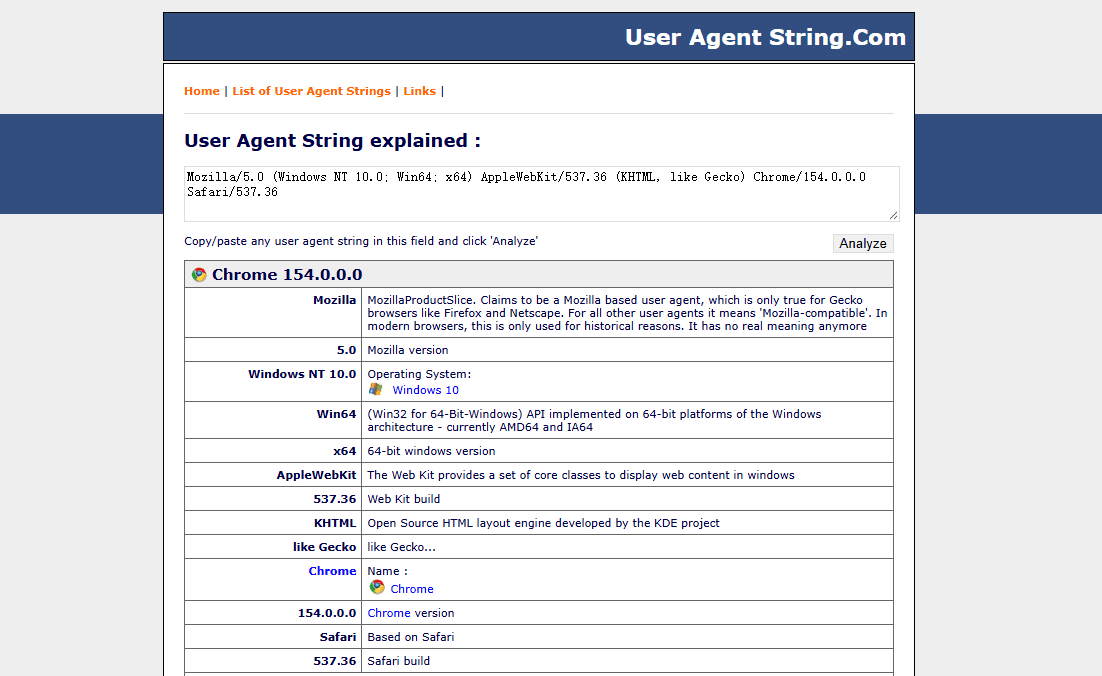
Its focus is UA strings and the related identifiers, which makes it a good reference for common browsers, older versions, and some crawler signatures. When you run into an unfamiliar UA, treat it as a lookup reference.
But note: the fact that a database can match a string doesn't prove that string came from the real device it describes. Even if a version is recognized successfully, that's not evidence the UA wasn't modified.
If your main goal is to understand what a string means or look up historical versions, this kind of tool fits well. If you need to determine whether the current browser environment shows anomalies, combine it with other detection methods.
WhatIsMyBrowser: best for viewing your current browser info
WhatIsMyBrowser.com offers browser information lookups, which suits users who just want a quick read on their current browser and its identifiers.

Compared with reading a raw UA string, a structured display is far easier to follow. If you're not familiar with browser version or OS identifiers, start with a page like this to understand your own browser, then dig further if needed.
That said, viewing your current browser info and verifying whether a UA is genuine are not the same thing. A page can display the browser name, version, and system details without ever having validated the device's authenticity.
UAParser.js / uap-core: best for developers and batch parsing
If you need to process large volumes of UA strings in a website, an app, or a log analysis pipeline, an open-source parsing solution usually has the edge.
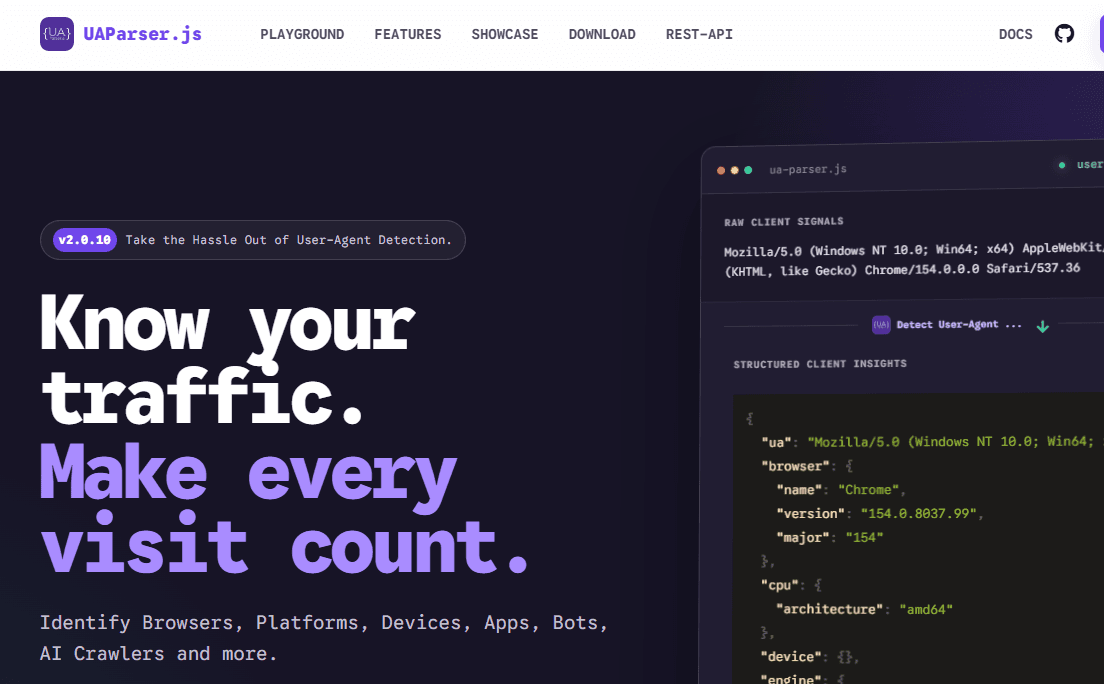
UAParser.js extracts browser, operating system, device, and other details from a UA string, which makes it a good fit for front-end development, back-end log processing, and automated analysis. uap-core provides the rule data that UA parsing relies on and can be used with related parsing solutions.
The advantage of these tools is that they're easy to integrate into a program and can handle large volumes of data to fit your project's needs — no manual page lookups every time.
For an ordinary user who just wants to look up one UA, an online tool is usually less hassle. If you need batch processing, custom rules, or integration into a business system, an open-source solution is more flexible.
Webmaster-tool UA lookup pages: best for a quick read on basic fields
Plenty of webmaster tool sites offer UA lookup pages where you can paste a string and see basic details such as browser, OS, and version.
Their strength is a low barrier to entry: handy for a one-off check of access logs, or for quickly understanding what a UA string means. For common browser identifiers, they generally give you a reasonable starting point.
That said, different sites use different parsing rules and databases. With niche browsers, unusual clients, or modified UAs, the completeness and accuracy of the result need to be verified case by case.
And if a page shows a version number that looks normal, don't assume it passed an authenticity check. A basic lookup result only shows that the tool matched a field against its existing rules — it's no substitute for anomaly validation.
3. How to Choose Among the Five: Start With What You Actually Need
These UA parsing tools don't all play the same role. If you only check a browser version now and then, there's no need to chase complex features. If you need to process large volumes of strings or investigate anomalies in a browser environment, then prioritize tools with the matching detection capability.
| Tool | Primary use | Best-fit scenario | What to watch out for |
|---|---|---|---|
| ToDetect | Browser info and environment parameter checks | You want to investigate using several environment signals together | Specific anomaly alerts depend on the actual detection features |
| UserAgentString.com | UA string and historical information lookups | Looking up browser identifiers and past versions | A successful match doesn't verify the real source |
| WhatIsMyBrowser.com | Browser information lookups | Quickly understanding your current browser | Viewing info isn't the same as spotting spoofing |
| UAParser.js / uap-core | Programmatic UA parsing | Development, log analysis, and batch processing | Extra anomaly rules usually have to be implemented yourself |
| Webmaster-tool lookup pages | Basic UA field recognition | One-off lookups and simple troubleshooting | Rules and coverage vary from site to site |
Practically speaking: if you just want to make sense of a UA string, a basic parsing tool is enough; if you need to process UAs programmatically at scale, consider an open-source parsing solution; and if you also want to inspect other browser environment parameters, choose a comprehensive tool with the right detection modules.
Rather than arguing over which one ranks first, work out whether what you need is string parsing, historical lookups, or multi-dimensional environment checks. Those are three different needs, and they call for different tools.
4. How to Do a First-Pass Check on Whether a UA Looks Off
Say a UA claims to come from a Mac but also contains identifiers tied to the Windows platform — that's worth a closer look.
But be clear about the order of things: contradictory fields only mean something needs checking; they don't prove the string is fake. A practical approach is to first ask whether the UA's own fields are internally consistent, then cross-check against any other environment information you can obtain.
| What to check | What to focus on | What to keep in mind |
|---|---|---|
| Browser name and version | Whether the version field parses sensibly | A niche or old version isn't necessarily an anomaly |
| Operating system identifier | Whether the OS field contradicts other information | A UA can be modified; it doesn't directly represent the real system |
| Device type | Whether the mobile and desktop identifiers make sense | Tablets and emulated environments can be special cases |
| Language and time zone | Whether they match the expected environment | Users can change language and time zone on their own |
| Other browser environment parameters | Whether multiple signals contradict one another | A single mismatch isn't enough to prove a UA is faked |
For example, a UA that reports Windows while the browser language is set to English and the time zone to a US region is not a problem in itself. Even a mismatch between the time zone and the IP's registered location may simply be the user's normal setup.
Conversely, if several independent signals obviously contradict one another at the same time, it's worth investigating further. Even then, judge based on the detection conditions and the use case as a whole rather than drawing a conclusion from any single result.
Also keep in mind that the UA, browser fingerprint, and network environment information are different dimensions of inspection. The UA mainly reflects the identifiers a client submits, browser environment parameters fill in supporting details, and data such as IP and DNS relates to the network connection itself.
They're defined differently. For important investigations, cross-verify with more than one tool and keep the original UA on hand for reference.
The Bottom Line
User-Agent parsing tools answer the question "what does this string represent," while anomaly checks focus on "does this information actually make sense."
If all you need is a browser version, a basic tool is enough. If you need to judge whether a UA may have been modified, don't stop at a few fields on a parsing page — analyze it alongside other environment signals and your specific use case.