Resources
 Feature overview

 Charles
 2026-10-15 11:06
After running a WebRTC leak detection test with ToDetect, you might notice three IP addresses showing up at once on the page: a public exit address, one starting with 192.168, and another starting with 10.
Many people's first reaction is confusion: you only have one network connection, so why is your browser exposing so many IPs? Is something leaking?
In most cases, there's no need to panic. WebRTC detection showing multiple IP addresses doesn't necessarily mean there's a problem with your network environment. What really matters isn't the number of IPs, but what each address represents and whether there's an unexpected public exit.

1. Why Does WebRTC Leak Detection Show Multiple IP Addresses?
WebRTC is a real-time communication technology built into browsers, commonly used in online video conferencing, voice chat, live streaming interactions, and similar scenarios. To help two devices establish a more stable connection, WebRTC uses STUN servers to gather external network information while also checking the local machine's available network interfaces.
In simple terms, a standard IP lookup is like "someone seeing your address from the outside," while WebRTC detection is more like "the browser laying out all the network information it knows about itself."
So if your computer is connected to both Wi-Fi and Ethernet at the same time, or if your system runs virtual machines, Docker, Hyper-V, WSL, or similar environments, multiple candidate addresses may appear.
2. Where Do the Multiple IPs in WebRTC Detection Typically Come From?
During actual detection, the most common type is local network (LAN) addresses. For example: 192.168.x.x; 10.x.x.x; 172.16.x.x through 172.31.x.x
These all fall within private address ranges and are only used within local network environments. They typically come from your computer's network adapter, addresses assigned by your router, or virtual network interfaces. Since these addresses can't be directly accessed from the public internet, seeing them doesn't mean your real public information has been leaked.
Another scenario is when your computer has multiple network interfaces. For instance, if a laptop has both its wireless and wired adapters active, or if you've installed virtual machine software, the system automatically creates additional virtual adapters. Each of these adapters has its own address, and WebRTC detection may display them all at once.
Another common situation is having both IPv4 and IPv6 enabled. Many network environments now support dual-stack operation, so seeing both an IPv4 address and an IPv6 address in the same detection is perfectly normal.
It's worth noting that different browsers and versions handle WebRTC address display differently. Some browsers use mDNS technology to mask certain local addresses, while in other cases you may still see LAN IPs—so it's not surprising to get different results across browsers.
3. When WebRTC Shows Multiple IPs, What Should You Focus On?
When judging whether a WebRTC detection result is abnormal, don't just fixate on the number of IPs—focus on the address types instead.
First, confirm whether the public exit address is consistent. For example, if the public IP shown in a standard IP lookup matches the public address in the WebRTC candidate list, it usually means your network exit hasn't changed.
Second, distinguish between internal and public addresses. Addresses like 192.168 and 10.x are mostly just local network interface information and don't need separate attention. If you want to confirm where they come from, check your system's network adapters to see whether they correspond to Wi-Fi, a wired adapter, or a virtual adapter.
What you really need to watch for is an unexplained second public IP. For example, if the results show two public exits from different regions or different ISPs, that's when you should dig deeper into your network proxy settings, browser configuration, or device connections.
In practice, looking at WebRTC results in isolation can lead to misjudgments. You typically need to combine it with IP detection, DNS leak detection, and browser fingerprint detection for a complete picture. ToDetect lets you view all these detection items together, making it easy to compare whether information across different dimensions is consistent.
4. Why Should WebRTC Leak Detection Be Combined with Browser Fingerprinting?
Browser fingerprint detection focuses on the combined information your device and browser expose, including system language, time zone, screen resolution, Canvas, WebGL, font environment, and other parameters.
For example, if detection reveals: your exit IP is in Europe; your browser time zone shows Asia; and your system language and font environment clearly belong to another region. This kind of inconsistency across multiple parameters is often more concerning than a single 192.168 address showing up in WebRTC.
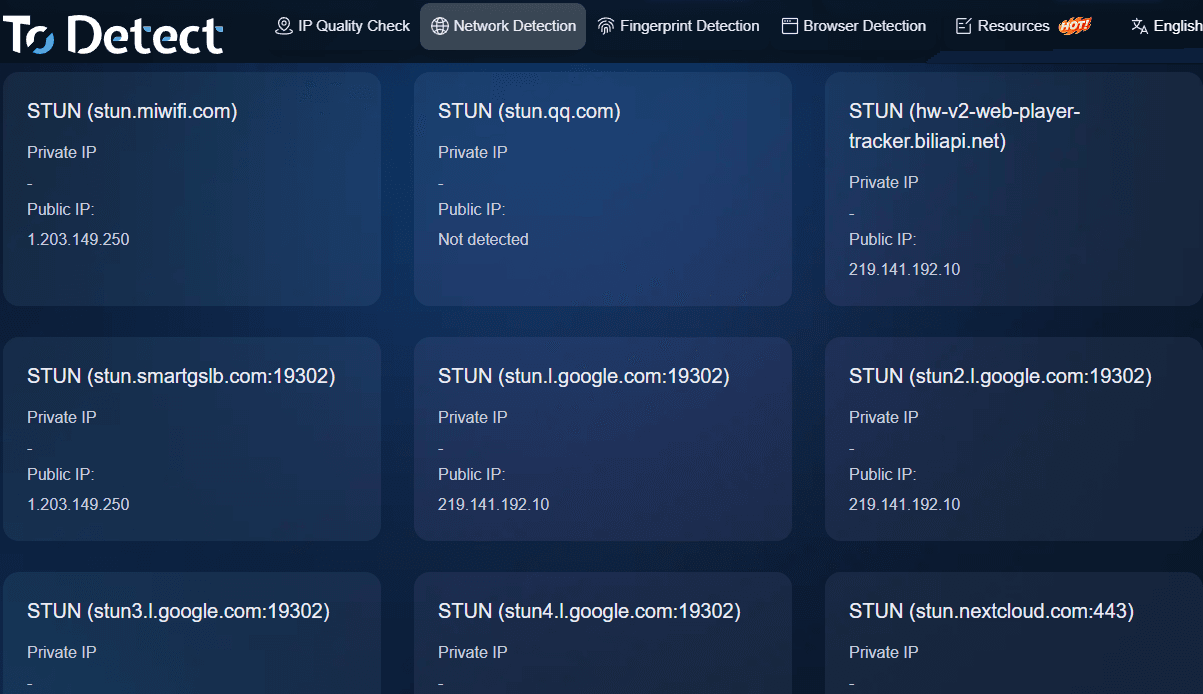
So when assessing your network environment, start by checking whether WebRTC shows any abnormal public addresses, then combine that with browser fingerprint information to confirm whether the overall environment is consistent. Multiple detection results can cross-verify each other, which is far more accurate than relying on any single metric.
5. Common Misconceptions About Multiple IPs in WebRTC Leak Detection
Many people see an internal IP in their detection results and assume their real address has been leaked. In reality, addresses like 10.x and 192.168.x.x are private addresses with no public routing capability—once they leave the current local network, they can't be used to locate a specific device.
Another misconception is to simply disable WebRTC in the browser as soon as you see multiple addresses. While this can reduce the number of addresses displayed, it may also break normal features like online video conferencing and voice communication.
A more sensible approach is to first confirm where the extra addresses come from. If they're just addresses generated by a normal network adapter or a virtual network interface, there's no need to degrade your browsing experience just to shave off a few IPs.
6. What to Do When WebRTC Leak Detection Shows Multiple IPs?
If your detection results show multiple IPs, you can troubleshoot with the following simple steps:
First, confirm whether the public exit IP is consistent. If the public address hasn't changed, the browser is likely just displaying more network interfaces.
Next, check whether your computer has additional network environments, such as virtual machines, VPN software, Docker, mobile hotspots, and so on—any of these can increase the number of network interfaces.
Finally, combine DNS detection and browser fingerprint detection to review the overall environment. If your IP, DNS, time zone, language, and other information all correspond to each other, there's generally nothing to worry about.
Final Thoughts
WebRTC detection showing multiple IP addresses is fundamentally a result of the browser gathering network candidate information to enable real-time communication. Seeing multiple addresses doesn't necessarily indicate a problem—the key is determining what type each address belongs to and whether there's an unexpected public exit.
When troubleshooting your network environment, it's not recommended to draw conclusions based on a single detection result. Analyzing WebRTC, IP attributes, DNS information, and browser fingerprint together gives you a far more accurate picture of your device's true network status.
If you want to confirm whether your browser has a WebRTC address anomaly, you can use ToDetect to check WebRTC detection, IP detection, and browser environment information—combining multiple data points makes the judgment much more intuitive.