



 Resources
 Feature overview
 Ganesh
 2026-05-29 10:34
Different browser engines (such as Blink, WebKit, and Gecko) determine how web pages are parsed and rendered, which directly affects page compatibility and display performance.
Understanding your mobile browser’s engine and version can help solve compatibility issues and make web debugging easier for developers. However, many people don’t know how to check a browser engine on a mobile phone.
Today, we’ll walk you through how to quickly detect your mobile browser engine and easily obtain engine version information on both Android and iOS devices.

1. What Is a Mobile Browser Engine?
A mobile browser engine is the browser’s “core engine” responsible for parsing web pages, running JavaScript, and rendering content. Common browser engines include:
• WebKit: The core engine used by Apple Safari and most iOS browsers.
• Blink: Used by Google Chrome, Microsoft Edge, and many Android browsers.
• Gecko: The engine used by Firefox.
Different browser engines can affect browser performance, compatibility, and security. If you don’t know which engine your mobile browser uses, you may encounter issues such as broken fonts, videos failing to play, or JavaScript effects not working properly.
2. Why Perform Browser Engine Detection ?
• Solve Compatibility Issues
Some web features only work correctly on specific browser engines. Detecting the engine allows you to optimize pages or choose a more suitable browser.
• Security Considerations
Older browser engine versions may contain vulnerabilities. Detecting the engine version helps you update in time and reduce security risks.
• Development & Debugging
Front-end developers often need to know users’ browser engines and versions in order to debug web pages across different environments.
3. Common Mobile Browser Engine Comparison Table
| Browser | Engine Type | Engine Version Features | Supported System | Advantages | Notes |
|---|---|---|---|---|---|
| Chrome (Android) | Blink | Frequently updated with excellent compatibility | Android | Fast rendering and rich extensions | Higher memory usage |
| Edge (Android/iOS) | Blink / WebKit | Blink on Android, WebKit on iOS | Android / iOS | Cross-platform syncing and strong security | Limited by WebKit on iOS |
| QQ Browser (Android) | X5 / Chromium | Optimized X5 engine | Android | Strong compatibility with Chinese websites | Some pages may display abnormally |
| Safari (iOS) | WebKit | Updated together with the operating system | iOS | Stable and secure | Limited extension ecosystem |
| Firefox (Android/iOS) | Gecko / WebKit | Gecko on Android, WebKit on iOS | Android / iOS | Strong privacy protection | Limited functionality on iOS |
| UC Browser (Android/iOS) | U4 / WebKit | Optimized U4 engine on Android | Android / iOS | Data-saving features | Compatibility may vary |
4. Android Browser Engine Detection Methods
Android phones support a wide variety of browsers and browser engines. The easiest way to detect them is by using professional tools or built-in browser features.
Method 1: One-Click Detection Using the ToDetect Website
ToDetect is a convenient online tool that quickly identifies your mobile browser engine type and version.
1. Open your Android browser and visit the ToDetect official website.
2. Once you enter the homepage, the site will automatically detect your browser information, including browser name, engine type (WebKit/Blink, etc.), engine version, and browser fingerprint information.
3. You can also copy the browser fingerprint for debugging or compatibility testing. This method is especially suitable for non-technical users because no app installation is required.
Method 2: Check Through Built-in Browser Settings
Some Android browsers (such as Chrome, QQ Browser, and UC Browser) also allow you to directly check the browser engine:
1. Open the browser and go to Settings → About Browser
2. Find Version Information or Engine Information
3. You’ll then be able to see the browser engine version and determine webpage compatibility more easily.
Note: The path may vary slightly depending on the phone brand, but browser version information is generally easy to find.
5. iOS Mobile Browser Engine Detection Methods
On iOS devices, things are slightly different. Apple requires all iOS browsers to use the WebKit engine, so you generally won’t encounter multiple engine types. However, you can still check the engine version and browser fingerprint.
Method 1: One-Click Detection with ToDetect
1. On iOS, open Safari or another iOS browser and visit ToDetect
2. The page will display browser information such as browser name (Safari, Chrome, Firefox iOS version, etc.), WebKit engine version, and browser fingerprint details.
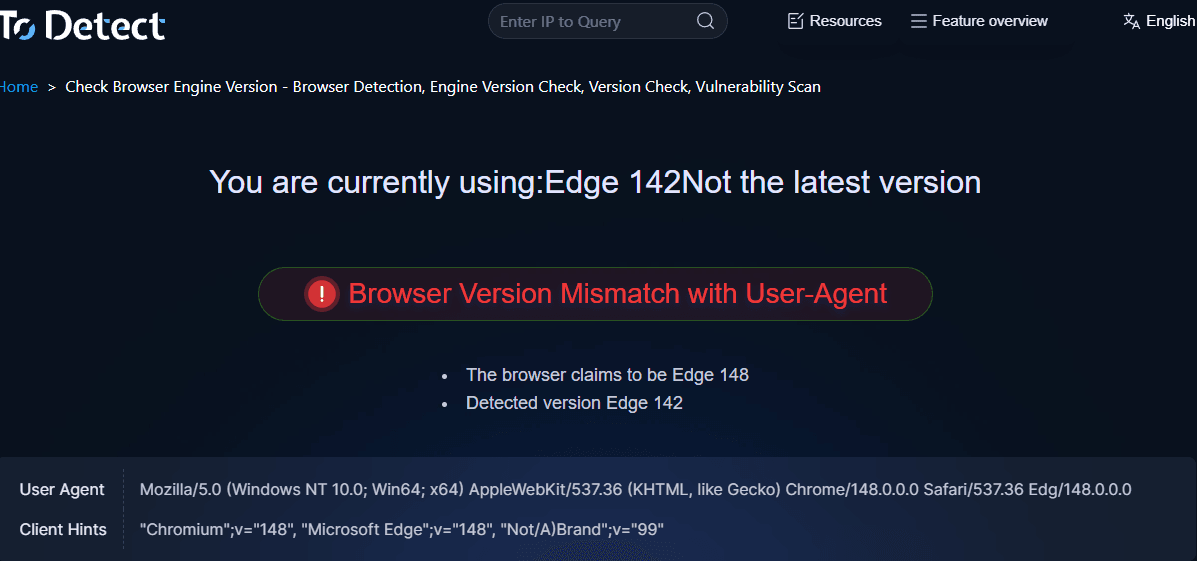
Using this information, you can determine whether you’re running the latest engine version and update in time for better compatibility and security.
Method 2: View System Information
iOS devices also allow you to check the Safari version through system settings:
1. Open Settings → Safari → About
2. The displayed version number corresponds to the WebKit engine version (you can compare it with online reference tables for detailed engine information).
Although iOS browser engines are relatively unified, understanding engine versions can still help front-end developers optimize web experiences.
6. The Role of Browser Fingerprint Detection
In addition to browser engine detection, browser fingerprint detection is also a useful tool. Browser fingerprints can help you:
• Identify user device types and operating system versions
• Assist with advertising targeting and traffic analysis
• Improve webpage compatibility debugging efficiency
By using ToDetect, you can also obtain browser fingerprint information and gain a clearer understanding of the browser environment.
7. Frequently Asked Questions (FAQ) About Mobile Browser Engine Detection
1. Is a mobile browser engine the same as the browser version?
No. The browser version refers to the application’s update version, while the browser engine refers to the underlying rendering engine such as Blink or WebKit. In many cases, the browser may update while the engine version does not upgrade simultaneously, so it’s important to distinguish between the two during engine version detection.
2. What’s the difference between Android and iOS browser engines ?
Android browsers use a variety of engines, commonly Blink, WebKit, and Gecko. In contrast, iOS browsers are almost entirely based on WebKit. Therefore, Android browser engine detection is generally more complex, while iOS results are relatively consistent.
3. Why can’t ToDetect identify the exact browser engine?
Normally it can. However, some browsers may block certain scripts or JavaScript functions. Tools like ToDetect mainly rely on browser fingerprints and User-Agent information. If private browsing mode or anti-fingerprinting plugins are enabled, the accuracy of browser fingerprint detection may be affected.
4. Do ordinary users really need browser engine detection?
Yes, especially if you frequently encounter issues such as webpages failing to load, video lag, or broken features. A simple browser engine detection can help determine whether the issue is caused by an outdated engine or compatibility problem, allowing you to update or switch browsers more effectively.
Conclusion
Whether you use Android or iOS, you can now use the ToDetect online tool to perform one-click browser engine detection. It not only identifies the current engine type but also provides engine versions, browser fingerprints, and other important details.
By regularly checking browser engine versions, you won’t need to blindly troubleshoot webpage display problems. A quick detection can help you identify the root cause and solve issues more efficiently.
As mobile browsing environments become increasingly fragmented, understanding basic skills such as “how to check a mobile browser engine” is actually an important step toward better understanding modern web environments.
Browser Fingerprint Detection Tool
Efficiently solve multi-account management, environment isolation, and account security