Resources
 Feature overview

 browser
 2026-10-15 11:02
When installing Chrome or Edge extensions, many people only look at download counts and ratings, rarely paying close attention to the permissions an extension requires, and they don't regularly review the extensions they've already installed.
As the number of browser extensions continues to grow, extension security checks have become an increasingly important part of everyday network environment inspections. Beyond verifying whether an extension itself is trustworthy, you also need to consider whether it affects your browser fingerprint, network requests, DNS resolution, and WebRTC information.
1. Browser Extension Detection: What Exactly Should You Check?
Many people assume that browser extension detection is simply about checking for viruses, but the actual scope of investigation is much broader. Determining whether an extension is safe typically requires a comprehensive assessment across several aspects.
First is the extension's source and permissions. Even extensions from the official Chrome Web Store or Edge Add-ons aren't guaranteed to be risk-free. Some extensions may pose security risks due to prolonged lack of updates, excessive permissions, or insufficient developer maintenance.
Second is the extension's behavior after installation. Some extensions don't show obvious anomalies immediately after installation but instead modify search results in the background, inject promotional content, track your browsing behavior, or even slow down page loading.
Finally, you need to look at the overall browser environment. Extensions may be just one factor; in actual use, other elements such as IP address, DNS, WebRTC, and browser fingerprint can also come into play. If these environmental parameters are abnormal, they may trigger increased verification during web browsing or account login issues.
2. Hands-On Experience with Several Free Browser Detection Tools in 2026
ToDetect: Ideal for Quickly Checking Your Overall Browser Environment
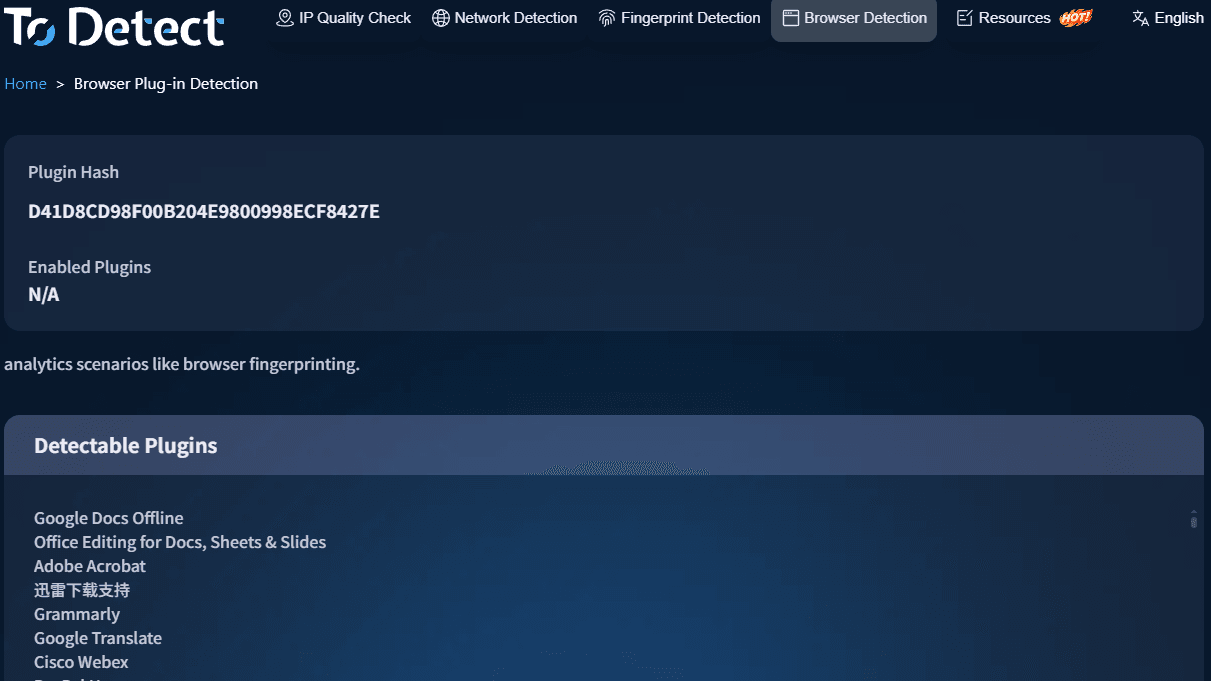
If you don't want to dig into each parameter individually, an all-in-one detection tool like ToDetect is more convenient. It lets you check your browser extension environment, IP information, DNS resolution, WebRTC status, and browser fingerprint all in one place.
Compared to checking a single parameter at a time, the advantage of comprehensive detection is that you can quickly pinpoint where anomalies lie—for example, whether your browser's displayed region, network exit, DNS server, and browser environment parameters show any obvious inconsistencies.
For everyday users, the anomaly alerts in the detection report are much easier to understand than a sea of technical parameters, making it well-suited for routine checks of whether your browser environment is functioning normally.
BrowserLeaks: Best for Viewing Detailed Browser Parameters
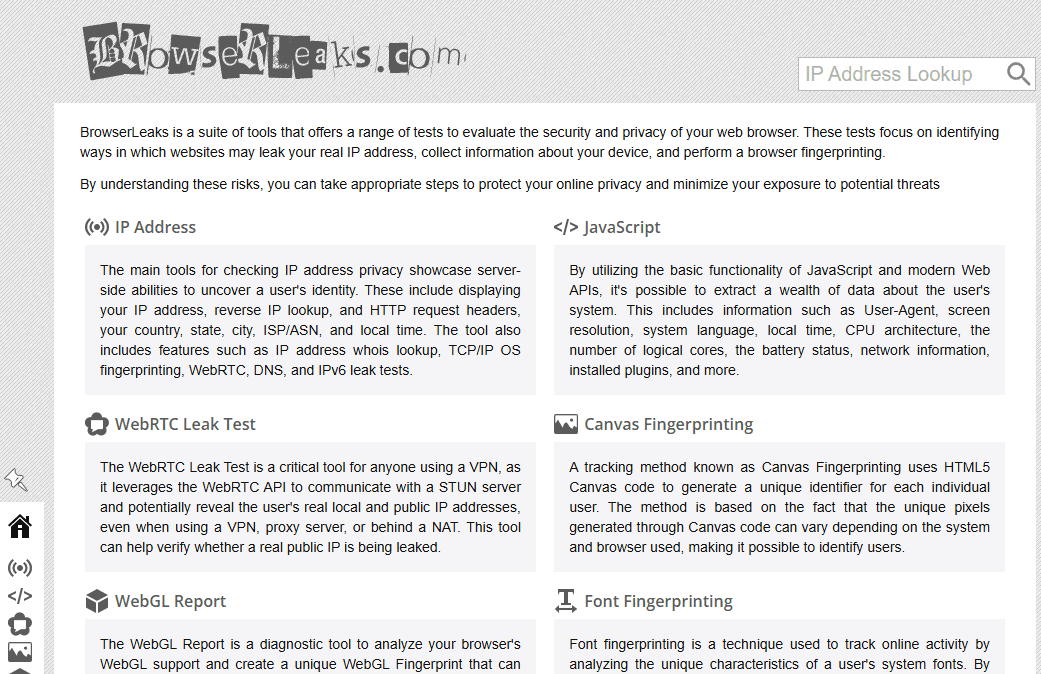
BrowserLeaks is more geared toward professional users, splitting information like IP, DNS, WebRTC, Canvas, fonts, and time zone into separate detection pages.
Its strength lies in the highly detailed data, making it ideal for those who want to dig deep into their browser environment. For instance, it provides plenty of reference points when checking whether WebRTC is leaking additional addresses or identifying which parameters make your browser fingerprint unique.
However, its drawbacks are equally apparent: the interface is primarily in English, and with so many detection options, first-time users may feel overwhelmed and unsure which information matters most.
EFF Cover Your Tracks: Focused on Browser Fingerprint Detection
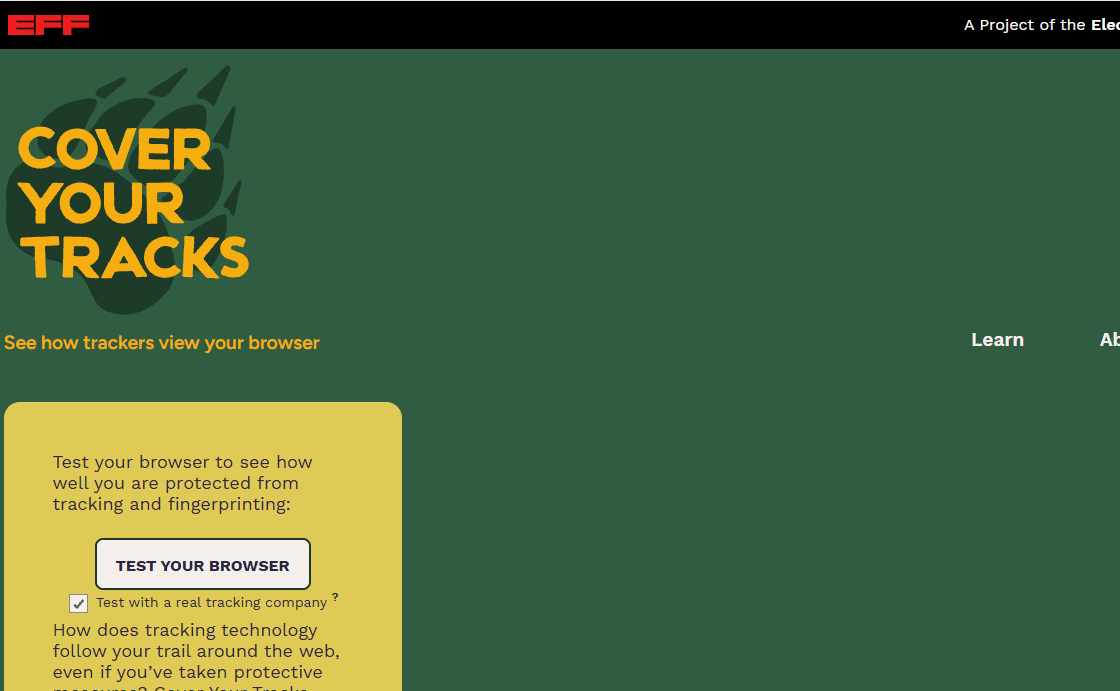
If your main concern is browser fingerprinting, EFF Cover Your Tracks is a solid choice.
It analyzes the information your browser exposes when visiting websites and assesses whether your current browser configuration is easily identifiable.
That said, it leans heavily toward fingerprint detection and won't help you analyze extension permissions, DNS status, or your overall network environment, so it's better used as a specialized tool rather than a complete troubleshooting solution.
Built-in Extension Management: The Most Basic Way to Check Extensions
Many people overlook the extension management features built right into their browser, but this is actually the first step in checking extension safety.
Both Chrome and Edge let you access the extensions management page to view each extension's source, last update time, and permissions.
If you find an extension that hasn't been updated in months or even years, or a simple extension that requests access to a large number of websites, it's worth reconsidering whether to keep it.
For extensions you haven't used in a long time, simply removing them is usually the simplest and most effective approach.
3. Comparison of Free Browser Detection Tools
| Tool | Main Detection Focus | Best Suited For | Pros | Cons |
|---|---|---|---|---|
| ToDetect | Extension environment, IP info, DNS, WebRTC, browser fingerprint | Everyday users needing comprehensive detection, remote workers, e-commerce users | Consolidated detection items, Chinese-language reports easier to understand, great for quickly spotting anomalies | Less in-depth parameter analysis than specialized tools |
| BrowserLeaks | Detailed parameters: IP, DNS, WebRTC, Canvas, fonts, time zone, etc. | Technical users, those with environment analysis needs | Comprehensive detection dimensions, highly detailed parameter display | Mostly English interface, steep learning curve for first-time users |
| EFF Cover Your Tracks | Browser fingerprint, privacy exposure level | Users concerned about browser privacy | Reputable background, clear focus on fingerprint detection | Does not check extension permissions or network environment |
| Chrome/Edge Extensions Page | Extension source, permissions, update time | All browser users | Built into the system, no extra tools needed, most direct way to view extension permissions | Only shows basic info, cannot analyze runtime impact |
| amiunique | Browser fingerprint uniqueness analysis | Users wanting to understand how identifiable their device is | Shows whether your browser configuration is overly unique | More research-oriented, less commonly used for daily troubleshooting |
4. How to Determine Whether a Chrome or Edge Extension Is Safe
In practice, it's not recommended to rely on a single detection tool. Instead, follow the process below.
Step 1: Open your browser's extensions management page and identify any extensions you don't recognize or haven't used in a long time.
Step 2: Review extension permissions. Pay special attention to high-privilege items such as "Read and change all your data on all websites," "Manage downloads," and "Read your browsing history."
Step 3: Run a browser environment check to see whether your IP, DNS, WebRTC, and browser fingerprint show any anomalies.
Step 4: If you notice your browser slowing down, more ads appearing, or pages loading abnormally, try disabling all extensions and then re-enabling them one by one.
This method is simple but highly effective. Many extension-related issues don't show up in a single detection—they only surface during actual use.
5. How to Choose the Right Free Browser Extension Detection Tool?
Different users care about different things, so there's no need to use every available tool.
If you just want a quick check to confirm your browser has no obvious anomalies, start with a comprehensive detection tool that lets you view multiple environment indicators at once.
If you frequently research browser environments, network parameters, or need to troubleshoot DNS and WebRTC details, pair it with a specialized tool like BrowserLeaks.
If your primary concern is whether your browser fingerprint is easily identifiable, EFF Cover Your Tracks is the better fit.
Regardless of which tool you choose, it's a good habit to regularly check your browser's built-in extensions management page. Many security issues don't come from sophisticated attacks—they come from small extensions you installed on a whim months ago and forgot to remove.
6. Browser Extension Detection: Frequently Asked Questions
Are free browser extension detection tools reliable?
For everyday personal checks, free tools already cover most common issues—such as abnormal extension permissions, DNS leaks, WebRTC information exposure, and browser fingerprint anomalies. Only enterprises managing large fleets of devices may need more professional management solutions.
Why do I get different results from two separate browser checks?
This is completely normal. Your IP address may change with network conditions, DNS resolution can be affected by your ISP and network environment, and browser fingerprint factors like fonts and system parameters may shift as your device changes. When checking, focus on overall trends rather than fixating on a single number from one scan.
My browser is still slow after removing extensions. What should I do?
Check whether the extension was fully removed, and clear your browser cache and site data. If the problem persists, try creating a new browser user profile for testing. Some extensions leave behind settings or cached data that can continue to affect your browsing experience.
Conclusion
Browser extension detection isn't a one-time task—it should become a regular part of your network environment checks.
Review permissions before installing extensions, watch for abnormal changes during use, periodically clean up extensions you no longer need, and supplement with a detection tool like ToDetect to get a fuller picture of your current browser environment.
Many issues exist quietly for a while before their impact becomes obvious. Catching anomalies early is far simpler than dealing with account problems, inaccessible pages, or browser lag after the fact.