Resources
 Feature overview

 Alani
Alani 2026-10-13 10:56
Most people browsing the web pay attention to the content on the page. Very few think about what your browser is quietly telling the site about your setup in the process.
In reality, a browser can surface a set of device and system parameters while loading a page. On their own, most of those values mean very little. Put together and analysed as a set, they add up to what people call a browser fingerprint.
So what does a fingerprint test actually surface, and why do things like your device, system, screen resolution, and installed fonts end up influencing the result? Here’s the breakdown.

1. What a browser fingerprint check is actually analysing
A browser fingerprint doesn’t pull your identity directly. It analyses the characteristics of the environment you’re browsing from.
Earlier-generation sites relied mostly on cookies and login state to record visits, but all of that can be cleared or rebuilt. Fingerprint detection looks at the device and browser themselves instead — OS version, browser type, display environment, graphics rendering behaviour, and so on.
None of those parameters change just because you cleared your cache, which is what makes them useful reference points when characterising a browser environment.
2. What device information can be detected?
The device environment is the baseline layer of fingerprint detection.
A browser-based detection tool will typically show you the operating system type, OS version, browser name, and rendering engine. It may also read certain hardware parameters, such as CPU architecture, installed memory, and graphics-related details.
Graphics is the more interesting part here. Browsers can query rendering characteristics through WebGL and similar APIs, and different device environments tend to differ in subtle ways when they process graphics operations. Those differences become part of the fingerprint too.
3. Why does the system environment affect the result?
Hardware is only half the picture. The system environment matters just as much.
A browser may pick up your current system language, the browser’s own language setting, your time zone, and certain display preferences.
None of those identify you as an individual on their own. Combined with everything else, though, they help a detection tool judge whether the current browser environment is internally consistent.
Say, for instance, there’s a clear mismatch between the region your traffic exits from, your system time zone, and your language settings. A test result may well surface that inconsistency.
4. Why can a browser read resolution and display parameters?
It’s a common assumption that a browser can only read the screen resolution. The actual range is usually wider.
Beyond the width and height of the screen, a browser may also report the size of the available viewport, the device pixel ratio, and the current zoom level.
Screen specifications and usage habits differ from one machine to the next. Two people running the same browser on the same OS can still end up with noticeably different display environments.
A standard monitor versus a high-density display, or one scaling setup against another, will each change the values the browser hands back.
5. Why do fonts affect a browser fingerprint?
Fonts are the most commonly overlooked piece of the fingerprint.
Because every machine has a different set of software installed and a different usage pattern, the font environment on your system tends to vary as well.
Detection tools rarely read a full font list directly. Instead, they render text and measure how the output differs — using the rendering result itself as a proxy for what’s installed.
An office machine, a design workstation, and a developer setup will each present slightly different font characteristics, simply because different software and configuration habits produce different rendering results.
6. What role do Canvas, WebGL, and AudioContext play?
Underneath the basic device parameters sit some lower-level rendering signals.
Canvas fingerprinting works by having the browser draw an image, then analysing the subtle differences in the rendered result. Because the device environment, browser version, and graphics pipeline all differ, the output can differ too.
WebGL is used to pull graphics rendering information out of the browser, while AudioContext derives an environment signature from the tiny differences in how audio is processed.
None of these techniques identifies a specific device by itself. They’re read alongside the other browser parameters as part of a combined analysis.
7. Your network environment can affect fingerprint results too
Alongside the device, fingerprint detection may pull in network-level signals as well.
The public IP address, DNS resolution behaviour, and WebRTC information all tend to show up in a detection report.
In practice, mismatches between device settings and network information come up constantly. An IP that resolves to one country, paired with a different system time zone and a different language setting, isn’t automatically a problem — but it’s a reasonable thing to look into further.
8. Why a fingerprint has to be read as a whole
A single parameter can’t reliably tell one device from another.
Take a common OS, a common browser, and a common screen resolution — that combination describes an enormous number of real machines, so it carries very little signal on its own.
What actually shapes a fingerprint is the combined signature produced when device details, browser settings, display environment, and network characteristics settle into a stable set of values. A test result only becomes meaningful once you look at that combination.
9. How to see your own browser fingerprint
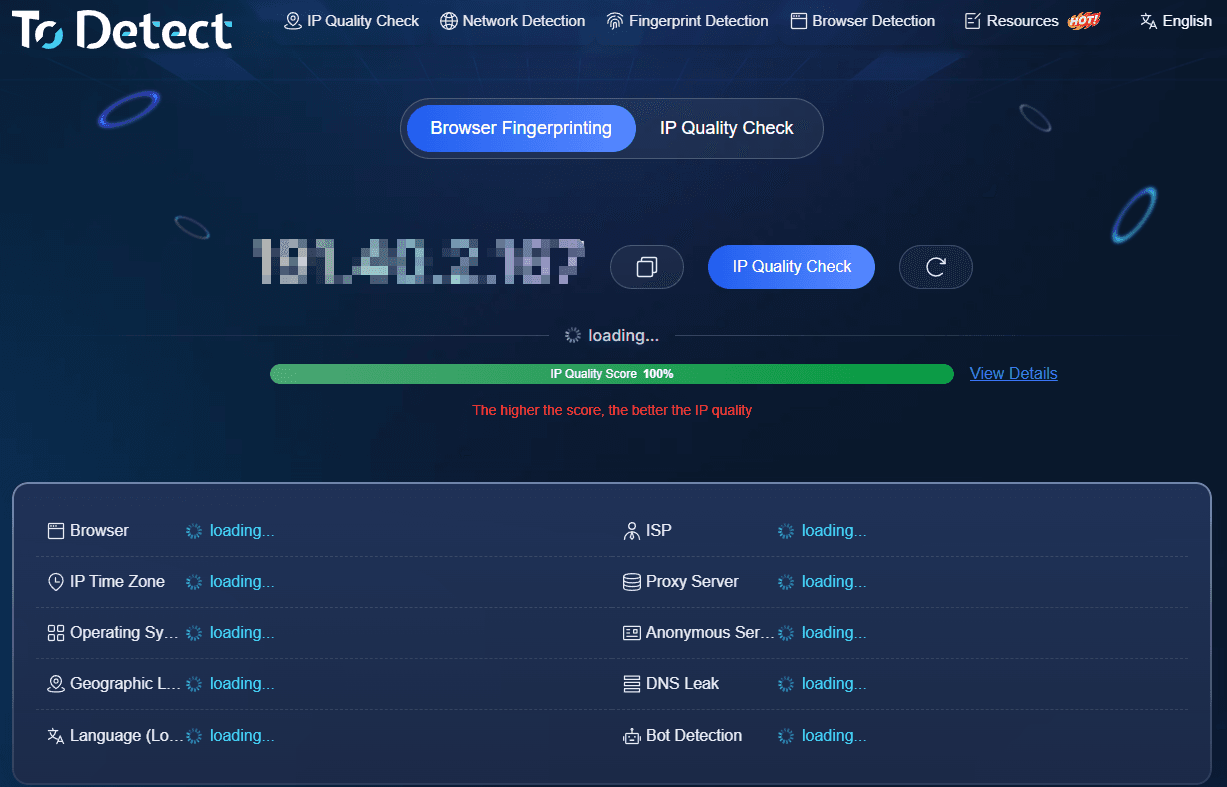
If you want to see which environment parameters your browser is currently exposing, an online fingerprint checker is the quickest route.
Tools like ToDetect (todetect.net) cover browser fingerprinting alongside IP information and DNS lookups, so you can review the parameters your environment makes publicly available and check whether different test items agree with one another.
The report gives you a much clearer read on the state of your browser environment. Treat the live page as the source of truth — results reflect what’s detected at the moment you run it.
10. Common questions about fingerprint detection
What does a browser fingerprint include?
Typically the operating system, browser version, device parameters, display environment, font characteristics, Canvas, WebGL, AudioContext, language, and time zone. Some tools also fold in IP, DNS, and WebRTC data as part of a combined analysis.
How accurate is browser fingerprint detection?
It works by weighing multiple parameters together, so any single value on its own carries limited weight — an OS version or a resolution number tells you very little on its own. The more complete the set of signals, the more meaningful the overall assessment becomes.
How do I check my own browser fingerprint?
Use an online browser fingerprint checker. Once the test page loads, the tool generates an environment report based on whatever the browser permits it to read, which shows you exactly which parameters your setup is exposing.
Does clearing cookies change a browser fingerprint?
Clearing cookies removes some of what a site has stored, but it doesn’t touch the underlying characteristics of your device. System information, display parameters, and hardware details all stay exactly as they were.
The takeaway
The point of a browser fingerprint isn’t any single piece of information. It’s a combined read across device, operating system, browser, and network environment.
When you check your browser environment, don’t fixate on whether one line of the report looks healthy. Look at several items side by side and see whether they agree with each other. Once you understand how the individual parameters relate, you can judge the state of your environment far more accurately.
And if you want to see what your browser is publicly exposing, it’s worth reviewing a fingerprint report every so often — comparing your device parameters, network information, and browser settings to confirm they still line up.