



 Resources
 Feature overview
 Alani
Alani 2026-04-22 10:39
More and more platforms and advertisers are identifying and tracking users through browser fingerprints, and can even accurately recognize your identity after you close your browser.
Therefore, fingerprint browsers have become a very effective solution today. They can simulate different browser fingerprints to help you avoid some hidden tracking.
However, there are many such fingerprint browsers on the market, and many people do not know which one is better to use or how to properly use a fingerprint browser.
Today, this guide will walk you through everything step by step—from registration to installation and how to use a fingerprint browser effectively.

1. What is a Fingerprint Browser?
○ A fingerprint browser is a tool specifically designed to avoid detection by browser fingerprinting technologies.
○ It helps simulate different device fingerprints, allowing you to better protect your personal privacy while browsing and avoid being tracked.
○ When using a fingerprint browser, advertisers, platforms, and other third parties find it difficult to track you through browser fingerprinting.
2. How to Register and Install a Fingerprint Browser
Step 1: Choose the Right Fingerprint Browser
○ There are many fingerprint browsers available on the market. Among them, Bit Browser (Bit Browser) is a well-known and powerful tool.
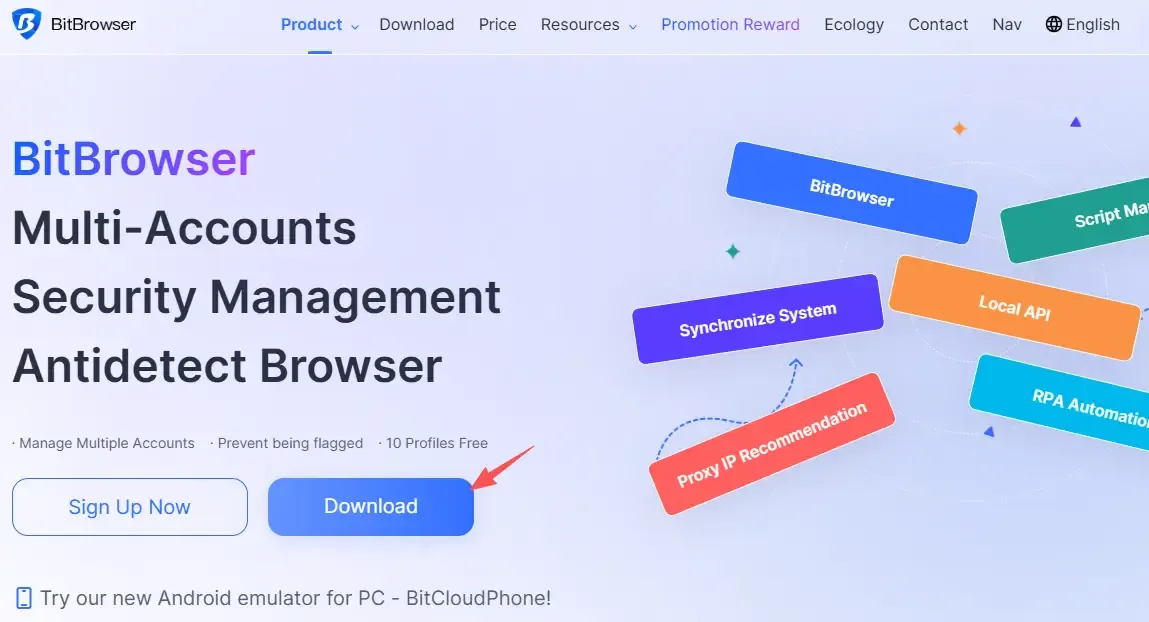
○ It can not only simulate multiple different browser fingerprints, but also effectively bypass various fingerprint detection technologies, helping users avoid tracking.
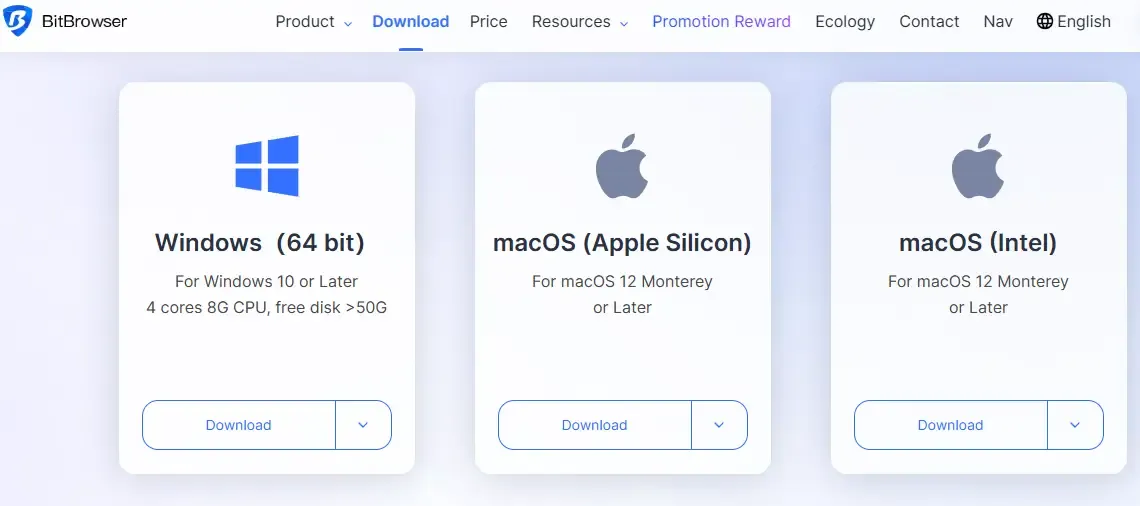
○ You can go to the official website of Bit Browser to download and install the version suitable for your operating system. The installation process is very simple—just follow the prompts.
Step 2: Register an Account
Most fingerprint browsers require users to register an account in order to sync settings and data.
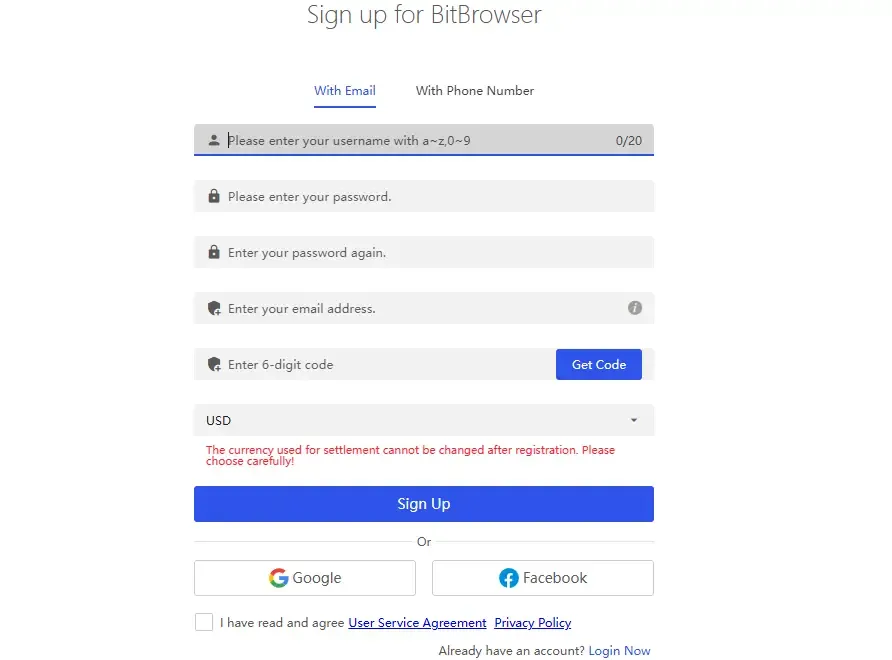
○ After entering Bit Browser, you will see a "Register" button. Click it and follow the instructions to enter your email, password, and other basic information to complete registration.
○ Note that some fingerprint browsers offer advanced account features where you can purchase more fingerprint simulations and proxy services.
○ If you are a regular user, choosing the free basic version is enough for daily use.
Step 3: Install and Configure Proxy
○ With a proxy, you can hide your real IP address and further improve anonymity.
○ Go to the settings menu of Bit Browser, select proxy settings, and enter the proxy server address and port.
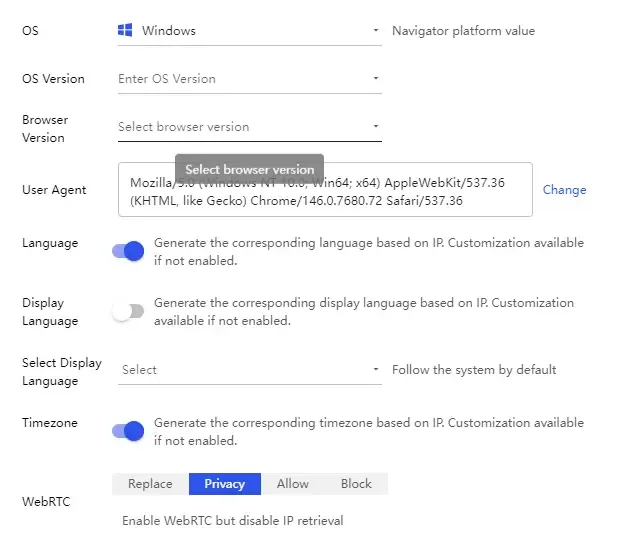
○ You can also choose the proxy service recommended by Bit Browser for quick connection.
3. Practical Use: How to Avoid Browser Detection
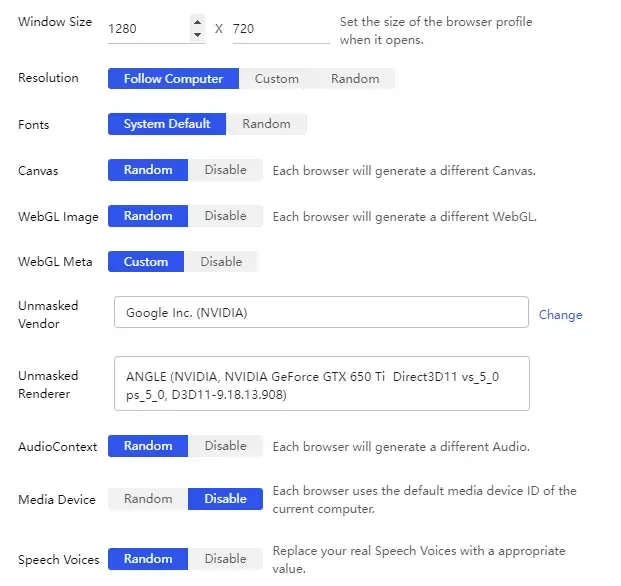
Step 1: Simulate Different Device Fingerprints
• One of the core features of Bit Browser is the ability to simulate different browser fingerprints.
• Each time you open the browser, you can choose a different device fingerprint to simulate, avoiding tracking while browsing.
• In the browser settings, you can find the "Device Fingerprint" option, where you can select different operating systems, screen resolutions, browser plugins, etc., to quickly generate a new fingerprint and enhance anonymity.
Step 2: Clear Browser Data
• Although Bit Browser can help simulate new device fingerprints, browser data (such as history, cache, and cookies) may sometimes reveal your browsing behavior and expose your identity.
• Clearing browser data is an important step in maintaining privacy. In the browser settings, find "Privacy" or "Security" and clear relevant data to ensure no tracking information remains.
• Some fingerprint browsers support automatic cleaning, meaning all browsing data is deleted every time you close the browser, so you don't have to do it manually.
Step 3: Avoid Mixing Multiple Accounts
• If you need to operate multiple accounts, it is recommended to use different fingerprints and proxy settings.
• For example, if you have multiple accounts on different e-commerce platforms, use different fingerprints and IP addresses to distinguish them. This helps prevent platforms from linking your accounts through fingerprint detection.
4. How to Deal with Browser Fingerprinting Detection?
Even if you use Bit Browser, you may still encounter fingerprint detection on some websites. What should you do?
□ Use Multiple Fingerprints
• Bit Browser allows you to create multiple fingerprints and switch between them.
• This way, even if one fingerprint is identified, you can continue browsing using others to avoid tracking.
□ Enable Proxy Services
• In addition to fingerprint simulation, enabling proxy services is also effective. Proxies not only hide your real IP address but also prevent websites from tracking your behavior through it.
• You can choose suitable proxy types (such as HTTP, SOCKS5, etc.) in Bit Browser settings and configure the proxy server address.
□ Avoid Using Common Fingerprints
• Some websites identify users by recognizing common fingerprints. To avoid this, Bit Browser provides a "randomization" feature.
• You can enable this option so that each browsing session uses a different device fingerprint, further enhancing privacy protection.
5. Fingerprint Browser FAQ
1. Can fingerprint browsers be detected?
○ A fingerprint browser is not completely invisible. It avoids standard detection tools by simulating different fingerprints.
○ However, if a website uses more advanced fingerprinting techniques, it may still identify that you are using a fingerprint browser.
○ Therefore, using proxies and regularly clearing browser data can further improve anonymity.
2. Is it safe to use a fingerprint browser?
○ Fingerprint browsers like Bit Browser help users avoid most tracking and fingerprint recognition, improving browsing security.
○ However, you should still be cautious—avoid providing personal information on untrusted websites to ensure your data is not leaked.
3. What is the difference between Bit Browser and other browsers?
○ Compared to ordinary browsers, Bit Browser offers stronger fingerprint simulation and privacy protection features.
○ It not only helps users avoid fingerprint detection but also provides rich settings such as proxy services and automatic data clearing, making browsing behavior more secure and anonymous.
Summary
By properly configuring a fingerprint browser, simulating different fingerprints, and using proxies, you can significantly improve your online anonymity and security.
And tools like ToDetect provide more customization options and advanced privacy protection features, making your web browsing safer and more anonymous.
If you haven't used a fingerprint browser yet, now is a great time to install one and give it a try. Protect your privacy starting today.