


 Resources

 Feature overview

 Charles
 2026-11-04 10:41
You open an IP lookup site, the address and region match what you expect — is that enough to say nothing is leaking? Not quite.
A standard IP lookup only shows the public address your page load is using. It can't give you the full picture of WebRTC, DNS, or IPv6 connections. Even when the website reports nothing unusual, the browser can still be passing different address information over other channels.
To judge whether your connection behaves the way you intend, look at all three tests together instead of focusing on where a single IP address is registered.
1. WebRTC leak test: which addresses is your browser exposing?
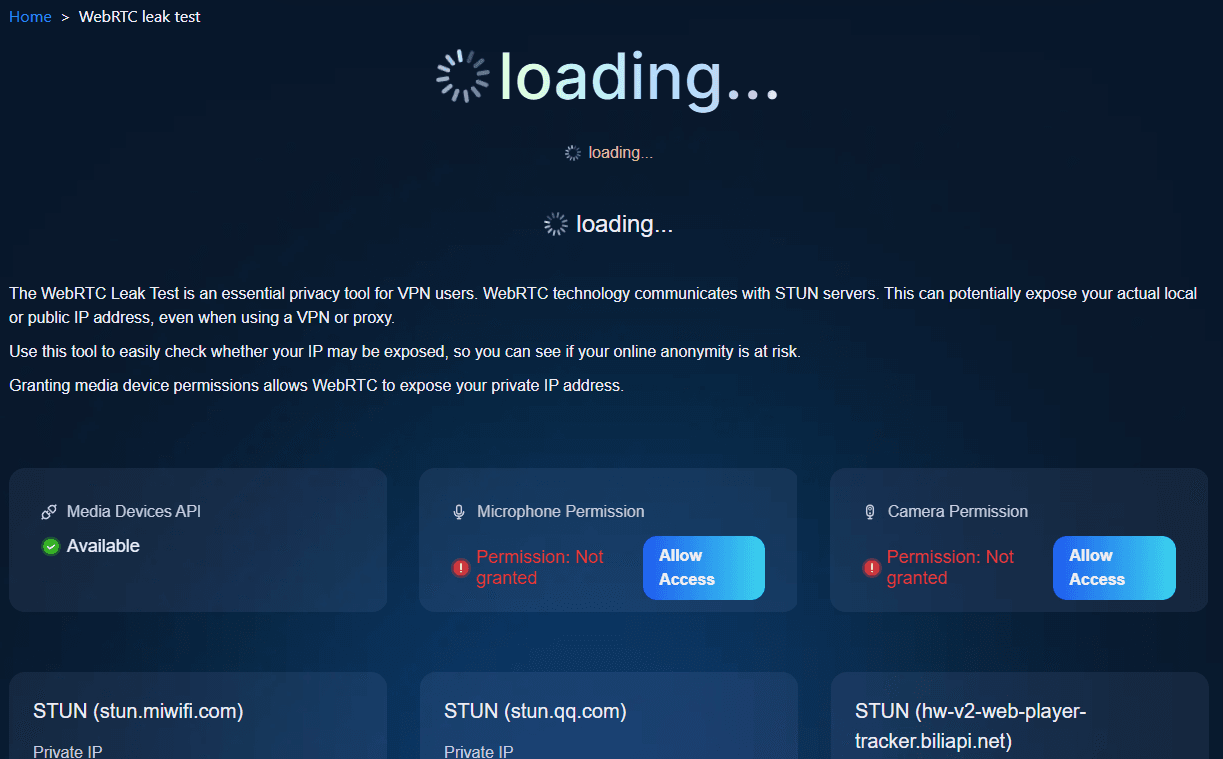
WebRTC is what browsers use for real-time audio and video. When a connection is set up, the browser may gather local and external addresses through ICE — and those don't necessarily match the exit IP a regular web page reports.
To check, open the ToDetect WebRTC test page, let the browser finish, and focus on three types of candidates:
- Host Candidate: A local network address. If it appears as a random string ending in .local, that usually means the browser is masking local addresses via mDNS — nothing to worry about.
- Srflx Candidate: A public address discovered through a STUN server. Compare it against the public address your network is supposed to be using.
- Relay Candidate: An address handed out by a TURN relay. A different public address here doesn't automatically mean a leak.
For instance, if a standard IP lookup shows one public address while the Srflx candidate reports a second, unfamiliar one, dig into its ISP, ASN, and the actual connection path.
Note that seeing a private address such as 192.168.x.x doesn't mean your real public IP is exposed. Judge each address by its type.
2. DNS leak test: who is resolving your domains?
DNS turns domain names into IP addresses. When you visit a site, your browser or operating system sends a query to a DNS resolver.
The point of a DNS leak test isn't which city the server appears in — it's whether your queries go to the provider you intended.
Here's how to run it:
• Open the DNS leak test page and start a full test.
• Wait for the randomly generated test domains to resolve.
• Review the resolver IP, provider, and ASN the test reports.
• Compare those results with the DNS settings on your device or network.
If the test shows the public DNS service you configured — Cloudflare or Google Public DNS, say — a server location that differs from your exit IP's region isn't grounds for calling it a leak.
If an ISP resolver turns up that you didn't expect, check your device's DNS settings, the browser's Secure DNS feature, and your network configuration.
IP-based geolocation for DNS servers carries a margin of error too, so a different country or city alone doesn't settle the question.
3. IPv6 leak test: is your dual-stack setup behaving?
Plenty of home broadband and mobile networks run IPv4 and IPv6 side by side. The two protocols can take different paths, so checking IPv4 alone leaves a gap. An IPv6 test breaks into three steps:
• Open the IPv6 test page and confirm whether your device has IPv6 connectivity.
• If it connects, note the public IPv6 address and the network it belongs to.
• Check that IPv6's ISP, ASN, and connection match your current network configuration.
If the IPv6 address belongs to the network you meant to use, a region that differs from your IPv4 address doesn't necessarily indicate a leak.
On the flip side, if IPv4 looks right but IPv6 travels a path that doesn't match your setup, examine the IPv6 routing and the system network settings.
If the test says IPv6 isn't supported, it only means no IPv6 connection was established under these conditions. That's not a network failure, and it doesn't mean every app is unable to use IPv6.
4. Cross-check the results with ToDetect
When testing WebRTC, DNS, and IPv6, keep the same device, browser, and network the whole time. Switching networks mid-test makes the results impossible to compare.
Start with ToDetect to review your public IP and WebRTC details, then check those against the DNS and IPv6 results. Three questions matter most:
• Did WebRTC turn up an extra public address you can't explain?
• Is the DNS resolver one you actually meant to use?
• Is IPv6 connecting through a path that fits your current configuration?
If all three come back as expected, nothing obviously off showed up within the scope of these tests — but that isn't proof the device carries no other privacy risk.
5. What to do when the WebRTC test flags an anomaly
First, save the results: public IP, WebRTC candidates, DNS resolvers, and IPv6 details.
For a WebRTC anomaly, check the browser version, the relevant privacy settings, and the state of your network interfaces. For a DNS anomaly, confirm that the system DNS and the browser's Secure DNS agree. For an IPv6 anomaly, look at the device's IPv6 address, default route, and connection settings.
After changing anything, rerun the relevant test and cross-check all three again. And don't switch off a network feature just because an address is registered somewhere else.
FAQ
WebRTC shows a .local address — do I need to fix that?
Usually not. It's how modern browsers mask local addresses. Still, check whether any of the other candidates look wrong.
The DNS server and my public IP are in different regions — is that a leak?
Not necessarily. Public DNS services and distributed networks can produce regional gaps. Go by which provider is actually being used and whether the query path matches what you configured.
The IPv6 test failed — should I turn IPv6 off?
No need to disable it outright. First confirm whether the device supports IPv6 and whether your network provides IPv6 connectivity, then decide what to adjust.
The bottom line
WebRTC, DNS, and IPv6 tests each look at different network data. One clean result says nothing about whether the other connection paths behave as intended.
Use ToDetect to review your browser's network details, then cross-check them against the DNS and IPv6 tests. Together they give you a fuller picture of your current network state and surface configuration issues worth a closer look.
Browser Fingerprint Detection Tool
Efficiently solve multi-account management, environment isolation, and account security