



 Resources
 Feature overview
 Charles
 2026-09-20 10:20
Even if you can open web pages normally, encountering frequent CAPTCHAs or "access restricted" messages on certain websites might not necessarily be a browser issue—it could also be related to your current public outbound IP address.
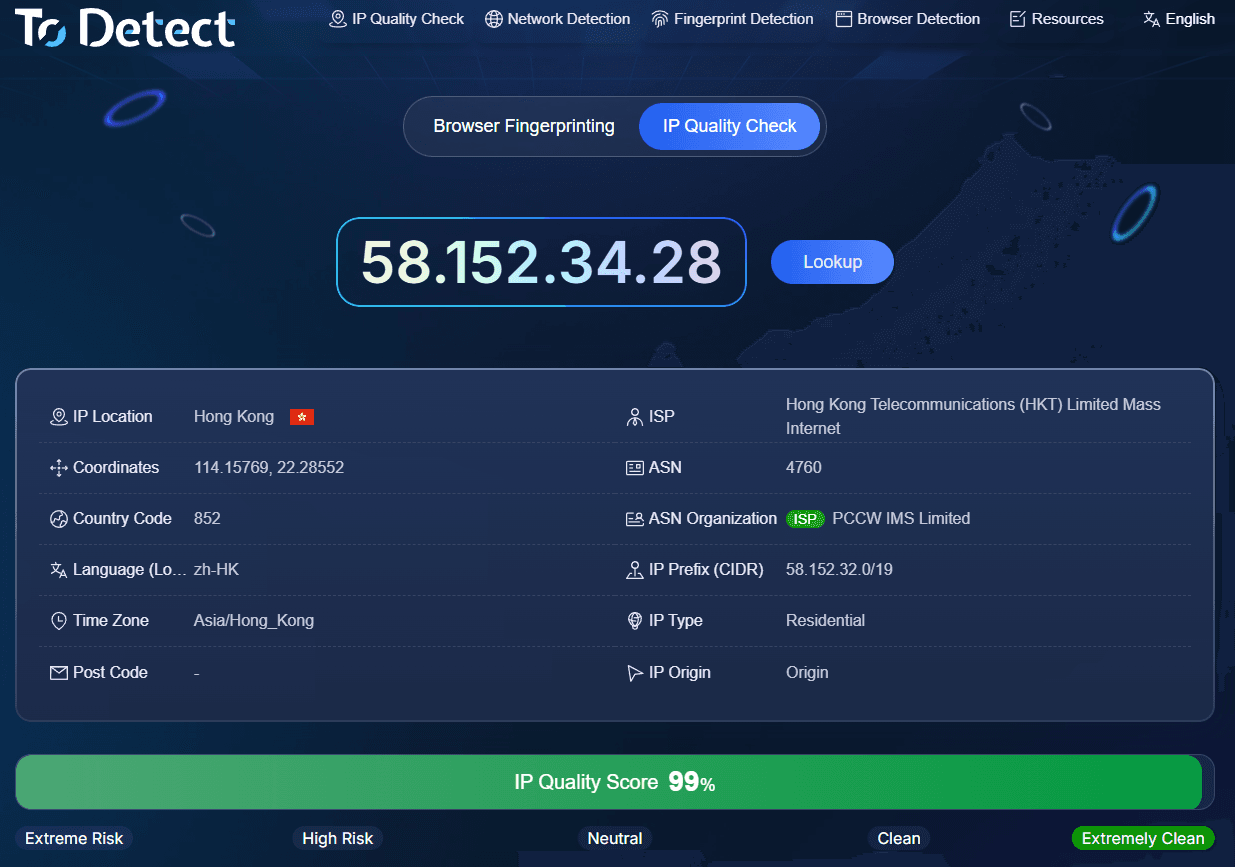
To figure out where the issue lies, you can start with an IP quality test. It looks beyond just the IP location to evaluate factors like ISP, ASN, network type, IP reputation, blacklists, as well as DNS and WebRTC details.

1. What does IP Quality Testing mainly check?
IP quality testing can be understood as a comprehensive health check for your current public outbound IP address.
Standard IP lookup tools usually only display basic information like country, city, and carrier, whereas IP quality testing goes further to determine the network type, check for historical risk records, and identify noticeable anomalies in your current network environment.
Therefore, simply knowing "where the IP is" isn't enough. Truly assessing IP quality requires analyzing multiple dimensions together.
2. What do IP, ISP, and ASN stand for?
When reading a test report, you will frequently see fields like IP, ISP, and ASN. The IP address is the public network address used by your current connection.
ISP stands for Internet Service Provider, such as a home broadband or mobile network operator. ASN is the Autonomous System Number, which helps identify which network organization the IP range belongs to.
Combined with the organization name, you can generally tell whether an IP belongs to home broadband, a mobile network, or a data center.
For instance, if an IP is located in the United States but the ASN and organization details correspond to a cloud server provider, its network properties are clearly different from those of standard residential broadband.
3. What items are included in a complete IP Quality Test?
1. IP Location, ISP, and ASN
First, verify whether the country, city, ISP, ASN, and organization name align logically.
If there is a significant discrepancy between the IP location and carrier information, further investigation is recommended. Note that GeoIP databases are not updated in real time, so slight deviations in city-level geolocation do not necessarily indicate an issue with the IP.
2. IP Blacklists and Reputation
This serves as a key reference for evaluating the historical behavior of an IP.
Some public databases collect reports on spam, abnormal traffic, attack behavior, and other threats. If an IP is flagged across multiple threat intelligence databases with clear records, extra caution is advised.
However, different testing platforms rely on different data sources and evaluation rules, so varying results for the same IP are normal. When making an assessment, it is best to cross-reference multiple sources rather than relying on a single risk score.
3. Network Outbound Type
IPs are generally categorized into network types such as Data Center, Residential, or Mobile.
| Type | Common Sources | Key Characteristics |
|---|---|---|
| Data Center IP | Cloud providers, server data centers | Concentrated IP ranges, potentially shared across diverse services |
| Residential IP | Home broadband providers | Resembles everyday household network traffic |
| Mobile IP | Cellular network operators | Outbound routes may fluctuate depending on network conditions |
Labels like "Residential", "Mobile", or "Data Center" simply describe network attributes; they do not directly equate to high or low IP quality. The final verdict depends on a combination of reputation, history, and real-world usage context.
4. DNS and WebRTC
Checking only the public IP displayed on the page is insufficient. DNS checks observe which DNS servers handle your domain resolution requests, while WebRTC can potentially expose additional network addresses through your browser.
If the test reveals a public IP that differs from your main outbound connection, further inspection of your network configurations and browser environment is recommended.
5. Time Zone, Language, and IP Region
Finally, check whether browser settings like time zone and language align with your IP's registered location.
For example, if your IP points to Japan while your browser time zone is set to China, this does not inherently indicate an issue with the IP, but rather a mismatch in environmental parameters. On certain websites, such discrepancies may impact user experience.
4. Why does IP quality affect your browsing experience?
An IP's location, network type, and reputation records can all influence how websites evaluate incoming access requests. For instance, if certain content is geo-restricted and your outbound IP is outside the allowed region, access may be blocked.
Furthermore, if an IP range has a history of high malicious or automated traffic, target websites may enforce stricter security measures, such as frequent CAPTCHAs or rate limiting.
For use cases involving API integration or automated data exchanges, IP stability is also critical. Frequently changing outbound IPs can lead to unstable network connections.
5. Perform an IP Test Yourself in 3 Minutes
The actual process is simple; you can follow these steps in order:
• Step 1: Check Location. Verify the country, city, ISP, ASN, and organization details.
• Step 2: Check Reputation. Cross-reference blacklists and risk scores across multiple public databases.
• Step 3: Check Network Type. Confirm whether the IP is categorized as Residential, Mobile, or Data Center.
• Step 4: Audit DNS and WebRTC. Look for extra public IP leaks or conflicting network data.
• Step 5: Review Environment. Check whether browser settings like time zone and language clash with your IP location.
If only a single metric shows an anomaly, avoid rushing to conclusions. Database update cycles vary, making minor discrepancies across tools quite common.
Final Words
Evaluating IP quality is not about getting a simplistic "clean" or "risky" status. It involves holistically analyzing location, ISP, ASN, network type, reputation logs, DNS, WebRTC, and browser settings.
If you frequently encounter CAPTCHAs, access limits, or unstable outbound connections, taking a few minutes to run an IP quality test is a great starting point.
To analyze your outbound IP, reputation, DNS, and WebRTC in a single view, you can use ToDetect for a comprehensive check. Understanding your network environment first will save you time compared to troubleshooting blindly.
Browser Fingerprint Detection Tool
Efficiently solve multi-account management, environment isolation, and account security