



 Resources

 Feature overview

 Charles
 2026-11-28 10:01
A mismatch between the public IP address a website shows and the IP address detected through WebRTC does not necessarily mean a leak. Dual-stack IPv4/IPv6 networks, multiple egress paths, and different traffic-forwarding methods can all produce this difference.
To tell whether Chrome is actually leaking addresses over WebRTC, the key question is whether the addresses the browser collects go beyond the network exposure you expect. Tracing where each address comes from and then adjusting browser settings is a steadier approach than simply disabling WebRTC, and it keeps video conferencing and other real-time features working normally.
1. Why Does WebRTC Expose IP Addresses?
WebRTC is a real-time communication technology built into the browser. Video calls, online meetings, and in-page voice chat may all rely on it. Before a connection is established, the browser gathers candidate addresses through the ICE mechanism. Everyday checks usually focus on three types:
• host: The address of a local network interface. Recent versions of Chrome usually represent some local addresses as random .local hostnames through mDNS.
• srflx: The external mapped address obtained from a STUN server, which reflects how the corresponding network path leaves your network.
• relay: A relay address provided by a TURN server.
Of these, srflx is the type to watch when you investigate a WebRTC public IP leak. HTTP requests and WebRTC traffic may take different network paths, so the IP address a page displays is not necessarily the address a STUN server observes.
2. How to Test for WebRTC Leaks in Chrome
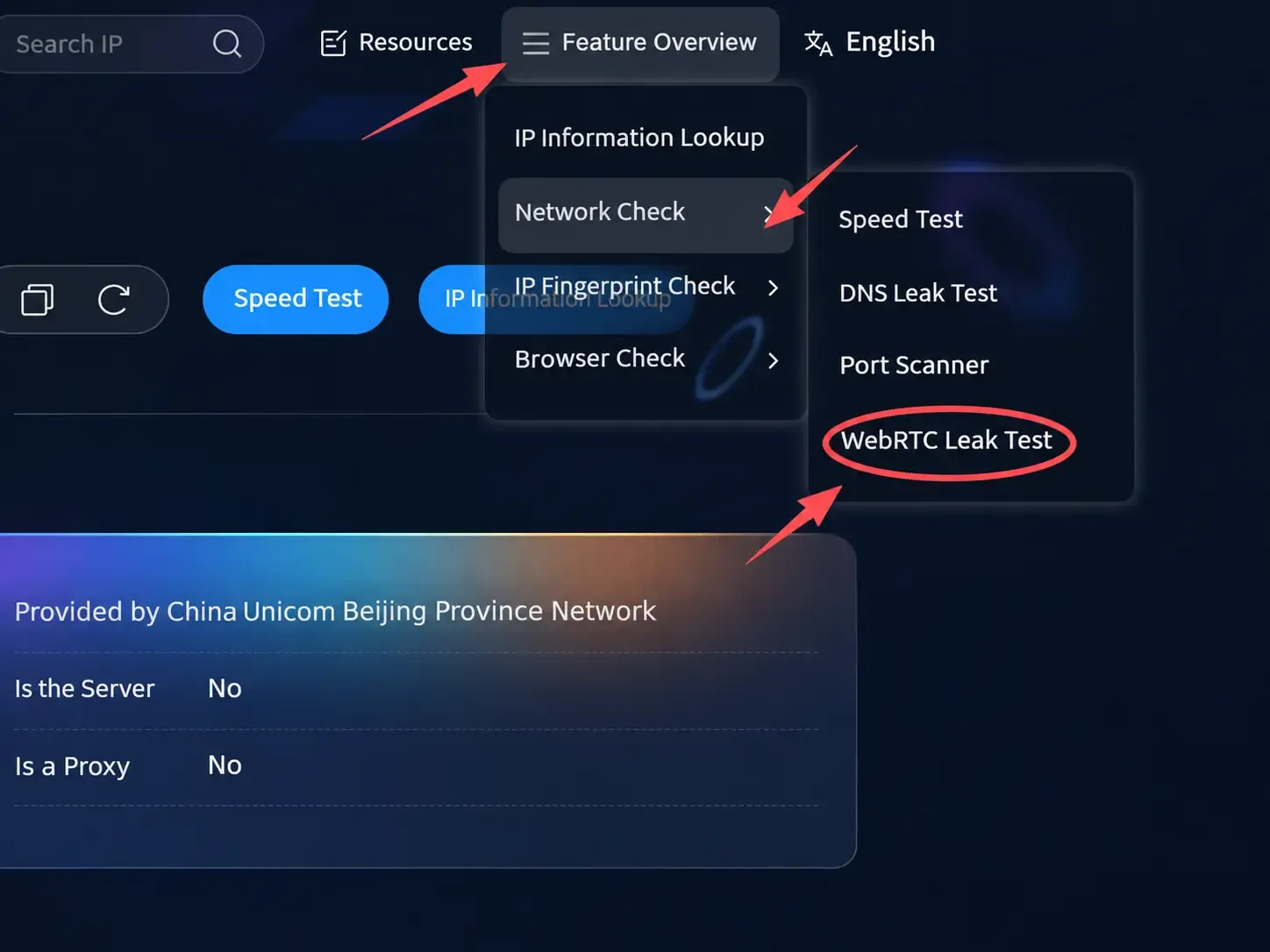
Open the ToDetect website, hover over “Features” in the top navigation, and select “Network Test” to reach the “WebRTC Leak Test” page.
Once the test finishes, review the public IP, the WebRTC addresses, and the related network details to see whether any address appears that you did not expect.
If you want to trace where an address came from, type chrome://webrtc-internals in the Chrome address bar, leave that tab open, and run the WebRTC test again. Go back to the internals page, expand the relevant PeerConnection entry, and review the ICE candidates and their types, paying particular attention to srflx addresses.
Reading the Results
| Test result | What it means and what to do |
|---|---|
| WebRTC IP matches the page's public IP | No obvious difference in egress address |
| A different public IPv4 address appears | Check the network egress and the UDP forwarding path |
| A public IPv6 address appears | Confirm whether it belongs to the network you expect |
| Local candidates show up as .local | mDNS address protection is probably active |
| Candidates are empty or collection times out | Check network restrictions and browser policy |
Read the results against your actual network setup. Two IP addresses differing on their own is not enough to conclude that a leak has occurred.
3. How to Fix WebRTC Leaks in Chrome
Chrome has no one-click WebRTC switch for ordinary users, but you can reduce unnecessary address exposure through site permissions, browser policies, and extensions.
Start by entering chrome://settings/content in the address bar and reviewing camera and microphone permissions, blocking access for sites that do not need these devices. WebRTC connections do not depend on device permission, but keeping permissions tidy still helps protect browser privacy.
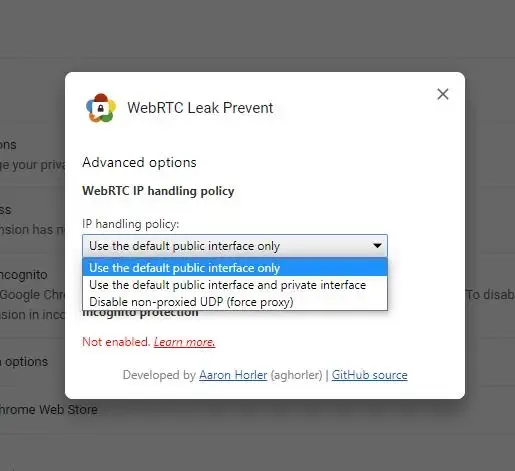
Next, check whether the WebRtcIPHandling policy is in effect at chrome://policy. The disable_non_proxied_udp value limits some direct UDP traffic and reduces unintended address exposure, though it can also affect real-time communication quality.
Individual users can also install a Chrome extension that supports WebRTC privacy settings. Prefer extensions built on the browser's native privacy APIs, and run the test again after installing to confirm the setting actually takes effect. The experimental WebRTC flag mentioned in older guides no longer applies to current versions of Chrome.
4. Why Do IP Differences Remain After Changing Settings?
This does not necessarily mean your browser settings failed. If TCP and UDP leave through different network paths, or IPv6 and IPv4 are forwarded differently, the results can still differ.
Check the system network configuration, the IPv6 connection status, and the forwarding rules on your network equipment. Do not disable all UDP traffic just to make the results match; that can increase latency on video calls or prevent connections from being established at all.
Run the Test Again Afterwards
After adjusting settings, reopen the ToDetect WebRTC leak test page and compare the addresses before and after the change. Also review the public IP, the DNS resolution path, and the browser environment details to confirm there is no remaining unintended exposure.
If the results match what you expect and video calls and online meetings still work, there is no need to keep tweaking browser settings.
Frequently Asked Questions
Does Incognito mode prevent WebRTC leaks in Chrome?
No. Incognito mode mainly isolates browsing history, cookies, and local storage; it does not actively stop WebRTC from collecting network addresses.
Can I turn off WebRTC in Chrome on my phone?
Chrome for Android usually has no separate WebRTC setting. Start with the system network configuration and browser permissions, then verify the result with a test page.
Do I need to disable WebRTC entirely?
No. If you use online meetings, in-page voice, or video calls, keeping normal communication working is more practical than shutting WebRTC off. A periodic check that your network addresses match your expectations is enough.
Browser Fingerprint Detection Tool
Efficiently solve multi-account management, environment isolation, and account security