



 Resources
 Feature overview
 browser
 2026-09-17 10:25
To find out what engine your browser is actually running on, you don't need any complex operations. By running a browser engine check, you can quickly identify whether your current browser is using Blink, Gecko, or WebKit.
If you usually need to inspect browser environments, browser fingerprints, or details like DNS and WebRTC, knowing which engine your current browser uses is an essential foundational step.
Many people wonder why the same web page occasionally renders differently across Chrome, Firefox, and Safari, as well as how to distinguish between the three major engines: Blink, Gecko, and WebKit.

1. What Exactly Is a Browser Engine?
When you open a website, the server returns content such as HTML, CSS, and JavaScript. The browser needs to parse this code and render text, images, buttons, animations, and other visual elements. The component responsible for rendering web pages is the browser's rendering engine.
Therefore, when people refer to the "browser kernel" or "browser engine," they are usually talking about the browser's underlying rendering engine.
Are Browser Kernels and Rendering Engines the Same Thing?
Strictly speaking, they aren't identical. Modern browsers consist of multiple modules: beyond the rendering engine, they include a JavaScript engine, networking stack, user interface, and other system components.
When a browser check identifies Blink, Gecko, or WebKit, it is more precisely indicating the primary rendering engine driving your browser.
2. What Are the Differences Between Blink, Gecko, and WebKit?
The most common browser rendering engines today are Blink, Gecko, and WebKit.
| Rendering Engine | Common Browsers | Typical Platforms |
|---|---|---|
| Blink | Chrome, Edge, Opera, Brave, etc. | Windows, macOS, Android, etc. |
| Gecko | Firefox | Windows, macOS, Linux, Android, etc. |
| WebKit | Safari | macOS, iOS, iPadOS, etc. |
Note that browser names and rendering engines do not always map 1:1. Operating systems, browser versions, and platform-specific rules can affect implementation details.
For instance, many browsers built on Chromium rely on Blink underneath. While their interfaces and feature sets differ, they share a great deal in common at the rendering layer.
What Is Blink?
Blink is the dominant rendering engine within the Chromium ecosystem.
Mainstream browsers like Chrome and Edge are based on Chromium and use Blink to render web pages. If you use these browsers, detection tools will typically show Blink.
What Is Gecko?
Gecko is the browser engine developed and used by Firefox.
Because it is implemented differently than Blink, developers performing cross-browser compatibility tests often test Chromium-based browsers and Firefox independently.
What Is WebKit?
WebKit is Apple's primary browser engine, powering Safari as its flagship implementation.
On iPhone and iPad in particular, browser engines are subject to system platform policies, so desktop behavior cannot always be assumed for mobile environments.
3. How Do You Perform a Browser Engine Check?
To determine your browser's engine, you can evaluate three primary aspects: the User-Agent string, browser testing tools, and the underlying browser architecture.
Method 1: Inspect the User-Agent
The User-Agent (UA) is an identification string sent by the browser to servers with every web request.
It contains information about the browser name, version, and operating system, often dropping clues about Chromium, Firefox, or Safari roots.
For instance, typical Chromium UAs include tokens like "Chrome" or "Chromium"; Firefox UAs include "Firefox"; and Safari uses its own signature strings. However, UA strings serve best as secondary references.
Why? Because the UA is simply client-declared text and does not guarantee true technical capability. If a user spoofs or alters their UA string, simple UA parsers will produce inaccurate results.
Method 2: Use Online Browser Checkers
To quickly verify your current engine without manual analysis, use a browser environment detection tool.
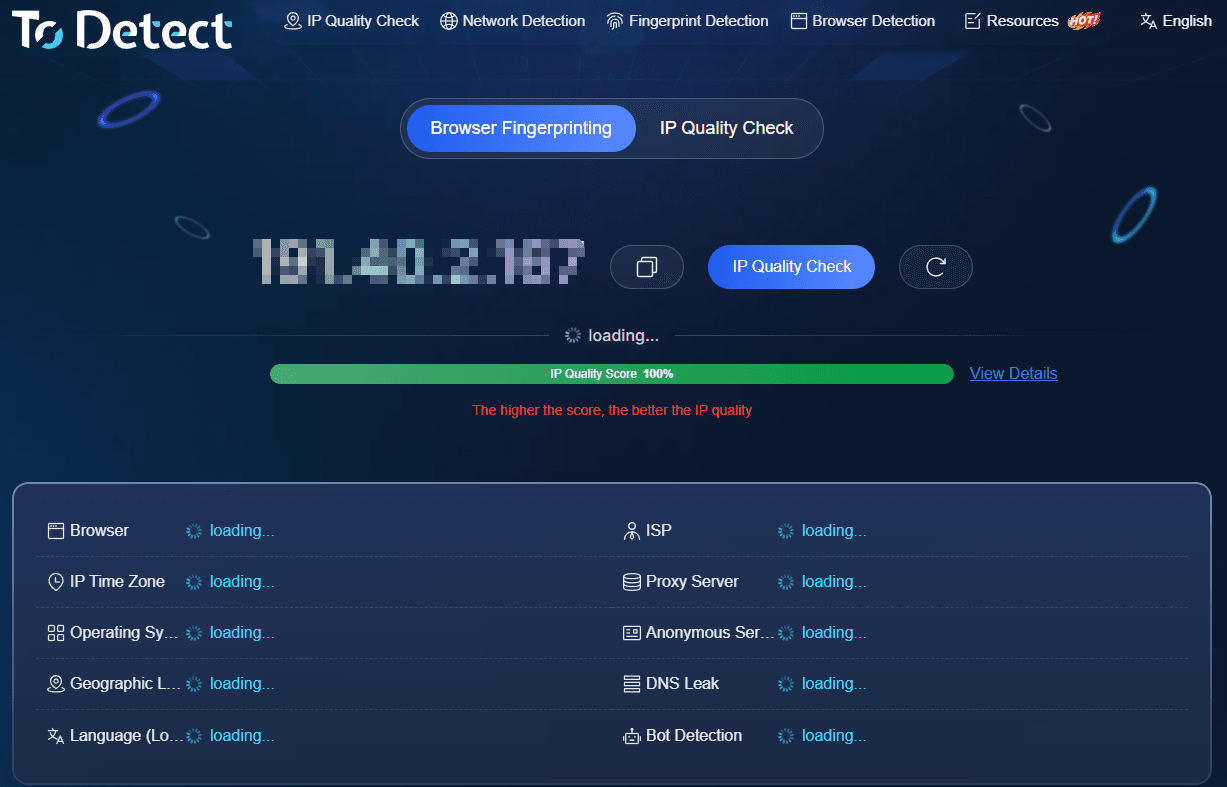
Tools like ToDetect reveal detailed browser information while correlating other environment signatures. This is far easier for regular users than parsing UA strings manually.
Keep in mind that detection methodologies vary across websites. If two testing tools yield conflicting results, cross-examine the browser version, UA, and platform environment instead of relying on a single indicator.
Method 3: Identify by Software Ecosystem
For a quick heuristic, you can estimate the engine based on the browser's parent ecosystem.
Chrome and Edge belong to the Chromium ecosystem and run on Blink. Firefox relies on Gecko, while Safari runs on WebKit.
This straightforward shortcut helps you understand general architecture, though technical detection reports remain the definitive source for active runtime environments.
4. How Does Mobile Browser Detection Differ from Desktop?
Mobile environments carry additional complexity.
On Android, browsers may use Chromium or system WebViews; on iPhone and iPad, browsers historically conform to Apple's engine requirements.
As a result, a browser with the exact same name can rely on entirely different rendering cores depending on the operating system. Another easily overlooked factor is the distinction between in-app WebViews and standalone mobile browsers.
For example, opening a link inside the Chrome app versus clicking a link inside a third-party app may trigger different WebViews or component behavior.
When auditing mobile browser environments, test both your primary mobile browser and in-app browser views to capture a complete picture and identify discrepancies.
5. Should You Check DNS and WebRTC Alongside Browser Engines?
If your only goal is identifying the rendering engine, DNS and WebRTC checks are unnecessary. However, if you are analyzing overall browser security, privacy, and network configuration, checking them together is beneficial.
| Detection Item | Key Focus |
|---|---|
| Browser Engine | Blink, Gecko, WebKit, etc. |
| User-Agent | Browser name, version, OS identifiers |
| Browser Fingerprint | Composite hardware and browser features |
| IP Address | Current public egress IP |
| DNS | DNS servers and resolution routes |
| WebRTC | Network addresses leaked via WebRTC |
| Timezone / Language | Browser and OS locale settings |
Reviewing these metrics holistically makes environment mismatches much easier to detect than analyzing parameters in isolation.
6. How to Check Your Browser Engine with ToDetect?
Instead of manually analyzing UA strings or parsing individual parameters, use ToDetect's browser detection feature. Upon entering the test page, check your core browser parameters, then cross-verify them against IP, DNS, and WebRTC leak tests.
For general users, memorizing every technical detail of Blink, Gecko, and WebKit is unnecessary. Focus on confirming your current browser type, version, and core engine, ensuring no conflicting signals exist.
If an anomaly appears, troubleshooting specific parameters directly is much faster than sifting through raw data logs.
7. How to Interpret Your Browser Engine Results?
If your detection report indicates Blink, your browser belongs to the Chromium ecosystem (e.g., Chrome, Edge).
• If it reports Gecko, it typically corresponds to Firefox.
• If it reports WebKit, it corresponds to Safari and Apple-platform browser environments.
• If test results conflict with your actual browser, check your User-Agent string, browser version, operating system, or custom browser flags/extensions.
• Crucially, engine identification alone does not guarantee that a browser environment is healthy or proxy-safe.
When troubleshooting compatibility, fingerprinting, or networking issues, evaluate the engine, UA, browser version, IP, DNS, and WebRTC independently alongside your physical device profile.
Summary
Browser engine checks are straightforward. Blink, Gecko, and WebKit represent the major rendering engines powering modern web browsing.
In practice, start with a rough estimate using browser names and UA strings, then confirm specifics with specialized detection tools. If you need deeper environment verification, expand your inspection to browser fingerprints, IP addresses, DNS routes, and WebRTC leaks.
This approach identifies your browser's underlying engine while helping you quickly pinpoint configuration mismatches whenever discrepancies arise.
Browser Fingerprint Detection Tool
Efficiently solve multi-account management, environment isolation, and account security