



 Resources
 Feature overview
 browser
 2026-09-15 10:35
When using a browser daily, most people focus on browser names like Chrome, Edge, and Firefox, while rarely paying attention to the "browser engine" behind them that is actually responsible for rendering and displaying web pages.
For instance, even if two devices show the same Chrome browser, their underlying browser engine versions may not be completely identical. Meanwhile, browsers like Edge and Opera, despite having different names, are actually based on the Chromium framework in many of their current versions.
Today, let's address several common questions surrounding the 2026 browser engine detection tools, browser engine version queries, differences between Chrome and Edge engines, and how to read User-Agent (UA) information.

1. Why should you check your browser engine version?
When many users see the term "browser engine version" for the first time, they assume it is identical to the regular browser software version. In reality, the two are not completely equivalent.
For example, seeing a specific build number for your Chrome version represents the overall Chrome browser software version. In contrast, the browser engine version focuses on the underlying rendering environment and related components such as Chromium.
Additionally, when checking a browser environment, the browser name, operating system version, User-Agent, and browser engine usually need to be examined together. Relying on a single data point can easily lead to a misjudgment of the current browser environment.
2. How to find the 2026 browser engine detection tool?
| Lookup Method | How to Do It | Viewable Content | Advantages | Target Audience |
|---|---|---|---|---|
| Direct Search Engine Query | Search terms like "browser engine detector", "browser engine test entrance", or "browser engine version check" on Google, Bing, or Baidu. | Browser name, browser engine test results, browser engine version, partial UA details. | Convenient to find, ready to use immediately without software installation. | Regular users, temporary queries. |
| Access ToDetect Checker Page | Open the ToDetect tool page and access the browser environment or UA detection feature. | Current browser type, browser engine version, User-Agent, system environment details. | Comprehensive detection results, clear information structure, suitable for overall evaluation. | Website operators, QA testers, troubleshooting users. |
| Check via Browser "About" Page | Navigate to settings and find pages like "About Chrome", "About Edge", or "About Firefox". | Browser application version, which sometimes indirectly indicates the browser engine version. | Ideal for verifying whether the browser software is up to date. | Users needing to update their browser. |
| Inspect User-Agent Information | Open an online UA detection page to view the raw User-Agent string returned by the browser. | Browser name, device type, OS version, partial engine details. | Useful for advanced troubleshooting and detailed environment assessment. | Technical users, developers, QA engineers. |
| Use Developer Tools | Open the browser Developer Tools to check console logs or environment diagnostic data. | In-depth browser environment data and compatibility diagnostics. | Great for compatibility analysis, though requires higher technical expertise. | Frontend developers, technical troubleshooting staff. |
3. How to interpret Chrome browser engine detection results?
Chrome is currently one of the most widely used browsers, making "Chrome engine detection" a topic of significant interest for many users.
Chrome is built primarily on the open-source Chromium project and utilizes the Blink rendering engine. Therefore, seeing keywords like Chromium, Chrome, or Blink in your detection results is entirely expected.
For instance, a single browser UA string might simultaneously include keywords like Mozilla, AppleWebKit, Chrome, and Safari. Without understanding UA formatting, it is easy to mistakenly assume that the browser is using multiple distinct engines at once.
This is precisely why using a dedicated detection page is far more practical than attempting to manually parse a long User-Agent string.
4. Why does Microsoft Edge show Chromium in detection results?
Many users running a test on Microsoft Edge notice fields labeled Chromium or Chrome in their results and suspect the tool misidentified their browser.
In reality, modern Microsoft Edge is built directly on top of the Chromium core, sharing substantial underlying architecture with Google Chrome.
In short, Edge represents the browser product and brand name, while Chromium is the underlying technology stack it utilizes. Evaluating a browser environment requires analyzing the browser name, version number, engine, and UA string together rather than drawing conclusions from a single keyword.
As a result, seeing both Edge and Chromium information simultaneously during an Edge engine lookup or UA test is completely normal.
5. What happens if your browser engine version is outdated?
Updating a browser engine involves much more than bumping version numbers. Running an outdated engine over an extended period can lead to several common issues:
The first issue is web compatibility failure. Newer websites frequently employ updated CSS or JavaScript features that older engines cannot properly parse, resulting in blank screens, broken layouts, or unresponsive buttons.
The second issue is degraded performance in video playback, animations, and web interactivity. Modern media formats and hardware-accelerated graphic features require an up-to-date browser environment to function properly.
The third issue is website detection errors. Some web services evaluate incoming version and UA strings to determine compatibility; an outdated version may trigger warnings prompting you to update your browser.
Therefore, if a browser engine test indicates that your current version is significantly outdated, checking your browser for available software updates should be your top priority.
6. What is the difference between browser engine detection and UA detection?
Although these two tools are often bundled together, they focus on different aspects of your environment.
Browser engine detection primarily focuses on the underlying rendering architecture and its version details. Conversely, browser UA detection parses the User-Agent string to extract information regarding the browser name, operating system, device type, and reported version tags.
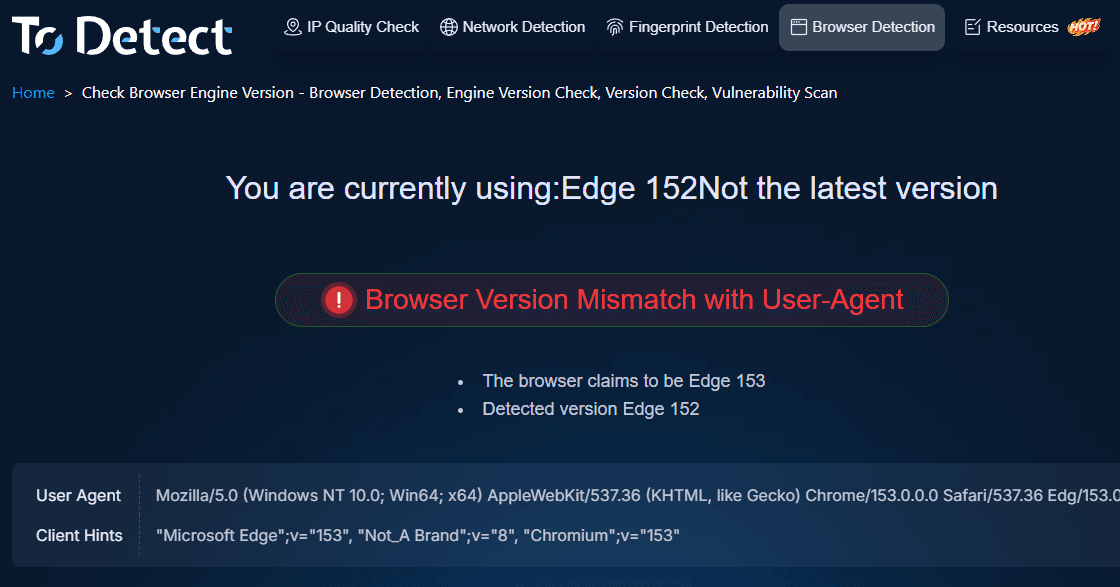
When diagnosing browser environment issues, reviewing both data sources side by side yields the best results. Comprehensive online diagnostic tools like ToDetect consolidate these metrics into a single test flow, offering a user-friendly experience that eliminates manual string parsing.
7. How to quickly check your browser engine version?
For a quick look-up, the procedure is simple and straightforward.
Simply open the ToDetect browser engine test page or an equivalent environment diagnostic tool, and allow the webpage to automatically scan your active browser parameters. Once completed, inspect the displayed browser name, software version, UA string, and engine specifications.
If the detected version appears outdated, navigate to your browser settings to perform an update. If you are troubleshooting web rendering bugs, compare the test results across different browsers to pinpoint disparities.
Compared to executing command-line instructions or digging through developer parameters manually, online engine detection provides a convenient solution for routine maintenance.
Summary
While the underlying browser engine often goes unnoticed during daily web browsing, it becomes a crucial diagnostic target whenever you encounter rendering anomalies, outdated software warnings, or environment detection failures.
Using ToDetect for browser diagnostics allows you to evaluate your browser brand, version, User-Agent, and core environment properties simultaneously. Compared to evaluating isolated metrics, this integrated approach provides a much clearer picture of your browser's true operating environment.
For general users, running periodic engine checks helps ensure software remains updated; for web developers, QA testers, and site administrators, identifying precise browser engine versions significantly reduces troubleshooting time.
Browser Fingerprint Detection Tool
Efficiently solve multi-account management, environment isolation, and account security