



 Resources
 Feature overview
 Ganesh
 2026-09-14 15:55
If you use a proxy, you may have wondered: why do testing websites still show my original network information when I’m already connected? When this happens, there are two things to check:
• DNS leaks: Where are your domain lookups being sent?
• WebRTC leaks: Which IP addresses is your browser exposing?
These require separate tests and different fixes. In this guide, the ToDetect team explains what to look for and how to check your connection.
一. What’s the Difference Between DNS Leaks and WebRTC Leaks?
| Category | DNS Leaks | WebRTC Leaks |
|---|---|---|
| Related function | Resolving website domain names to IP addresses | Real-time audio, video, and data communication in the browser |
| Main issue | Domain lookups are sent to an unintended DNS service | IP addresses you intended to hide are exposed |
| What to check | Which service handles your DNS queries | Whether your local network’s public IP address appears |
| Where to troubleshoot | System DNS, browser Secure DNS, and proxy or settings | Browser WebRTC policies and network routing |
DNS Leaks: Your Web Traffic Uses the Proxy, but Your Lookups May Not
Before opening a website, your device usually needs to look up the IP address associated with its domain name. DNS handles this step.
If you expect all requests to go through your proxy, but domain lookups still go to your local internet service provider’s DNS servers, you may have a DNS leak.
This does not mean that the provider can automatically see HTTPS page content, passwords, or your complete browsing history. Exposed DNS queries reveal different information from exposed web content. Learn more in DNSLeakTest’s explanation of DNS leaks.
WebRTC Leaks: Your Browser May Expose an IP from Another Connection
WebRTC supports browser-based voice calls, video calls, and real-time data transfer. When establishing a connection, it may use mechanisms such as STUN to discover available public IP addresses.
If those connections bypass your intended proxy, a webpage may be able to obtain your local network’s public IP address—even when ordinary web traffic shows the proxy’s exit IP. See MDN’s guide to WebRTC protocols.
二. How to Test for DNS Leaks
You may have heard of DNS leaks without knowing how to check for them. Experienced users can verify their setup using various technical methods, but you don’t need networking expertise to get started. Online DNS leak testing tools make the process easier.
Several websites offer DNS leak tests, including ToDetect.
ToDetect is a browser fingerprint testing tool that offers IP reputation checks, IP risk analysis, DNS leak tests, and WebRTC leak detection to help you assess your network and browser information.
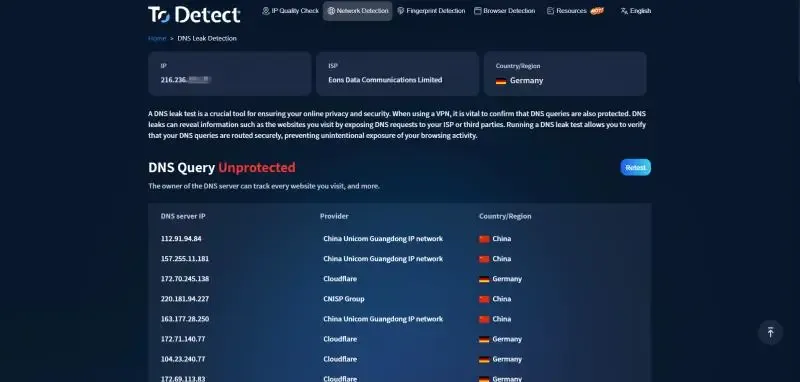
• Visit the ToDetect website and find the DNS leak testing tool.
• Open the tool to run an automatic DNS leak test.
三. How to Test for WebRTC Leaks
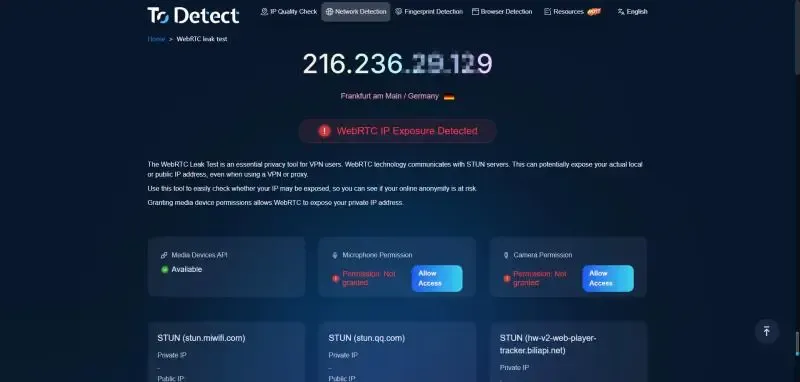
Open the ToDetect WebRTC leak test. Check the IP address used by your regular web connection, along with any local and public addresses detected through WebRTC.
Compare the results with the public IP address you recorded before connecting to your proxy:
| Test Result | What It Means |
|---|---|
| Your original public IP address appears | This is a clear sign of a leak that needs investigation |
| Only the expected or proxy exit IP appears | This test did not reveal your local network’s public IP address |
A local address such as 192.168.x.x appears | Local network information is exposed, but this is not the same as exposing your public IP |
A .local name appears | This usually relates to the browser’s local address masking mechanism and does not, by itself, indicate a leak |
| No address is detected | Protection may be working, or the feature or test may have been blocked |
四. What to Do If You Find a Leak
DNS Leaks: Check Your DNS Settings and Request Routing
Work through these checks in order:
• settings: Confirm that DNS leak protection is enabled and that split tunneling rules match your intended setup.
• Proxy settings: Check whether your application supports resolving domain names through the proxy instead of locally.
• Browser Secure DNS: Check whether the browser is configured to use a separate DNS provider.
• Retest after making changes: Reconnect and confirm that your DNS queries are handled by the expected service.
Switching to a public DNS service does not automatically fix a leak. Likewise, enabling encrypted DNS does not guarantee that queries go through your proxy.
WebRTC Leaks: Check Browser Policies and Which Connections Your Proxy Covers
First, confirm whether your proxy handles the connections used by WebRTC. A setup that proxies web traffic alone may not cover all browser communication.
If you don’t need browser-based calls, consider restricting or disabling WebRTC. In Firefox, for example, you can open about:config and set media.peerconnection.enabled to false. This affects calls and other features that rely on WebRTC. Set it back to true when you need those features.
五. Do You Still Need to Test with a Static Residential IP?
Yes. A static residential IP describes the type of exit IP you use. It does not guarantee that system DNS queries, browser WebRTC connections, and other applications all use that same exit.
After setting up your connection, run these three checks:
• Check your exit IP: Confirm that web traffic goes through the intended proxy.
• Check DNS: Confirm that domain lookups follow your intended configuration.
• Check WebRTC: Confirm that it does not expose public IP addresses you want to keep hidden.
It’s also worth retesting after changing browsers, updating proxy settings, or switching networks.
六. FAQ
If There’s No DNS Leak, Does That Mean WebRTC Is Safe?
Not necessarily. A DNS test checks which service handles domain lookups, while a WebRTC test checks which IP addresses your browser exposes. They assess different things, so you should run both tests.
Does an IP Address in a WebRTC Test Always Mean There’s a Problem?
It depends on the address. If the test shows your expected proxy or exit IP, that generally does not indicate a leak of your local network’s public IP.
If your original public IP—the one recorded before connecting—appears, investigate further. Local addresses such as 192.168.x.x reveal a different type of information and should not be confused with public IP exposure.
Can Incognito Mode Prevent These Leaks?
Not on its own. Incognito mode mainly limits browsing history and other data left on your device after a session. It does not automatically route DNS or WebRTC traffic through a proxy.
七. Conclusion
DNS leaks concern whether domain lookups follow the intended path, while WebRTC leaks concern whether your browser exposes IP addresses you meant to hide. If you’re unsure how to check either one, you can run the tests online with ToDetect.
Browser Fingerprint Detection Tool
Efficiently solve multi-account management, environment isolation, and account security