



 Resources
 Feature overview
 browser
 2026-09-23 10:35
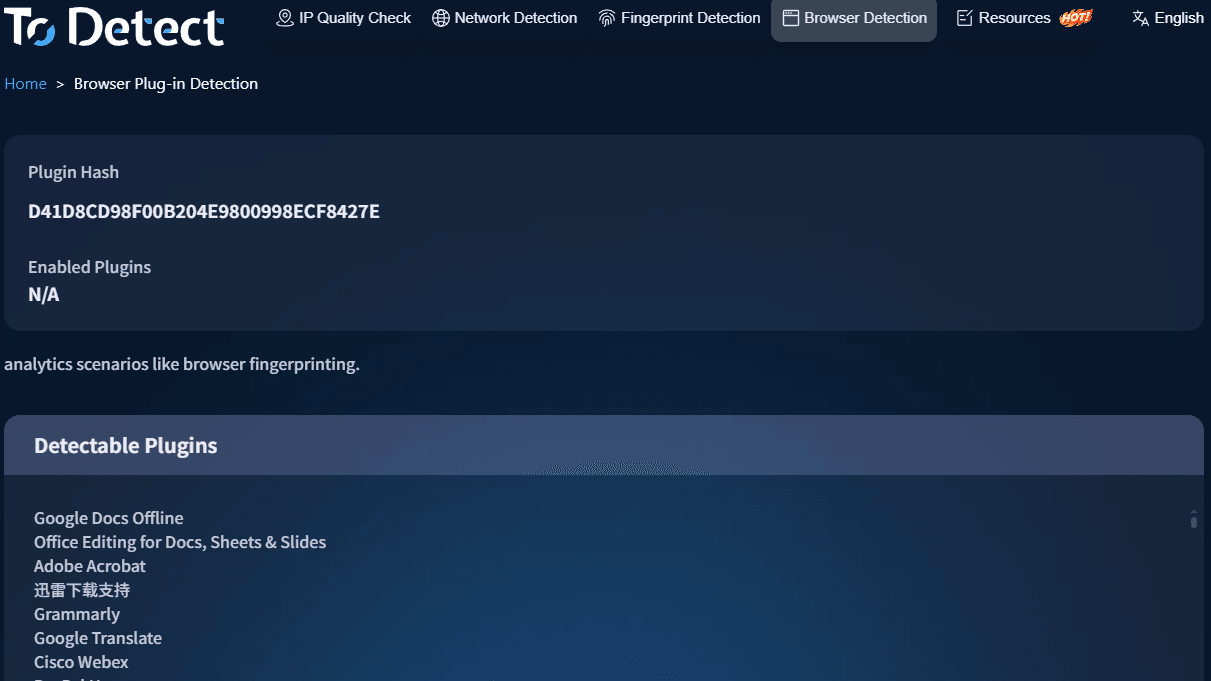
When using a browser, many people install extensions such as ad blockers, translation tools, password managers, web page screenshot utilities, and developer tools. However, when opening a browser detection page, they sometimes encounter messages like "Plugin Anomaly," "Abnormal Extension Count," or "Plugin Information Unavailable."
There is no need to worry immediately upon seeing these prompts. An abnormal detection result does not necessarily mean there is a security risk with the plugins, nor does it indicate that your browser is corrupted.
Browsers place certain restrictions on reading extension information. At the same time, factors such as the number of plugins, permissions, versions, and running status can all affect detection results. Below is a step-by-step troubleshooting guide arranged in a straightforward order for beginners.

1. Why Does Browser Plugin Detection Show Anomalies?
Common reasons mainly include the following:
| Possible Cause | Common Symptoms |
|---|---|
| Large number of extensions | Detected count differs from the actual installed count |
| Extension disabled | Installed, but undetected or failing to run normally |
| Restricted permissions | Some extension details cannot be read properly |
| Outdated browser version | Certain extension features malfunction |
| Incompatible plugin version | Features fail to work properly after installation |
| Conflicts between extensions | Page display or specific features experience issues |
It is worth noting that the extension details retrieved by web detection tools do not necessarily match all the information displayed on the browser's extension management page. Therefore, "failing to detect an extension" alone should not be used as the sole basis for judging a plugin fault.
2. First, Check Which Extensions Are Actually Installed in Your Browser
If the detection page alerts you to an abnormal plugin count, it is recommended to start by checking your browser's own extension management page.
Chrome Browser
Type chrome://extensions/ in the address bar to view currently installed extensions and check whether each extension is enabled.
Edge Browser
Type edge://extensions/ in the address bar; the inspection method is essentially the same.
Focus on: whether there are extensions you no longer use; whether any extensions are currently turned off; and whether there are unfamiliar extensions you do not remember installing.
If you have dozens of extensions installed but only use a few, clean up unused items first. Once the extension count is reduced, reopen the detection page to compare results.
3. Check Plugin Permissions and Site Access Scope
Extension permissions are another frequently overlooked aspect. Required permissions vary across different extensions. For example, a screenshot tool might need to read the current page, whereas a feature-complex extension might require access to broader site content.
After opening an extension's details page, pay special attention to "Permissions" or "Site Access."
If a simple extension requests extensive access scope, double-check whether it truly requires those permissions. For infrequently used extensions, you can also adjust site access ranges based on your actual needs.
Note that having extensive permissions does not automatically mean a plugin is unsafe; the key lies in whether the plugin's features, developer, and source are trustworthy.
4. Is the Browser Plugin Version Outdated?
Both browsers and extensions need regular updates. Browsers like Chrome and Edge continuously refine extension APIs and permission policies.
If your browser version is outdated while an extension adopts new technical specifications, loading failures, abnormal functionality, or inconsistent detection results may occur.
Conversely, older extensions that haven't been maintained for a long time might fail to run properly on newer browser versions.
Therefore, if plugin detection anomalies suddenly appear, check in this order: Browser Version → Extension Version → Restart Browser → Re-detect. If normal status is restored after updating, it usually indicates a prior version compatibility issue.
5. Suspect a Plugin Conflict? Troubleshoot Step-by-Step
Multiple extensions might simultaneously modify webpage content, network requests, or other browser functions, occasionally causing interference with one another.
If detection results change right after installing a new extension, prioritize checking recently installed items.
A straightforward approach is: disable recently installed extensions → re-run detection → if normal, re-enable them one by one. Although basic, this method is highly practical for pinpointing extension conflicts.
6. Pay Special Attention to Unfamiliar Extensions
If an extension you have no memory of installing appears in your browser, carefully verify its source. Open the extension details page and review:
• Extension name and function;
• Developer information;
• Permission scope;
• Last update date;
• Whether you actively installed it yourself.
If you cannot confirm its purpose and have no need for it, disable it first and investigate its origin further.
When installing extensions, try to choose official channels and briefly inspect developer details, user reviews, and permission descriptions beforehand.
7. Use ToDetect to Assist in Checking Your Browser Environment
If you still cannot determine the issue through the extension management page, use online browser detection tools to inspect environment details.
For instance, when using ToDetect, evaluate items like plugin count, browser version, and JavaScript status comprehensively rather than reaching conclusions based on a single "anomaly" prompt.
Keep in mind that information retrieved by online detection pages is limited by browser security mechanisms. Hence, detection results serve best as troubleshooting clues; ultimate verification should always rely on your browser's native extension management page.
8. Beginners Troubleshooting Plugin Anomalies Can Follow This Sequence
When encountering a "browser plugin detection anomaly" for the first time, proceed in the following order:
① Review extension list → ② Check enabled status → ③ Clean up long-unused extensions → ④ Inspect permissions → ⑤ Update browser and extensions → ⑥ Troubleshoot extension conflicts → ⑦ Check unfamiliar extensions
→ ⑧ Use online detection tools for secondary confirmation.
If only the detection page displays an inconsistent count while your browser and extensions function normally, reinstalling the browser over a single prompt is generally unnecessary.
Summary
An abnormal browser plugin detection result does not necessarily indicate a severe problem with your browser or extensions. Factors like extension count, enabled status, permission settings, version compatibility, and conflicts between extensions can all lead to discrepancies between detection results and the actual setup.
For average users, rather than pursuing "100% matching" detection results, it is far more important to keep only the extensions you truly need, regularly review permissions and versions, and promptly clean up unrecognized or unused items.
If you are still unable to pinpoint the cause, perform a basic check via the browser's extension management page first, then use tools like ToDetect to assist in inspecting the browser environment. This approach usually makes locating the problem much easier.
Browser Fingerprint Detection Tool
Efficiently solve multi-account management, environment isolation, and account security